New Apple TV: Tips, Tricks, Siri Remote Shortcuts and Useful Settings - MacRumorsOpen MenuShow RoundupsShow Forums menuVisit ForumsOpen Sidebar
Skip to Content

New Apple TV: Tips, Tricks, Siri Remote Shortcuts and Useful Settings

The new Apple TV launched on Friday in several countries around the world, giving early adopters a chance to try out the fourth-generation device for a few days now. The consensus opinion is that the new Apple TV is a worthwhile upgrade, particularly because of new features such as the App Store, Siri, and tvOS user interface, with lots of potential to get even better in the months and years ahead.
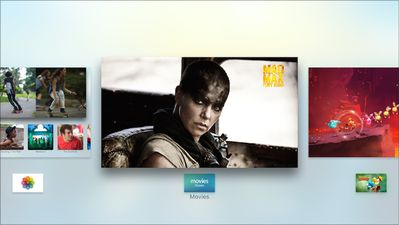
Apple-TV-App-Switcher

Press the Home button twice to bring up the new Apple TV's app switcher

To complement our coverage of the new Apple TV, which includes a trio of hands-on videos, an Apple TV apps roundup, several tidbits, and a reviews roundup, we have created the following list of tips, tricks, and shortcuts for the new streaming device, some of which are outlined in the Apple TV user guide. The tips are centered upon useful Siri Remote shortcuts and Apple TV settings.

Siri Remote shortcuts
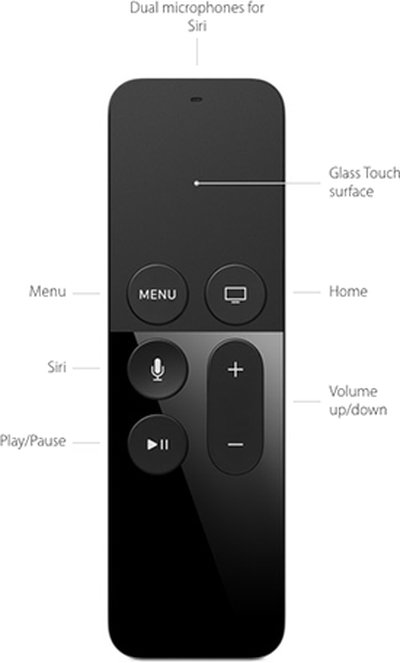
Siri-Remote-LabeledTouch Surface
- To rearrange an app, hover over it and hold down the touch surface until the icon starts to jiggle. Then, swipe left, right, up or down to move the app, and press the touch surface once to finish.
- The touch surface has accelerated swiping, meaning that a faster swipe results in faster on-screen scrolling.
- Hover over any letter on the keyboard and hold down the touch surface to bring up a contextual menu, which includes uppercase letters, accents and a backspace key.
- Hover over a song and hold down the touch surface to bring up a contextual menu, which includes various Apple Music options.

Menu Button
- Press the Menu button once to go back.
- Press the Menu button twice quickly from the Home screen to start the screensaver.
- Press and hold the Menu and Home buttons simultaneously to restart the Apple TV.

Home Button
- Press the Home button once to return to the Home screen from anywhere.
- Press the Home button twice quickly to bring up the App Switcher, which displays all apps open. Swipe up on the Siri Remote's touch surface to force close an app.
- Press the Home button three times quickly to access VoiceOver.
- Hold down the Home button to place the Apple TV in Sleep mode.

Siri Button
- Hold down the Siri button to use Siri.
- Press the Siri button once and wait to view a list of commands you can ask Siri.

Play/Pause Button
- Press the Play/Pause button once to change the keyboard between uppercase and lowercase.
- Press the Play/Pause button once to delete an app in wiggle mode, which requires hovering over an app and holding down the touch surface until the icon starts to jiggle.
- Hold down the Play/Pause button for 5-7 seconds to return to the Apple Music app.
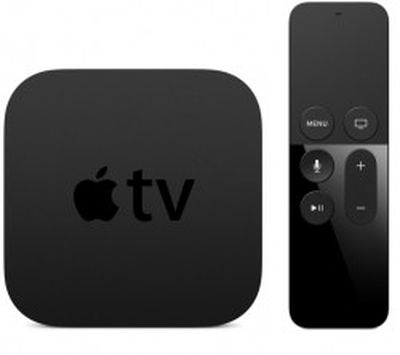
apple-tv-4th-gen

Apple TV settings

General
- Apple TV can be renamed in Settings under AirPlay > Apple TV Name.
- Apple TV network strength is displayed in Settings under General > About.
- Universal remotes can learn the new Apple TV in Settings under Remotes and Devices > Learn Remote. Follow the on-screen instructions.

Siri Remote
- The sensitivity of the Siri Remote's touch surface can be adjusted in the Settings app under Remotes and Devices > Touch Surface Tracking.
- The triple-press Home button accessibility shortcut can be changed in the Settings app under General > Accessibility > Accessibility Shortcut.
- The Siri Remote's battery level is listed in Settings > Remotes and Devices > Bluetooth.
- The Siri Remote can power on/off or adjust the volume of your TV and speakers over HDMI-CEC or IR. In some cases, this pairing process is automatic after setup, or manually configurable in Settings > Remotes and Devices > Home Theater Control under the "Turn On Your TV with Your Remote" and "Volume Control" menus.

Related Roundup: Apple TV
Buyer's Guide: Apple TV (Don't Buy)

Popular Stories

General visionOS watchOS and tvOS Betas Feature Redux

Apple Releases Second watchOS 26.6, tvOS 26.6 and visionOS 26.6 Betas

Monday June 15, 2026 10:06 am PDT by
Apple today provided developers with the second betas of upcoming watchOS 26.6, tvOS 26.6, and visionOS 26.6 betas for testing purposes. The software comes three weeks after Apple seeded the first betas. The software updates are available through the Settings app on each device, and because these are developer betas, a free developer account is required. There's no word on what's in the...
f 5d631a2d7714517b0b0137e38aadf744d175cb3e

Apple Releases First iOS 27, iPadOS 27, and macOS 27 Betas to Developers

Monday June 8, 2026 11:40 am PDT by
Following the WWDC 2026 keynote event, Apple has seeded the first betas of iOS 27, iPadOS 27, macOS 27, watchOS 27, tvOS 27, and visionOS 27 to developers for testing purposes. Registered developers can opt in to betas and download the software through the Settings app on each device. The software includes many of the new features that were shown off earlier today, though some of what...
Apple TV 2025 Thumb 2 Sans Text

Apple Announces tvOS 27 With These New Features

Monday June 8, 2026 2:00 pm PDT by
Apple barely touched on tvOS 27 during its WWDC 2026 keynote today, but the update exists, and it adds some new features to the Apple TV. In a slide that was shown very briefly during the keynote, Apple revealed some of tvOS 27's new features and enhancements: A redesigned Podcasts app Smoother app launches and animations Faster AirPlay connectivity with other Apple devices Smart ...

Top Rated Comments

139 months ago
I suppose it's just better to BUY one and learn to use it for yourself, instead of reading a list of bullet points ;)
As I read this article, I asked myself how anyone could possibly complain about an article that nicely summarizes the buttons and the various ways to use them, most of which aren't intuitive, and is very helpful to me, and I have the atv 4.

Then I remembered some of the people who post here, and my fantasy evaporated. And sure enough, the first poster found a way to complain about the article. Part of me wants really express myself which will get me kicked off this board. So I'll just stop here. Very sad, but completely expected.
Score: 24 Votes (Like | Disagree)
haruhiko Avatar
139 months ago
Please make a tutorial of:

"How to type faster using the Siri remote with a horizontal line of alphabets"


:(
Score: 16 Votes (Like | Disagree)
adampk17 Avatar
139 months ago
Over all I'd say I'm underwhelmed. The lack of Siri search for local or Apple music and the fact that the Remote app hasn't been updated to work with the ATV 4 at launch are baffling.
Score: 10 Votes (Like | Disagree)
scarecrowmac Avatar
139 months ago
This is great! Learnt some really cool time saving features from this article!! Makes me love my new Apple TV that little bit more :) All it needs now is the Plex app and I’m all set
Score: 9 Votes (Like | Disagree)
Fortimir Avatar
139 months ago
I picked mine up on Friday at launch, and I really like it. It certainly has a more complex layout that the earlier versions.

My main gripe is that I can constantly picking up the remote upside down. It's too symmetrical and the flat/gloss differentiation doesn't really tell the functionality apart.
Score: 8 Votes (Like | Disagree)
dearfriendx Avatar
139 months ago
Thank you author, for putting this together. Really helps! I love my new Apple TV
Score: 8 Votes (Like | Disagree)