iPadOS 26.2 Beta 3 Adds New Drag and Drop Multitasking Functionality
In the initial version of iOS 26, Apple removed Slide Over and Split View multitasking in favor of a new window-based multitasking system. A replacement for Split View was available in an added tiled mode, but Slide Over was entirely gone.
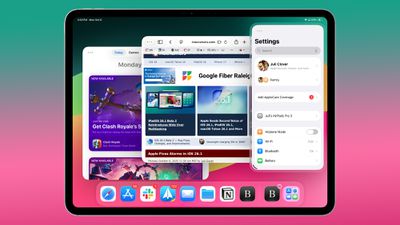
iPad users missed Slide Over, so Apple brought basic Slide Over functionality back in iPadOS 26.1. In the latest beta of iOS 26.2, Apple is further tweaking Slide Over to make it work more like it did in iPadOS 18.
As long as you have at least one app open on the Home Screen, you can drag and drop other apps into various multitasking views, including Slide Over. You can drag an app from the Dock, Spotlight search, or the App Library to the far left or far right of the display to enter Slide Over mode, or to the left or right sides to enter a tiled view that's similar to Split View. You can also drag an app to the middle to open up a bigger or smaller window. There are visual indications that let you know when an app is in a left, right, or Slide Over position.
If you already have an app open in Slide Over or two apps in a tiled view, you can drag an app over the top of one of the existing apps to put the new app in its position. Unlike iPadOS 18, the prior app stays open so you can go back to it if you close the new app.
iPadOS 26 users who missed how multitasking worked in iPadOS 18 will now have options to use the iPad in much the same way. iPadOS 26.2 is expected to launch to the public this December.
Popular Stories
Bloomberg's Mark Gurman has high expectations for Apple's first foldable iPhone.
In his Power On newsletter today, he said the foldable iPhone will be "the most significant overhaul in the iPhone's history."
"iPhone 4, iPhone 6 and iPhone X were clearly a big deal, but this is a whole new design," he said.
Like Samsung's Galaxy Z Fold 7, the foldable iPhone will reportedly open up like ...
iOS 26.5 is now available for developers, and while it doesn't include any new Siri capabilities, there are some major changes for the European Union, and smaller tweaks for features available worldwide.
Suggested Places
In the Maps app, there's a new "Suggested Places" feature that recommends locations to visit based on trending places nearby and recent searches. When Apple launches ads in ...
Apple has been celebrating its upcoming 50th anniversary by hosting surprise performances and other events around the world over the past few weeks, and now Bloomberg's Mark Gurman has revealed details about the company's grand finale.
In a social media post, Gurman said Apple's celebrations will conclude this week with a finale at its Apple Park headquarters for employees.
A special...
Popular Stories
Bloomberg's Mark Gurman has high expectations for Apple's first foldable iPhone.
In his Power On newsletter today, he said the foldable iPhone will be "the most significant overhaul in the iPhone's history."
"iPhone 4, iPhone 6 and iPhone X were clearly a big deal, but this is a whole new design," he said.
Like Samsung's Galaxy Z Fold 7, the foldable iPhone will reportedly open up like ...
iOS 26.5 is now available for developers, and while it doesn't include any new Siri capabilities, there are some major changes for the European Union, and smaller tweaks for features available worldwide.
Suggested Places
In the Maps app, there's a new "Suggested Places" feature that recommends locations to visit based on trending places nearby and recent searches. When Apple launches ads in ...
Apple has been celebrating its upcoming 50th anniversary by hosting surprise performances and other events around the world over the past few weeks, and now Bloomberg's Mark Gurman has revealed details about the company's grand finale.
In a social media post, Gurman said Apple's celebrations will conclude this week with a finale at its Apple Park headquarters for employees.
A special...