How to Add a Second Home to Apple HomeKit - MacRumorsOpen MenuShow RoundupsShow Forums menuVisit ForumsOpen Sidebar
Skip to Content

How to Add a Second Home to Apple HomeKit

by

If you have a second home outfitted with HomeKit devices, you can easily add it to Apple's Home app and keep all of the device settings you own in that location completely separate from your primary home.
HomeKit Twitter
Once you've set up a second home in the Home app, you can set up rooms and zones in it and control any device remotely, just like you can in your main home. To add a second home to ‌HomeKit‌, just follow these steps.

How to Add a Second Home to HomeKit

  1. Launch the Home app on your iPhone or iPad.
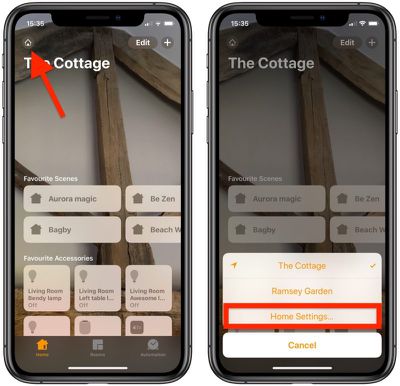
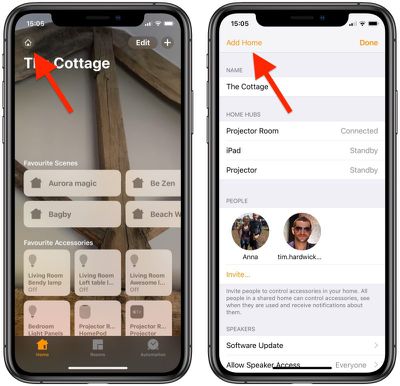
  2. Tap the Home icon or location arrow in the top left of the screen.
  3. Tap Add Home in the top left of the screen.
    how to add a second home apple homekit

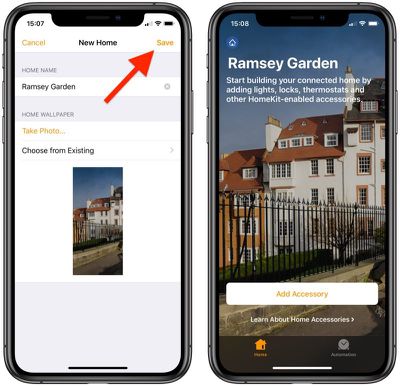
  4. Give your second home a name.
  5. To add a recognizable backdrop to your second home's main screen, either tap Take Photo... or Choose from Existing.
    how to add a second home apple homekit 1

  6. Tap Save.
  7. Tap Invite... to give other people smart device access to your second connected home.
  8. You can optionally add notes for people who are sharing your home under Home Notes.
Now that your second home is set up, tap Add Accessory to start adding smart devices to it. You can switch between homes within the Home app anytime by tapping the Home icon in the top left of the screen.

You can also have the Home app automatically switch between homes based on your location. To do so, tap the Home icon, select Home Settings... and toggle on the switch next to Home Switching, then press Done.

How to Remove a Second Home From HomeKit

  1. Launch the Home App on your iPhone or ‌iPad‌.
  2. Tap the Home icon or location arrow in the top left of the screen.
    how to remove a second home apple homekit 2

  3. Tap Home Settings....
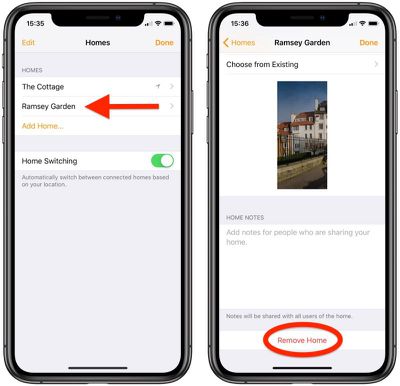
  4. Tap the name of the home that you want to remove.
    how to remove a second home apple homekit 3

  5. Scroll down to the bottom and select Remove Home.
  6. Tap Remove to confirm.

Removing a home from ‌HomeKit‌ will delete all of your accessories and settings, so make sure that's what you want to do before hitting that delete button.


Popular Stories

iphone 18 pro blue%402x

iPhone 18 Pro: Dark Cherry, Light Blue, and Dark Gray Chassis Leaked [Update]

Thursday June 4, 2026 5:18 am PDT by
Update: Since publication, new information has come to light suggesting the images have been AI-manipulated and are not in fact iPhone 18 Pro chassis parts. The original article follows. The color options Apple is reportedly planning for the upcoming iPhone 18 Pro and ‌iPhone 18 Pro‌ Max have appeared online today in the form of images of chassis parts of unknown authenticity....
Aston Martin CarPlay Ultra Screen

Apple Says CarPlay Ultra is Coming to These Vehicle Brands

Thursday May 21, 2026 11:53 am PDT by
Last year, Apple launched CarPlay Ultra, the long-awaited next-generation version of its CarPlay software system for vehicles. Nearly a year later, CarPlay Ultra is still limited to Aston Martin's latest luxury vehicles, but that should change fairly soon. In May 2025, Apple said many other vehicle brands planned to offer CarPlay Ultra, including Hyundai, Kia, and Genesis. CarPlay Ultra...
iOS 27 All the New App Features

iOS 27: All the Rumored App Features

Wednesday June 3, 2026 3:48 pm PDT by
Siri is getting a major overhaul in iOS 27, but Apple also has some big updates planned for apps like Camera, Photos, and Wallet. There are multiple new AI features in the works, plus some non-AI upgrades. Camera Apple is moving Visual Intelligence from the Camera Control button to the Camera app in iOS 27, according to Bloomberg. There will be a Siri mode that will be available alongside...