In iOS 13, Apple has enhanced the built-in photo and video capture capabilities available to iPhone and iPad users, and for the first time it has made many of its stock photo editing tools available for editing video.
This article introduces you to the new video editing interface in Photos, and in particular the crop, rotate, and straighten tools, which you can get to whenever you tap the Edit button on one of your videos.
How to Access the Video Composition Tools
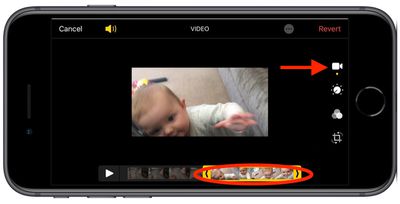
The screenshot above shows you the editing tools that appear in both portrait and landscape orientations. Note that the timeline tool – used for trimming or scrubbing through the clip – is currently selected, indicated by the dot below the film camera icon at the top of the vertical row of tools. Below it you also have color, filter, and crop tools available to use on your videos.
How to Crop Your Video
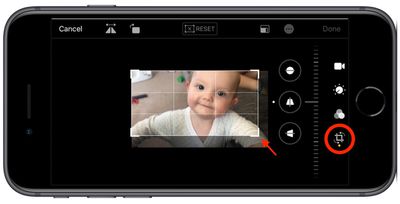
Tap the crop icon and you'll reveal the tool subset we're interested in here. First up, you can easily crop the video using the grid overlay that appears by dragging at its corners, just like you would for photos.
How to Adjust Video Alignment
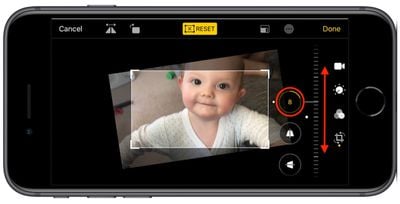
Notice that you also now have a row of three additional adjustment tools associated with the rotary dial on the right. From top to bottom, these allow you to straighten the video, adjust its vertical alignment, and adjust its horizontal alignment. Tap one of the tools and slide the dial up or down with your finger to adjust to the desired level, indicated by the number in the selected icon.
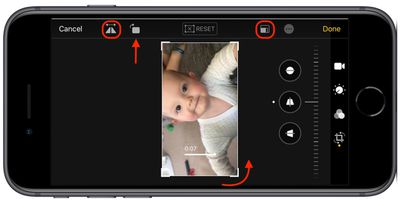
How to Flip or Rotate Your Video
Running along the top of the video editing interface you'll notice more tools to flip and rotate the video on the left, and apply preset crop ratios on the right. You can tap the Reset button between these tools to undo your adjustments, or press Done in the top-right corner of the screen if you're happy with your edits.
It's worth remembering that these adjustment tools are also available to you whenever you capture video using the built-in Camera app – you don't even have to unlock your device to use them on the video you just shot.