

How to Customize Your iPhone's Lock Screen - MacRumorsOpen MenuShow RoundupsShow Forums menuVisit ForumsOpen Sidebar
Skip to Content

How to Customize Your iPhone's Lock Screen

by

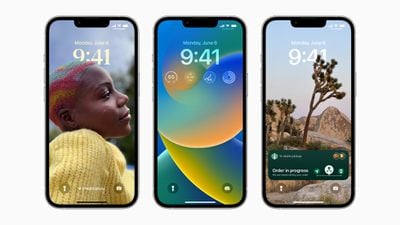
With iOS 16, Apple introduced a complete overhaul of the iOS Lock Screen, making it more customizable than ever and able to display information-rich widgets. This article shows you how to personalize your iPhone's Lock Screen in iOS 16.
image
In iOS 16, you can customize the Lock Screen with unique fonts, colors, and, for the first time, widgets. To get started, all you need to do is unlock your iPhone with Face ID or Touch ID, and then long press on the Lock Screen to enter the Lock Screen gallery.

The Lock Screen Gallery

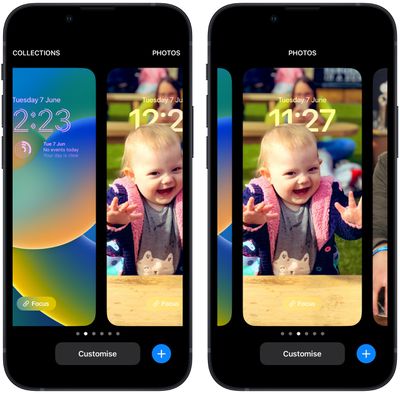
If you have an Apple Watch, the interface you see will be familiar, since it's very similar to the way watch face customization works. Lock Screens are categorized here into Collections (stock Apple Lock Screens), Photos, and Colors. You can swipe left and right to choose a different existing Lock Screen, and then long press one to set it.
Lock Screen
Alternatively, you can tap Customize to personalize the currently selected Lock Screen, or tap the blue + button to create a completely new one. Here we'll focus on customizing an existing Lock Screen.

Customizing Your Lock Screen

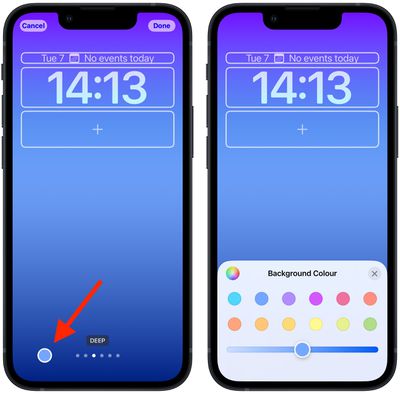
Tapping Customize brings up an interactive view of your Lock Screen with several options at your disposal depending on the type of Lock Screen. If you're customizing a "Color" Lock Screen, you can tap the colored circle on the left to change the color and hue, and you can swipe left and right to apply different styles to the image.
Lock Screen
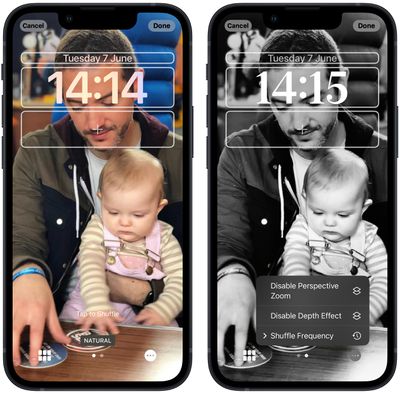
If you're customizing a "Photo" Lock Screen, the bottom options let you choose another picture (or a selection of pictures if its a Shuffle wallpaper) from your photo library, set a filter, and enable or disable the Perspective Zoom/Depth Effect.
lock screen photo
Note that the filters available to you by swiping left and right are intelligently generated automatically for the chosen image, so you'll see different options here depending on whether, say, it's a depth photo or a Color wallpaper. (If it's a photo, bear in mind that choosing different filters may also apply different typeface styles to the time and date.) If you're customizing a Lock Screen from Apple's "Collections," the options at the bottom of the screen are more limited.

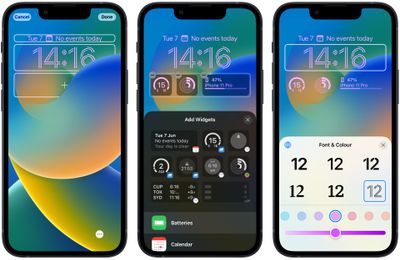
Up top, you'll see frames surrounding the time and date, as well as an area of space below the time. The center frame indicates that you can tap to edit the style of the time, while the frames above and below it can be tapped to add optional widgets.
Lock Screen
The widgets that you can add above the time include another time zone, a set alarm, the next calendar event, a weather condition, your activity rings, the next reminder, and a chosen stock. Widgets that can be placed below the time are more info-rich and include device battery levels, Calendar, Clock, Fitness, Home, News, Reminders, Stocks, and Weather.

When you've finished customizing your Lock Screen, simply tap Done, and then tap the screen again to exit the Lock Screen gallery. Note that you can also customize the current Lock Screen by going into Settings -> Wallpaper & Lock Screens.


Related Forum: iOS 16

Top Rated Comments

53 months ago
Am I the only one disappointed that widgets are limited to just one row?
Score: 19 Votes (Like | Disagree)
TheYayAreaLiving 🎗️ Avatar
53 months ago
It looks very complicated and too much yet it is very simple. It's crazy.

Hopefully Apple will let us customize the lock screen bottom buttons as well. Sometimes, I find myself turning on the flash light by accident. So, I definitely don't want that.
Score: 17 Votes (Like | Disagree)
adammusic Avatar
53 months ago
The worst time font selection in the history of fonts
Score: 11 Votes (Like | Disagree)
jav6454 Avatar
53 months ago

if Apple utilized the dead space on the home screen properly , we could get like 5 rows of widgets with up to like 6 small widgets slots in each row.
apple is the king of dead space.
The new Home app is filled with it.
Huge buttons that could be small.
Blank spaces everywhere.

They design for 80 year olds who can’t see their phone
Or rather it's a design meant so that people can enjoy the background picture selected.
Score: 10 Votes (Like | Disagree)
TheYayAreaLiving 🎗️ Avatar
53 months ago

The worst time font selection in the history of fonts
Well, there are plenty of options available and you can customize it the way you want to. I'm sure Apple will be offering more font selection in future beta releases. This is just beta 1. Long way to go!
Score: 10 Votes (Like | Disagree)
53 months ago

If you have an Apple Watch, the interface you see will be familiar, since it's very similar to the way watch face customization works.
Yeah getting major watch face vibes from the gallery and ability to add widgets.
Score: 5 Votes (Like | Disagree)

Popular Stories

iCloud iPhone 17 Pro

iPhone Users Who Pay for iCloud Storage Get Two New Perks on iOS 27

Thursday July 2, 2026 6:10 am PDT by
If you pay for certain iCloud+ storage plans beyond the 5GB that Apple offers for free, you will receive two more perks on iOS 27 at no additional cost. A summary of the two new iCloud+ perks on iOS 27:Increased daily usage limits for some new Apple Intelligence features, including image generation in the revamped Image Playground app. HomeKit Secure Video cameras receive generated video...
iPhone 4 on Black Feature

Apple Facing One of Its Worst Leaks Since the iPhone 4

Thursday July 2, 2026 9:53 am PDT by
Apple supplier Tata Electronics recently suffered a cyberattack that resulted in thousands of confidential files being published on the dark web, and this reportedly included some photos and documents related to the upcoming iPhone 18 Pro. We have elected not to share any of the leaked photos in this story due to the illegal nature in which they were obtained, but they can easily be found...
American Express Gold Apple Pay Feature

American Express Announces New Apple Pay Feature

Tuesday June 30, 2026 10:27 am PDT by
American Express today announced that you can now redeem Membership Rewards points when checking out with Apple Pay on the web and in apps on the iPhone and iPad. When checking out with Apple Pay on iOS 18 or iPadOS 18 or later, tap on your eligible American Express card (Platinum, Gold, Green, and others) and select the Membership Rewards points option. You can use points to cover all or...















