In iOS 17, Apple has added a new dimension to the Lock Screen by including a new horizontal StandBy mode that turns your iPhone into an information hub when it's not in use. This article explains how to prevent the mode from displaying notifications.
StandBy mode activates when an iPhone is plugged into a charger and positioned in a horizontal (or landscape) orientation. When in StandBy mode, incoming notifications are shown full screen. So if you get an iMessage, for example, it will pop up with the name of the person and the Messages icon to let you know you have a message.
If for privacy reasons you want to prevent notifications from coming through in StandBy mode, you can turn disable them completely. The following steps show you how it's done.
- Open the Settings app on your iPhone.
- Tap StandBy.
- Under "Notifications," toggle the switch beside Show Notifications so that it is in the gray OFF position.
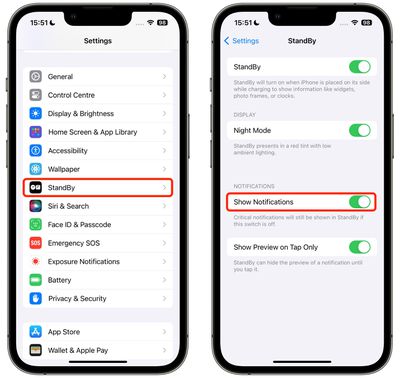
That's all there is to it. Note that this screen also includes a Show Preview on Tap Only option that when enabled will hide notification previews in StandBy mode unless you tap on them.
Tag: StandBy Mode