All modern Macs with Apple silicon feature a built-in recovery system called macOS Recovery that includes various utilities that can be accessed before your Mac boots up the operating system. This article explains what apps are available in macOS Recovery and how to use it.
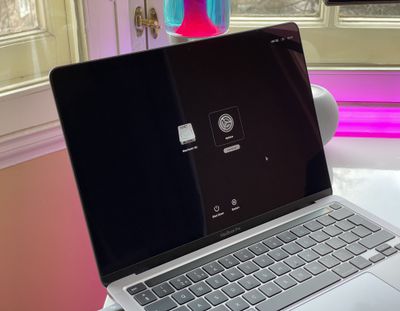
With macOS Recovery, you can perform several troubleshooting related actions on your Mac if it isn't functioning as it should. Once you've entered macOS Recovery, you can repair your Mac's internal drive, reinstall macOS, restore your data from a Time Machine backup, start up in safe mode, transfer files between two Macs, and change security policies for different volumes.
The following apps are available in macOS Recovery:
- Time Machine
- Install macOS Ventura
- Safari
- Disk Utility
- Startup Security Utility
- Terminal
- Share Disk
- Startup Disk
How to Enter macOS Recovery
Follow these steps to start up your computer in macOS Recovery.
- Shut down your Mac if it's already on by clicking the Apple symbol in the menu bar and selecting Shut Down.
- When your Mac has shut down completely, press and hold the power button until "Loading startup options" appears on the screen.
- Click Options, then click Continue.
- If prompted, select a volume to recover, then click Next.
- Select your administrator account, then click Next.
- Enter your admin password, then click Continue.
After a short time, the Recovery app will appear in the menu bar, and you'll be able to select options and launch apps from the window or the menu bar.
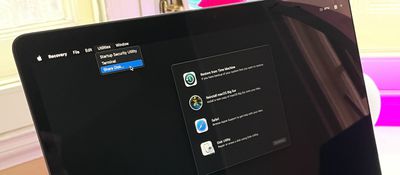
Note that if the Wi-Fi icon appears in the top-right corner of the screen and contains one or more bars, your Mac is connected to the internet. If the icon doesn't contain any bars, Wi-Fi is turned on but not connected to a wireless network. You can change the Wi-Fi status and join a network by clicking the Wi-Fi icon, after which you can download and reinstall macOS if required.
How to Quit macOS Recovery
When you've finished using the utilities in macOS Recovery, you can quit by clicking the Apple symbol in the menu bar and selecting Restart or Shut Down, or you can choose a different startup disk before restarting.