Give Your iPhone Screen Recording a Voiceover - MacRumorsOpen MenuShow RoundupsShow Forums menuVisit ForumsOpen Sidebar
Skip to Content

Give Your iPhone Screen Recording a Voiceover

by

On iPhone and iPad, Apple's screen recording feature records a video of what you're doing on your screen, which is great if you want to capture gameplay, walk someone through a tutorial in an app, demonstrate a bug, or anything else. You can also include a voiceover in screen recordings. Keep reading to learn how.
iPhone Home Screen Gradient
If you're making a screen recording to demonstrate something in iOS, chances are it would benefit from some voiceover commentary. Fortunately, Apple enables you to do this by activating your device's microphone for the duration of the recording.

To record your voice along with screen activity, simply follow these steps.

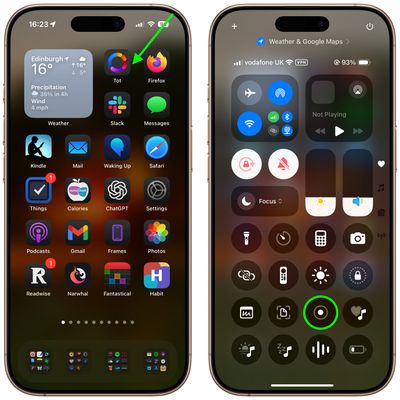
  1. Invoke the Control Center by swiping down diagonally from the top-right corner of the screen.
  2. Long press the Screen Recording button in Control Center (if it isn't there, you can add the function via Settings -> Control Center).
    home screen

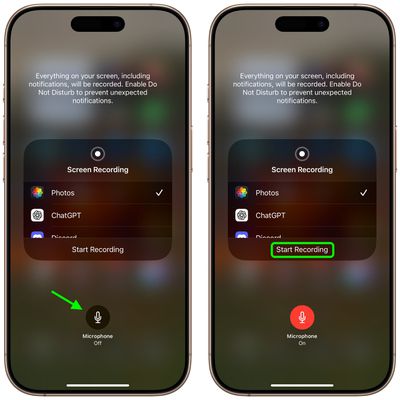
  3. Tap the Microphone button so that it turns red and reads "Microphone On."
  4. Select an app from the list that you want to save the recording to.
  5. When you're ready, tap Start Recording.
    control center

You can end the recording by tapping the Stop button in the top-left corner of the screen (if your iPhone has a Dynamic Island, tap it to reveal the Stop button), and the recording will be automatically saved to the app that you checked in the app list.


Top Rated Comments

mrgraff Avatar
14 months ago

I think it is just showing how to invoke Control Center. The app it is pointing to is irrelevant.
Correct. But it also took me a second to realize that the step had nothing to do with Tot. Also, I've never had to swipe diagonally to invoke Command Center; straight down has always worked. A stubby shorter arrow that stops just below the battery indicator might've been better.
Score: 4 Votes (Like | Disagree)
Starfia Avatar
14 months ago
That is a great tip about a very hidden feature!

And, wow – this is the first time I've ever heard of the gesture to invoke Control Center interpreted as a diagonal swipe from the upper-right corner as opposed to a vertical swipe down from the upper-right status cluster. I wonder what the code is actually detecting.
Score: 4 Votes (Like | Disagree)
UpsetTheAppleCart Avatar
14 months ago
Does anyone know how to reduce the file size of a screen recording on iPhone/iPad? I don’t always need a recording to be super clear, so a slight reduction in quality to keep the file small would be nice.
Score: 3 Votes (Like | Disagree)
MasterControlProgram Avatar
14 months ago

Correct. But it also took me a second to realize that the step had nothing to do with Tot. Also, I've never had to swipe diagonally to invoke Command Center; straight down has always worked. A stubby shorter arrow that stops just below the battery indicator might've been better.
Agreed, doing it diagonally is probably not the best instruction. Doing it that way on my iPad brings in the app I last used with slide over. It has to be a straight down swipe on there or it doesn’t work.
Score: 3 Votes (Like | Disagree)
e-coli Avatar
14 months ago
Love this type of content
Score: 3 Votes (Like | Disagree)
UpsetTheAppleCart Avatar
14 months ago

I have a “Reduce Video Size” shortcut that I don’t know where it came from on the share sheet. If you don’t have it already, try to search online, it uses an iOS built in “Encode Media” function, just like there’s one on macOS.
Oh! I never thought of using a shortcut. Thanks for the info! I found one that works great for me. Here’s the link for anyone who may be interested: https://www.icloud.com/shortcuts/cf7efcf1b47148278044bc240b7d8c99
Score: 2 Votes (Like | Disagree)

Popular Stories

macOS 27 on MacBook Pro

Apple Says macOS 27 Won't Be Compatible With These Macs

Wednesday June 3, 2026 8:29 am PDT by
During WWDC 2025, Apple revealed that macOS 26 Tahoe would be the final major macOS version for Intel-based Macs. macOS 27 will be compatible with Apple silicon Macs only, meaning that you will need a Mac with an M-series chip or a MacBook Neo with an A18 Pro chip in order to install the software update. Apple will unveil macOS 27 during its WWDC 2026 keynote this Monday, June 8, and the...
MacBook Neo on Yellow Feature

MacBook Neo is So Popular That Apple Reportedly Doubled Production

Wednesday June 3, 2026 9:24 am PDT by
On an earnings call in late April, Apple's CEO Tim Cook said that customer response to the MacBook Neo was "off the charts," and the popularity of the laptop has reportedly led the company to significantly boost production. Apple supply chain analyst Ming-Chi Kuo this week said he believes that MacBook Neo shipments to Apple were doubled from an initial target of 5 million units to 10...
iphone 18 pro blue%402x

iPhone 18 Pro: Dark Cherry, Light Blue, and Dark Gray Chassis Leaked [Update]

Thursday June 4, 2026 5:18 am PDT by
Update: Since publication, new information has come to light suggesting the images have been AI-manipulated and are not in fact iPhone 18 Pro chassis parts. The original article follows. The color options Apple is reportedly planning for the upcoming iPhone 18 Pro and ‌iPhone 18 Pro‌ Max have appeared online today in the form of images of chassis parts of unknown authenticity....