

iOS 26: Tint App Icons to Match Your New iPhone 17 Color - MacRumorsOpen MenuShow RoundupsShow Forums menuVisit ForumsOpen Sidebar
Skip to Content

iOS 26: Tint App Icons to Match Your New iPhone 17 Color

by

In iOS 26, Apple has added a new feature to its Home screen customization options that can match the color of your app icons with the actual color of your iPhone. The image below demonstrates the effect on the new iPhone 17 Pro in Cosmic Orange.
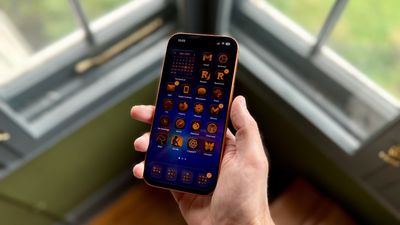
tinted app icons match iphone 17 cosmic orange
In iOS 18, Apple introduced Tinted app icons. The option applies a color filter over app icons, widgets, and even system UI elements, and with iOS 26, Apple has built on the theme with a new option that matches the color of your iPhone model.

iOS 26 knows the exact finish and color variant of your iPhone – Deep Blue, Sage, or Lavender, for example – because Apple has the device's SKU mapped at the firmware level (SKUs are a unique identifier that companies use to track and manage inventory). This allows iOS to identify your model and match a precise color profile.

This filter uses a base color taken from your iPhone's chassis color, then automatically adjusts brightness, saturation, and contrast so icons remain legible while still reflecting the hardware's tone. The following steps show you how it's done.

  1. On your iPhone's Home screen, long press a space between app icons.
  2. Tap Edit in the top-left corner, then select Customize from the popup menu.
  3. Choose Tinted from the options panel that appears, then tap the far-left iPhone button under the two horizontal color sliders.
  4. Select Light, Dark, or Auto, based on your preferences.
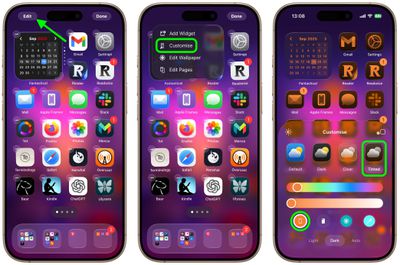
home screen

That's all there is to it. We've heard of the iPhone color matching option not working for some users who have updated older iPhone models to iOS 26. This is likely a bug that Apple will hopefully fix in a forthcoming update.

Match App Icons With Your iPhone's Case Color

If you press the button immediately right of the new iPhone color tint option, iOS 26 will even match app icon colors to your iPhone's case color. However, this only works with official Apple MagSafe cases that include a small NFC chip with color variant information.

Note that Tinted mode looks different in iOS 26 than it did in iOS 18. Rather than icons featuring a black background with colored graphics, icons adopt the full color that you select with white graphics in Light Mode. In ‌Dark Mode‌, backgrounds are a much darker shade of the color you choose, but aren't entirely black.

Top Rated Comments

turbineseaplane Avatar
9 months ago
This feature still has never appealed to me.

I guess I’m older or something, but I really like the color and personality of different icons.

It also makes it very easy to differentiate them and quickly find them visually.
Score: 38 Votes (Like | Disagree)
9 months ago
While you’re at it, take the opportunity to change your default iphone system language to Russian*. Now as well as finding it difficult to see and differentiate your icons, you will now also not be able to read or understand anything on your screen. Brilliant!

*Apologies to Russian readers.
Score: 14 Votes (Like | Disagree)
FSMBP Avatar
9 months ago

This feature still has never appealed to me.

I guess I’m older or something, but I really like the color and personality of different icons.

It also makes it very easy to differentiate them and quickly find them visually.
Exactly...this seems fun in theory but awful in practice. Basically, a basic human way of visual scanning for icons gets more difficult.
Score: 13 Votes (Like | Disagree)
bradman83 Avatar
9 months ago
I'm old enough to remember the days of Classic Mac OS when you could use extensions/control panels like Kaleidoscope to create a highly personalized, if not barely usable user interface experience for yourself. I'm glad to see Apple is inching back in that direction.


Attachment Image
Score: 12 Votes (Like | Disagree)
9 months ago
Thanks, I hate it.
Score: 10 Votes (Like | Disagree)
S.B.G Avatar
9 months ago
I think it looks cool to tint the icons to match the color of the device, but only for a minute or so. After that it gets difficult for me to tell apps apart. So I just leave the icons in normal color, with dark mode on.
Score: 9 Votes (Like | Disagree)

Popular Stories

Aston Martin CarPlay Ultra Screen

Apple Says CarPlay Ultra is Coming to These Vehicle Brands

Thursday May 21, 2026 11:53 am PDT by
Last year, Apple launched CarPlay Ultra, the long-awaited next-generation version of its CarPlay software system for vehicles. Nearly a year later, CarPlay Ultra is still limited to Aston Martin's latest luxury vehicles, but that should change fairly soon. In May 2025, Apple said many other vehicle brands planned to offer CarPlay Ultra, including Hyundai, Kia, and Genesis. CarPlay Ultra...
iphone 18 pro blue%402x

iPhone 18 Pro: Dark Cherry, Light Blue, and Dark Gray Chassis Leaked [Update]

Thursday June 4, 2026 5:18 am PDT by
Update: Since publication, new information has come to light suggesting the images have been AI-manipulated and are not in fact iPhone 18 Pro chassis parts. The original article follows. The color options Apple is reportedly planning for the upcoming iPhone 18 Pro and ‌iPhone 18 Pro‌ Max have appeared online today in the form of images of chassis parts of unknown authenticity....
iOS 27 All the New App Features

iOS 27: All the Rumored App Features

Wednesday June 3, 2026 3:48 pm PDT by
Siri is getting a major overhaul in iOS 27, but Apple also has some big updates planned for apps like Camera, Photos, and Wallet. There are multiple new AI features in the works, plus some non-AI upgrades. Camera Apple is moving Visual Intelligence from the Camera Control button to the Camera app in iOS 27, according to Bloomberg. There will be a Siri mode that will be available alongside...
















