Apple's iPhone 16 Pro and iPhone 16 Pro Max models now come with the ability to shoot 4K video at up to 120 frames per second in both normal video and slow-motion video modes. This capability improves upon the iPhone 15 Pro, which is limited to 4K at 60fps in normal video and 1080p HD at 240fps in Slow-mo.

The feature is impressive. However, it's important to note that it works best for extreme slow-motion shots. It's not something you should use often when shooting video unless you're capturing very fast-moving subjects (like helicopter blades or explosions, for example) and want to slow them down for dramatic effect.
The following steps show you how to shoot 4K video at 120 fps to slow down reality:
- Open Settings on your iPhone 16 Pro.
- Tap Camera.
- Tap Record Slo-mo.
- Select 4k at 120 fps.
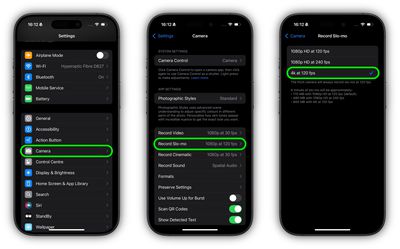
If you do decide you want to shoot normal 4K video at this framerate, you can find the corresponding setting in Settings ➝ Camera ➝ Record Video ➝ 4K at 120 fps.
Post-Capture Options
After recording video, you can modify the playback speed of your videos directly in the Photos app. The new options include slower speeds such as quarter and half speed, allowing for more detailed slow-motion effects.
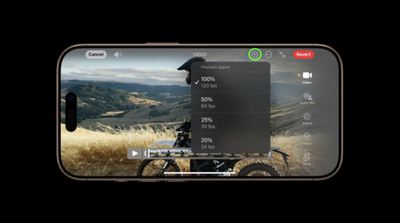
Additionally, Apple has introduced a new fifth-speed option, which corresponds to 24 frames per second. This frame rate is particularly favored in the film industry for its cinematic look, giving you the ability to add a more professional feel to your footage without the need for third-party editing software.
4K at 120 fps in ProRes and Log
Additionally, for creative professional workflows, iPhone 16 Pro models can capture 4K at 120 fps in ProRes and Log directly to external storage devices, potentially integrating smartphone footage more seamlessly into existing post-production pipelines.
To enable Apple ProRes, go to Settings ➝ Camera ➝ Formats. Then under "Video Capture," toggle on the switch next to Apple ProRes. Finally, tap ProRes Encoding and select either HDR or Log.