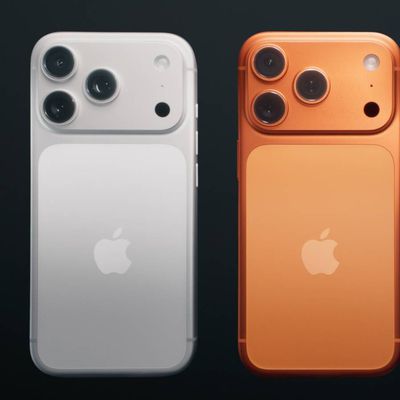
On the iPhone 17 series and iPhone Air, the new 18-megapixel Center Stage front camera features a square sensor. This allows Center Stage to automatically switch between horizontal and vertical orientation when you're lining up a shot, meaning you don't need to change how you hold your iPhone.
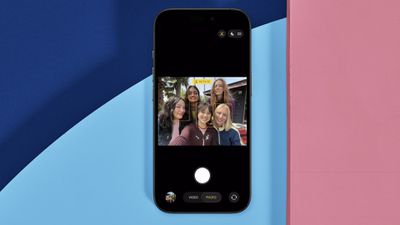
However, you may find when taking selfies that Center Stage detects people's faces beside you or in the background and attempts to include them in the shot by auto-rotating the sensor. This isn't great if you're trying to take a personal selfie, but fortunately it's easy to disable auto rotate. The following steps show you how.
iPhone 17: How to Disable Center Stage Auto Rotate
- Open the Camera app on your iPhone.
- Tap the circular arrows icon bottom-right to switch to the selfie camera.
- Tap the yellow Center Stage button (the icon with a person's profile within a frame).
- Tap Off next to Auto Rotate.
- Line up your shot and hit the shutter button to take a photo or start recording video.
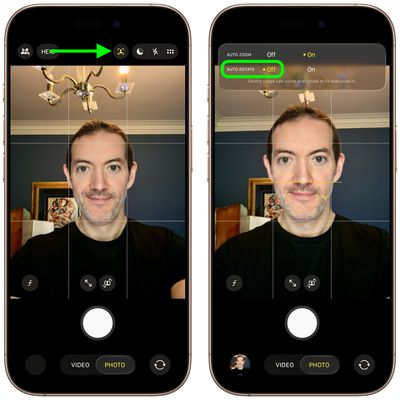
That's all there is to it. Note that Center Stage also works during FaceTime calls, though it attempts to keep your face centered, similar to how it functions on iPads and MacBooks.