If you receive a call on your iPhone (or an Apple Watch with cellular) when your AirPods Max are connected, you'll notice the ringing tone interrupt whatever it is you're listening to.

To find out who's calling, normally you'd have to take out your iPhone or look at your Apple Watch, but you can actually make your AirPods Max (or any connected headphones) announce who it is, saving you the trouble.
Enabling the Announce Calls feature is easy. Just follow these steps.
- On your iPhone, launch the Settings app.
- Tap Phone in the list.

- Tap Announce Calls under the "Calls" heading.
- Tap Headphones Only so that a tick appears alongside the option.
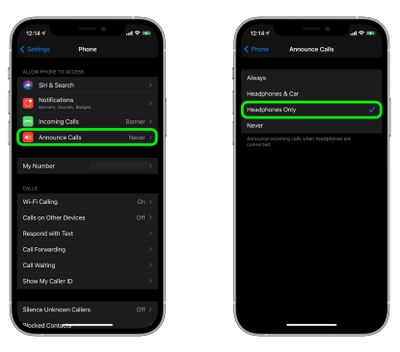
To stop AirPods Max from announcing your calls, simply repeat steps 1-3, and in the fourth step select Never.
Related Roundup: AirPods Max 2
Buyer's Guide: AirPods Max (Buy Now)
Related Forum: AirPods