How to Repair the Startup Disk on M1 Apple Silicon Macs - MacRumorsOpen MenuShow RoundupsShow Forums menuVisit ForumsOpen Sidebar
Skip to Content

How to Repair the Startup Disk on M1 Apple Silicon Macs

by

Disk Utility is Apple's go-to macOS app for finding and repairing common disk errors, but if it's your Mac's internal disk that's the problem, then your Mac might not even start up into macOS. Fortunately, in such cases you can still get to Disk Utility from macOS Recovery.

macbook air m1 unboxing feature
On Intel-based Macs, pressing the Command-R key combination immediately on booting invokes Recovery mode. On Macs powered by Apple silicon, such as the M1 MacBook Pro, the process is a little different, as described in the following steps.

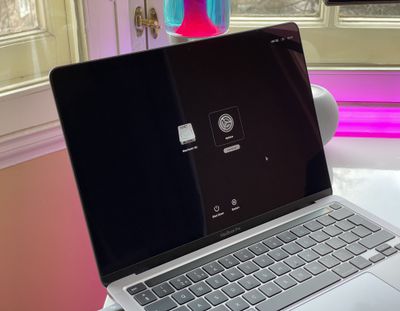
  1. Turn on your Mac and continue to press and hold the power button until you see the startup options window.
  2. Click the gear icon labeled Options.
  3. Click Continue.
    m1 mac startup options

  4. If prompted, select a user, then click Next and enter the password.
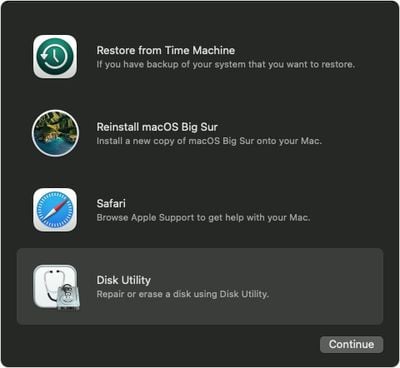
  5. From the utilities window in macOS Recovery, select Disk Utility and click Continue.
    macos big sur recovery disk

Repair Your Startup Disk in Disk Utility

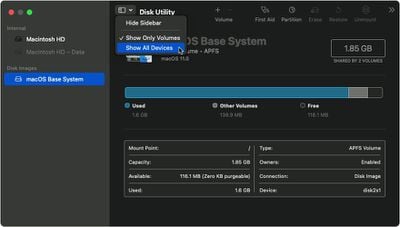
  1. Choose View -> Show All Devices from the toolbar in Disk Utility.
    macos big sur recovery mode disk utility show all devices

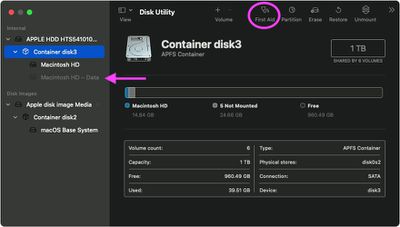
  2. The top disk in the side column is your internal disk. Beneath it you should see any containers and volumes on it. Start by selecting the last volume on the disk, then click the First Aid button.
    macos big sur recovery mode disk utility container disc

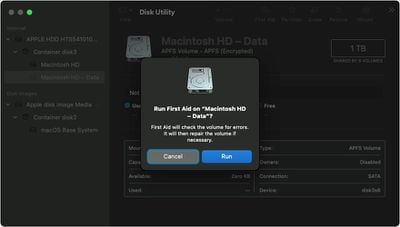
  3. Click Run or Repair Disk to check the volume for errors. If you can't click the button, skip this step for the volume you selected.
    macos big sur recovery mode disk utility data volume first aid

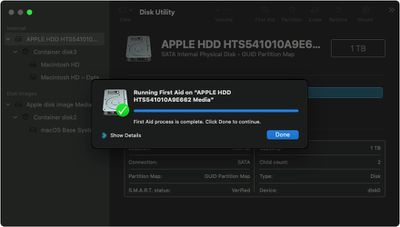
  4. After Disk Utility has completed the check, select the next volume or container above it in the sidebar, then run First Aid again. Repeat this step for each volume on the disk, then each container on the disk, then lastly the disk itself.
    macos big sur recovery mode disk utility disk first aid complete

If Disk Utility found errors that it was unable to repair, you may need to erase the disk and reinstall macOS. If you don't have a separate backup of your data, contact Apple's support services for next steps.

Popular Stories

iCloud iPhone 17 Pro

iPhone Users Who Pay for iCloud Storage Get Two New Perks on iOS 27

Thursday July 2, 2026 6:10 am PDT by
If you pay for certain iCloud+ storage plans beyond the 5GB that Apple offers for free, you will receive two more perks on iOS 27 at no additional cost. A summary of the two new iCloud+ perks on iOS 27:Increased daily usage limits for some new Apple Intelligence features, including image generation in the revamped Image Playground app. HomeKit Secure Video cameras receive generated video...
iPhone 4 on Black Feature

Apple Facing One of Its Worst Leaks Since the iPhone 4

Thursday July 2, 2026 9:53 am PDT by
Apple supplier Tata Electronics recently suffered a cyberattack that resulted in thousands of confidential files being published on the dark web, and this reportedly included some photos and documents related to the upcoming iPhone 18 Pro. We have elected not to share any of the leaked photos in this story due to the illegal nature in which they were obtained, but they can easily be found...
American Express Gold Apple Pay Feature

American Express Announces New Apple Pay Feature

Tuesday June 30, 2026 10:27 am PDT by
American Express today announced that you can now redeem Membership Rewards points when checking out with Apple Pay on the web and in apps on the iPhone and iPad. When checking out with Apple Pay on iOS 18 or iPadOS 18 or later, tap on your eligible American Express card (Platinum, Gold, Green, and others) and select the Membership Rewards points option. You can use points to cover all or...