How to Restart or Force Restart Apple Vision Pro - MacRumorsOpen MenuShow RoundupsShow Forums menuVisit ForumsOpen Sidebar
Skip to Content

How to Restart or Force Restart Apple Vision Pro

by

Apple's Vision Pro is one of the most sophisticated pieces of hardware that the company has ever launched. However, even the most advanced devices can encounter hiccups, necessitating a simple restart or, in more stubborn cases, a force restart. This article explains how it's done.
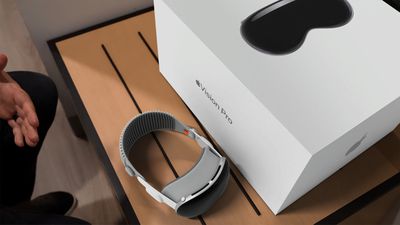
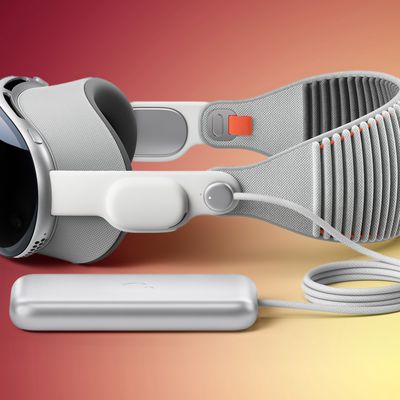
Apple Vision Pro Box and Ref Feature 2
If you're Vision Pro is not responding, glitching out, or presenting other unusual behavior, you can try a simple restart by following these steps.

How to Restart Apple Vision Pro

Shutting Down Vision Pro

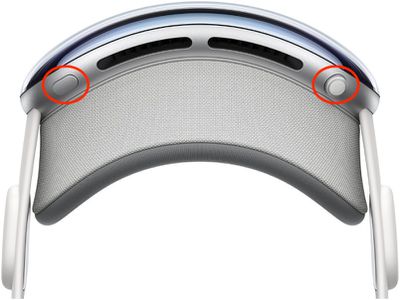
  1. Press and hold the Digital Crown and the top button at the same time. The Force Quit Applications window will appear after a couple of seconds. Keep holding the Digital Crown and the top button until the Power button slider appears, then let go.
    apple vision pro screenshot

  2. Look at the onscreen Power button to select it. Then hold your thumb and index finger together to pinch and drag the button to the right.
  3. Wait until the screen turns black, indicating that Apple Vision Pro has shut down. Then take off the device.
Powering on Vision Pro

Press and hold the top button for three seconds to turn ‌Apple Vision Pro‌ back on. After about a minute, ‌Apple Vision Pro‌ makes a tone that means it's ready to use.

How to Force Restart Apple Vision Pro

If the above steps didn't work for you, don't disconnect the battery on ‌Apple Vision Pro‌ to shut it down. Instead, try a force restart. You can take off ‌Apple Vision Pro‌ while it restarts. Note that you should force restart ‌Apple Vision Pro‌ only as a last resort and only if it's not responding. Also, be sure not to force restart the headset if it's in the middle of updating visionOS.

  1. Press and hold the Digital Crown and the top button at the same time.
    apple vision pro screenshot

  2. Keep holding the Digital Crown and the top button until the screen turns black, then let go.

As ‌Apple Vision Pro‌ is restarting, the Apple logo will appear on the front display.
Related Roundup: Apple Vision Pro
Buyer's Guide: Vision Pro (Neutral)
Related Forum: Apple Vision Pro

Popular Stories

General visionOS watchOS and tvOS Betas Feature Redux

Apple Releases Third watchOS 26.5, tvOS 26.5 and visionOS 26.5 Betas

Monday April 20, 2026 10:03 am PDT by
Apple today provided developers with the third betas of upcoming watchOS 26.5, tvOS 26.5, and visionOS 26.5 betas for testing purposes. The software comes a week after Apple released the second betas for each platform. The software updates are available through the Settings app on each device, and because these are developer betas, a free developer account is required. There's no word on ...
apple vision pro orange

Vision Pro Creator Mike Rockwell Has Considered Leaving Apple

Wednesday April 22, 2026 6:09 am PDT by
Mike Rockwell, the Apple executive who led development of the Vision Pro and is now in charge of rebuilding Siri, has considered leaving the company or moving into an advisory role as soon as next year, according to a new Bloomberg report by Mark Gurman. Rockwell is said to have reservations about reporting to his new boss, software chief Craig Federighi, and wants a bigger remit than the...
General visionOS watchOS and tvOS Betas Feature Redux

Apple Releases Fourth watchOS 26.5, tvOS 26.5 and visionOS 26.5 Betas

Monday April 27, 2026 10:01 am PDT by
Apple today provided developers with the fourth betas of upcoming watchOS 26.5, tvOS 26.5, and visionOS 26.5 betas for testing purposes. The software comes a week after Apple released the third betas for each platform. The software updates are available through the Settings app on each device, and because these are developer betas, a free developer account is required. There's no word on ...