

Set Alarm-Style iPhone Reminders in iOS 26.2 - MacRumorsOpen MenuShow RoundupsShow Forums menuVisit ForumsOpen Sidebar
Skip to Content

Set Alarm-Style iPhone Reminders in iOS 26.2

by

In iOS 26.2, released in December 2025, Apple has added a new optional feature that provides the Reminders app with a more urgent notification system. When you need to ensure you don't miss an important task, you can now set an alarm that works just like your morning wake-up call, with a snooze button and slide-to-stop slider.
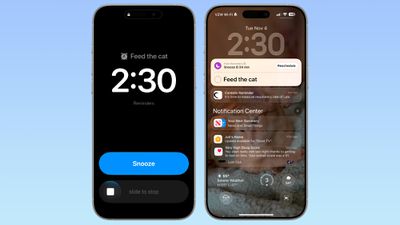
ios 26 2 alarm reminders
The feature distinguishes Reminder alarms from standard Clock alarms by applying a distinctive blue color to the snooze button, allowing you to easily tell which type of alarm is going off. You can also choose to see a Complete button instead of a Snooze button on the alarm screen that marks the reminder as completed.

Enable Alarms for Reminders

Before you can use alarms with reminders, you need to grant the Reminders app permission to access iPhone alarms.

  1. Open the Settings app on your iPhone.
  2. Swipe to the bottom and tap Apps ➝ Reminders.
  3. In the "Allow Reminders to Access" section, toggle on the switch next to Alarms.

settings

Create a Reminder With an Alarm

Once you've enabled alarm access, creating an urgent reminder is straightforward.

  1. Open the Reminders app.
  2. Create a new reminder or tap an existing one.
  3. Tap the info button (ⓘ) next to the reminder.
  4. Turn on Time and select when you want to be alerted.

  5. Turn on the Urgent switch to enable an alarm.

When the designated time arrives, your iPhone will sound an alarm. You'll see a snooze option and a slide-to-stop control on your screen. If you choose to stop or snooze the alarm, a notification appears with options to complete the reminder or reschedule it. Note that tapping to complete the reminder opens the Reminders app, where you'll need to tap again to mark it as done. Alarms will activate even when a Focus is on or your device is muted.

Show a 'Complete' Button on Reminder Alarms

You can streamline your alarm-reminder by replacing the snooze option with a Complete button that immediately marks the reminder as done.

  1. Open the Settings app on your iPhone.
  2. Swipe to the bottom and tap Apps ➝ Reminders.
  3. In the "Urgent Reminders" section, toggle on the switch next to Complete for Alarm.

reminders alarm complete

With this setting enabled, you can instantly complete reminders without opening the app, which is handy for quick tasks you finish on the spot.


Top Rated Comments

JaydenA Avatar
7 months ago
Shouldn't need a reminder. Most cats would never forget to remind their hooman of the need for noms.
Score: 6 Votes (Like | Disagree)
7 months ago
Finally! I’ve missed too many reminders because Reminders is just not as “alarm-y” as I’d like.
Score: 4 Votes (Like | Disagree)
adrianlondon Avatar
17 weeks ago

Anybody know how you tell Siri to mark a reminder as “urgent” to include this high-powered alarm?

[edit: oops, see this has already been asked. I wish I could say I was surprised at this lack of basic support from Siri...]
Prompted by this, I did another test (iOS 26.3 latest beta).

Siri ignored the word "urgent" completely, despite hearing it (I have transcript for my Siri requests turned on*). So, no "urgent" text in the reminder name, and the urgent toggle left off.

* I like to check how stupid Siri is every now and again for personal entertainment.
Score: 2 Votes (Like | Disagree)
aries81 Avatar
7 months ago

Finally! I’ve missed too many reminders because Reminders is just not as “alarm-y” as I’d like.
This!

A welcome addition indeed.
Score: 2 Votes (Like | Disagree)
la3541 Avatar
7 months ago
Is there a way to create an urgent reminder with an alarm via Siri?
Score: 1 Votes (Like | Disagree)
7 months ago
Very happy to see this. Have missed some reminders in the past. This should definitely ensure that nothing will be missed.
Score: 1 Votes (Like | Disagree)

Popular Stories

macOS 27 on MacBook Pro

Apple Says macOS 27 Won't Be Compatible With These Macs

Wednesday June 3, 2026 8:29 am PDT by
During WWDC 2025, Apple revealed that macOS 26 Tahoe would be the final major macOS version for Intel-based Macs. macOS 27 will be compatible with Apple silicon Macs only, meaning that you will need a Mac with an M-series chip or a MacBook Neo with an A18 Pro chip in order to install the software update. Apple will unveil macOS 27 during its WWDC 2026 keynote this Monday, June 8, and the...
MacBook Neo on Yellow Feature

MacBook Neo is So Popular That Apple Reportedly Doubled Production

Wednesday June 3, 2026 9:24 am PDT by
On an earnings call in late April, Apple's CEO Tim Cook said that customer response to the MacBook Neo was "off the charts," and the popularity of the laptop has reportedly led the company to significantly boost production. Apple supply chain analyst Ming-Chi Kuo this week said he believes that MacBook Neo shipments to Apple were doubled from an initial target of 5 million units to 10...
iphone 18 pro blue%402x

iPhone 18 Pro: Dark Cherry, Light Blue, and Dark Gray Chassis Leaked [Update]

Thursday June 4, 2026 5:18 am PDT by
Update: Since publication, new information has come to light suggesting the images have been AI-manipulated and are not in fact iPhone 18 Pro chassis parts. The original article follows. The color options Apple is reportedly planning for the upcoming iPhone 18 Pro and ‌iPhone 18 Pro‌ Max have appeared online today in the form of images of chassis parts of unknown authenticity....













