

In iOS 17 and later, Apple includes an accessibility setting that makes the haptic feedback feature activate faster than in previous versions of its mobile operating system. If you fondly hearken back for the days of 3D Touch, you might just prefer it.
As many iPhone users might remember, 3D Touch was an interactive haptic feature that Apple introduced in 2015 with the iPhone 6s. When the iPhone XR was released in 2018, Apple kiboshed 3D Touch to the dismay of some users, and instead implemented the simplified Haptic Touch, which offers less functionality.
3D Touch supported multiple levels of pressure for different interactions depending on how hard you pressed, with Apple implementing "Peek and Pop" gestures. In contrast, Haptic Touch supports just a single level of pressure for the long press gesture.
Haptic Touch has always worked slower than 3D Touch because of the two levels of pressure that 3D Touch allowed for. The first 3D Touch pressure level activated quickly when pressing on the display, so those who became used to 3D Touch may have found the Haptic Touch replacement to be too sluggish.
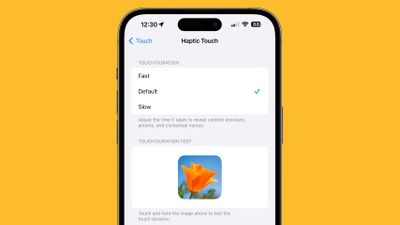
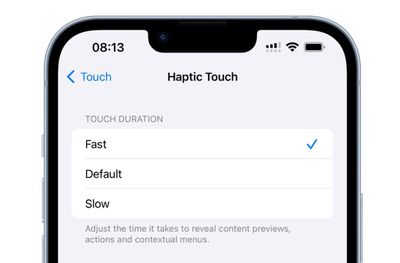
The good news is that setting Haptic Touch to the Fast option makes a noticeable difference in how quick haptic menus pop up under the finger when an icon or on-screen element is long pressed. The speed brings Haptic Touch interactions closer to 3D Touch interactions. Here's how to enable it on iPhones running iOS 17 and newer.
- Open the Settings app and tap Accessibility.
- Under "Physical and Motor," tap Touch.
- Tap Haptic Touch.
- Select from Fast, Default, and Slow. Note that when you select a speed, you can test it using the flower image on the same screen.
It's still not entirely clear why Apple got rid of 3D Touch. Some have argued that it suffered from a lack of discoverability, similar to the Apple Watch's Force Touch functionality, which suffered the same fate. Others have speculated that Apple eliminated it in order to bring gesture parity to the iPhone and the iPad. Either way, the change allowed Apple to remove the capacitive layer that used to be integrated into every iPhone display.





















Top Rated Comments
I feel like when iOS 26 comes out, there will be a lot of users changing things in the Accessibility settings to make their iPhone/iPad less hard to actually use.
* Open the Settings app, pull down and search "Haptic Touch"
* Tap the top result
* Select from Fast, Default, and Slow.