

If you're looking for a great way to capture a shot of an action scene or an unexpected event on your iPhone, try Burst mode in Apple's stock Camera app. In Burst mode, the camera on your iPhone captures a series of photos in rapid succession, at a rate of ten frames per second.
When photographing anything dynamic like sports events, wildlife, or children at play, burst mode increases the likelihood of obtaining sharp, well-timed images. By taking multiple shots in quick succession, you can select the best frame where the subject's motion is perfectly frozen. Here's how to shoot Burst mode photos on iPhone.
Shooting in Burst Mode
- In the Camera app, press and drag the shutter button to the left beneath the viewfinder.
- Keep your finger pressed down to continue taking photos in rapid succession.
- Take your finger off the shutter when you want to end the burst of shots.
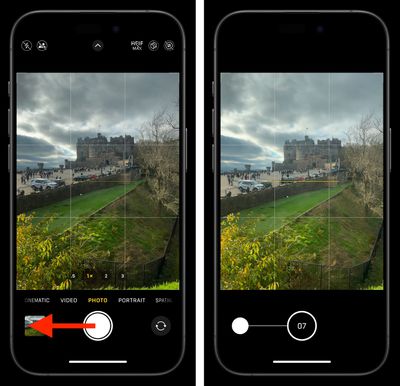
When shooting in Burst mode, notice how the counter increases in the shutter's original position for as long as you hold it down. This indicates how many shots are being captured in the current burst.
Apple also includes an option in iOS settings that when enabled lets you press and hold the Volume Up button to take Burst shots. Go to Settings ➝ Camera, then turn on Use Volume Up for Burst.
Choosing the Best Shot
- After shooting in Burst mode, tap the image thumbnail in the Camera app, or open the Photos app and select the Burst you just captured.
- Tap Burst in the top-left corner, then tap the best shot or shots you want to keep as an individual photo. (You can swipe across the photos or scroll the row of thumbnails below to view them.) Gray dots below the thumbnails mark the suggested photos to keep.
- Tap Done, then choose Keep Everything or Keep only X Favorite (X being the number of shots you selected).
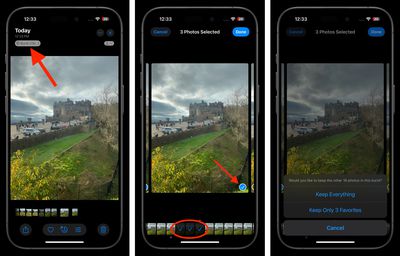
When you take a series of burst photos, they automatically appear in the Photos app under the Album name "Bursts." You'll also find them in the Recent Days section.





















Top Rated Comments
In the early days of iOS, you could discover features by exploring. The interface was simple and intuitive. Now there are features like this, hidden behind obscure gestures/actions. I’d never have found this if I’d not seen the article. Maybe that’s just me.