

When you want to move data from an old Mac to a new one, the most reliable method is to use Apple's Migration Assistant. Found in the Utilities folder of your Applications folder, Migration Assistant copies all of your files from your old Mac to your new Mac, so you don't have to transfer them manually.
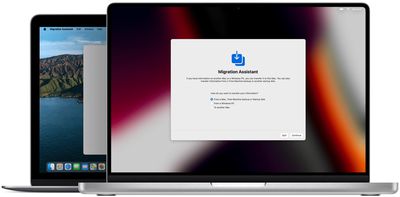
The first set of steps in this article assume that you have both the old Mac and the new Mac available. The second set of steps explain how to restore your data on a new Mac using a Time Machine backup, which is a slightly different process.
Before You Start
Before you start the data transfer process, make sure both Macs have their software up to date (System Preferences -> Software Update), and place them near each other with Wi-Fi turned on. Lastly, on your old Mac, open System Preferences -> Sharing, and make sure a name appears in the Computer Name field.
How to Use Migration Assistant
- On your new Mac, open Migration Assistant (Applications/Utilities/), then click Continue.
- When Migration Assistant asks you for permission to make changes, enter your administrator password, then click OK.
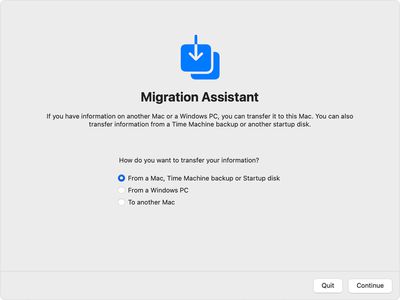
- When asked how you want to transfer your information, select the option to transfer From a Mac, Time Machine backup or startup disk, then click Continue.

- On your old Mac, open Migration Assistant (Applications/Utilities/), then click Continue.
- When asked how you want to transfer your information, select the option to Transfer to another Mac, then click Continue.
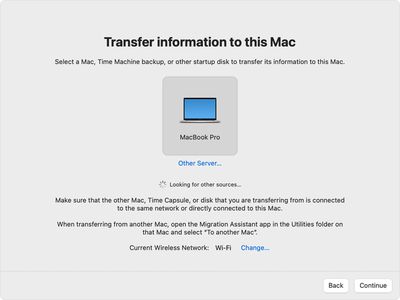
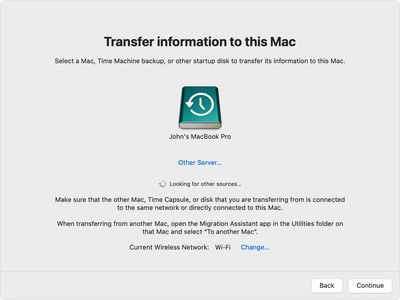
- On your new Mac, when asked to select a Mac, Time Machine backup or other startup disk, select the other Mac, then click Continue.
- If you see a security code on your old Mac, make sure it's the same as the one displayed on your new Mac, then click Continue.
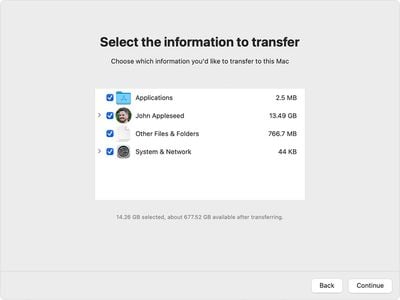
- On your new Mac, select the information you want to transfer from your old machine. Your name refers to your user account.
- Click Continue to start the transfer. This could take several hours to complete, so make sure you've got something else to do in the meantime.
- When the migration has finished, close Migration Assistant on both computers, then log in to the migrated account on your new Mac.
How to Migrate to a New Mac From a Backup
If you made a Time Machine backup of your old Mac, Migration Assistant can use that backup to restore your personal files, including your apps and everything in your user account.
- Make sure your Time Machine backup disk is connected to your new Mac and turned on.
- Open Migration Assistant (Applications/Utilities/), then click Continue.
- When asked how you want to transfer your information, select the option to transfer From a Mac, Time Machine backup or startup disk, then click Continue.
- Select your Time Machine backup, then click Continue.
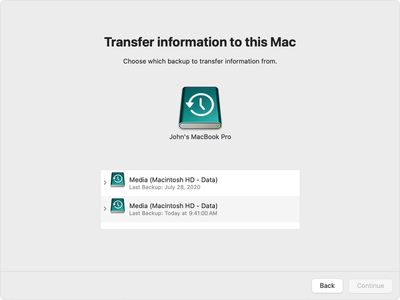
- Choose a backup from the list of timestamped backups, then click Continue.
- Select the information you want to transfer from your old machine. Your name refers to your user account.
- Click Continue to start the transfer. This could take several hours to complete, so make sure you've got something else to do in the meantime.
- When the migration has finished, close Migration Assistant, then log in to the migrated account on your new Mac.
If you're not keeping your old Mac and plan to give it away, sell it, or trade it in, be sure to erase the data on it and perform a factory reset.















