How to Turn On Subtitles and Change Languages in the Apple TV App - MacRumorsOpen MenuShow RoundupsShow Forums menuVisit ForumsOpen Sidebar
Skip to Content

How to Turn On Subtitles and Change Languages in the Apple TV App

by

Apple's TV app allows you to choose customized audio languages, subtitles, and other accessibility features on your iPhone, iPad, Mac, PC, and Apple TV.
apple tv app 1
This article explains how to change subtitles and languages for videos viewed in the app on the above devices as well as smart TVs and streaming devices that feature Apple's TV app.

How to Change Subtitles or Languages on Apple TV

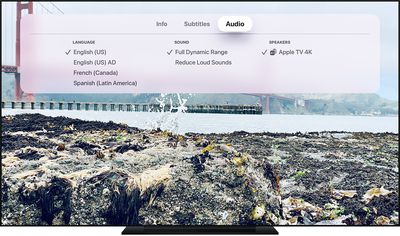
  1. On your ‌Apple TV‌, smart TV, or streaming device, select a video to play in the Apple TV app.
  2. When playback has started, swipe down or click the down button on your remote. (Note that some manufacturers might use different buttons.) On a third-generation ‌Apple TV‌, hold down Select on your remote for three seconds while a video is playing to see the Subtitles tab.
  3. Select the Subtitles or Audio menu.
  4. Choose your desired language or subtitle.
    Apple TV app

How to Change Subtitles or Languages on iPhone or iPad

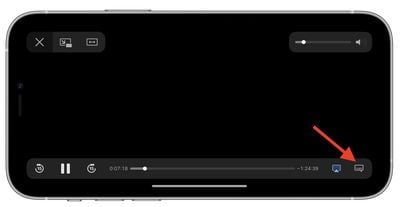
  1. Launch the TV app on your iOS device and select a video to play.

  2. Once playback has started, tap the speech bubble icon in the bottom-right corner of the screen.
    tv app

  3. Choose the language or subtitles that you want to use.
How to Change Subtitles or Languages on Mac or PC

  1. Launch the TV app on your computer and select a video to play.
  2. Click the speech bubble icon at the bottom of the interface.
    tv-app

  3. Choose the language or subtitles that you want to use.

To learn how to turn on closed captions or subtitles for the Deaf and Hard of Hearing (SDH), check out our separate dedicated how-to article.

Popular Stories

iOS 27 Accessibility Feature

Apple Previews New Accessibility Features Powered by Apple Intelligence

Tuesday May 19, 2026 5:26 am PDT by
Apple today announced a suite of accessibility updates that use Apple Intelligence to expand capabilities across VoiceOver, Magnifier, Voice Control, and Accessibility Reader, with additional new features for generated subtitles and wheelchair control via Apple Vision Pro. Apple Intelligence powers several of the new features coming later this year: VoiceOver Image Explorer uses Apple...
Apple Releases Popular iPhone Grip and Stand in Three New Colors Feature

Apple Re-Releases a Sold-Out iPhone MagSafe Grip in Three New Colors

Tuesday May 19, 2026 6:40 am PDT by
Apple today re-released the Hikawa Grip & Stand for iPhone in three new colors, after the original version sold out last year. The accessory is exclusively available on Apple's online store worldwide, with U.S. pricing set at $54.95. The latest color options include Orange Swirl, Glow Blue, and Speckled Stone. Designed by Bailey Hikawa and produced by PopSockets, Apple says the accessory...
Apple Says iOS 27 Can Automatically Add Captions to Your Personal iPhone Videos Feature

Apple Says iOS 27 Can Automatically Add Captions to Your Personal iPhone Videos

Wednesday May 20, 2026 9:46 am PDT by
Apple this week previewed new accessibility features that are coming later this year, and one is particularly notable: automatic captions for personal videos. For videos that do not already have captions, Apple said a new on-device speech recognition model can automatically generate them for spoken audio. According to Apple, this feature will be available for videos that you record on your...