

In macOS, a Text Clipping is a selection of text that you've dragged from an application to another location on your Mac, where it becomes a unique kind of standalone file.
The relatively little-known feature has been around since at least Mac OS 9, and it offers a convenient way to save out pieces of text from pretty much anywhere for later use in another app or document.
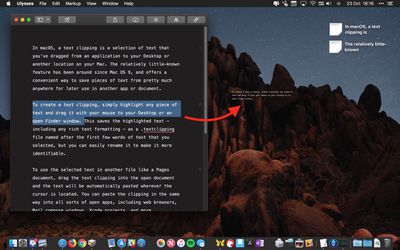
To create a Text Clipping, simply highlight any piece of text and drag it with your mouse to your Desktop or an open Finder window.
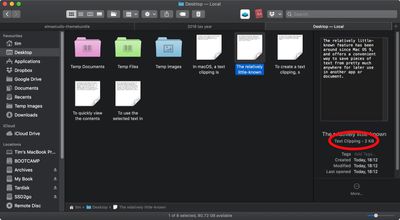
This saves the highlighted text – including any rich text formatting – as a .textclipping file named after the first few words of text that you selected, but you can easily rename it to make it more identifiable.
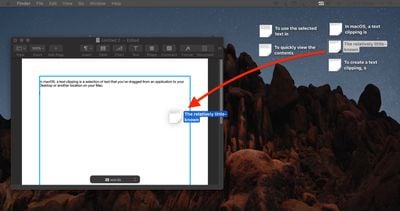
To use the selected text in another file like a Pages document, drag the Text Clipping into the open document and the text will be automatically pasted wherever the cursor is located.
You can paste the clipping in the same way into all sorts of open files and apps, including browser search engines, Mail compose windows, Xcode projects, and more.
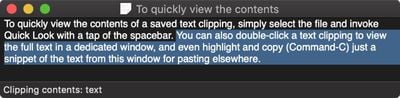
To quickly view the contents of a Text Clipping, simply select the file and invoke Quick Look with a tap of the spacebar.
You can also double-click a Text Clipping to view the text in a dedicated window, and even highlight and copy (Command-C) just a snippet of the text from this window for pasting elsewhere.
Text clippings can speed up many repetitive tasks, making things like reusing email/letter templates and code snippets a cinch. If clippings become indispensable to your workflow, consider creating a dedicated folder to store them, otherwise they can quickly clutter up your desktop.





















Top Rated Comments
While most of this stuff I know, I always read them because I invariably get at least a little tidbit out of it, like how this feature’s been around since OS 9.
Great stuff guys, keep it up!!
And yes, I use this great feature since classic MacOS days. Unfortunately at the start of iCloud (maybe yosemite idk) this .textclipping files were destroyed when synced to iCloud and you could never rely on it. I thought they were about to abandon it...
But now (I'm on Sierra) it works again well in the cloud.
Looks pretty in these small pics but I really only missed it for Xcode and other „lab“ environments that usually already came with a dark mode.
Any way to set dark mode per app?
Wasn't aware the function was there, and will implement it into my work flow.