How to Use the Zoom Accessibility Feature on Apple Watch - MacRumorsOpen MenuShow RoundupsShow Forums menuVisit ForumsOpen Sidebar
Skip to Content

How to Use the Zoom Accessibility Feature on Apple Watch

by

Apple Watch models are available in 40mm and 44mm sizes to compensate for different wrist shapes and to offer customers the choice of a smaller or bigger screen. Whichever model size you go for, both feature clear and bright high-resolution OLED screens that are designed to display text as clearly as possible.
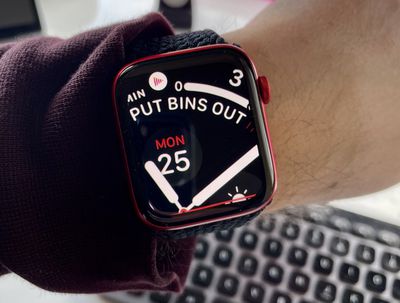
3how to apple watch zoom feature
On the other hand, if you're longsighted or you regularly suffer from eyestrain, no amount of backlighting will make up for text or graphics that are uncomfortably small to look at. Fortunately, Apple Watch includes an accessibility feature that lets you zoom in on any portion of the screen to make its contents more legible. Here's how to use it.

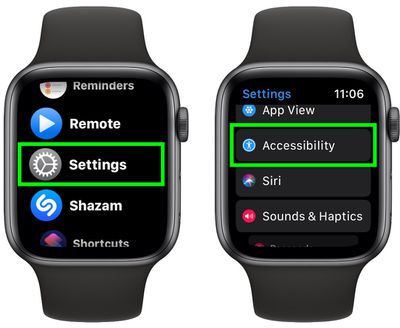
  1. Press the Digital Crown on your Apple Watch and select the Settings app from the apps list.
  2. Scroll down and select Accessibility.
    apple watch

  3. Select Zoom.
  4. Tap the switch next to Zoom to toggle it to the green ON position, and you'll see a fullscreen message indicating that Zoom has been enabled.
    Apple Watch

  5. To try out the Zoom feature, use two fingers to double tap anywhere on the display. You can drag around the zoomed display with two fingers to view different parts of the screen, or rotate your watch's Digital Crown to move the view up and down.
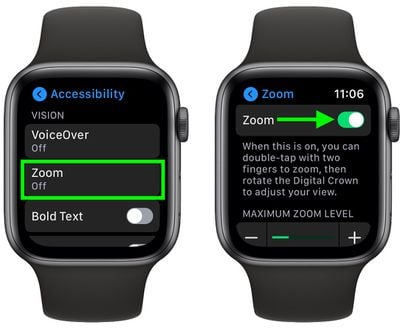
If you want, you can adjust the maximum zoom level to suit your needs using the + and - button slider on the same Zoom menu screen you used to enable the feature. Simply move the slider to the right to increase the zoom level.

As with many Apple Watch features, you can enable and adjust the zoom level of your watch's display via your iPhone. Simply launch the Watch app, select the My Watch tab in the bottom-left of the screen, then choose Accessibility -> Zoom, where you'll find similar controls for adjusting the feature.
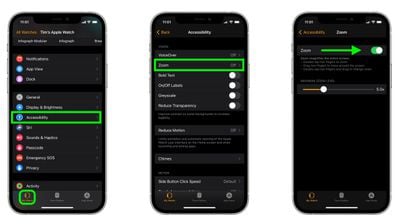
watch app
If you find this feature useful, don't forget that there are other accessibility features available on Apple Watch, such as the ability to make icons bigger and even have your watch use haptic vibrations to tap out the time on your wrist on the hour.

Related Roundups: Apple Watch 11, Apple Watch SE 3
Related Forum: Apple Watch

Popular Stories

apple watch ultra 3 1

Apple Now Requires UNiDAYS Verification for Education Discounts in U.S. and Canada, Adds Apple Watch

Friday May 8, 2026 3:00 am PDT by
Starting today, Apple will require customers in the U.S., Canada, and Chile to verify their status as a student or educator to get educational discounts. Apple is adopting the UNiDAYS verification system that it uses in other countries, with a new process to accommodate homeschool families. Apple is also adding the Apple Watch Series 11, Apple Watch SE, and Apple Watch Ultra 3 to its...
Apple Watch Series 10 Jet Black Touch ID

Apple Watch Series 12 and watchOS 27: What to Expect Later This Year

Friday May 8, 2026 2:07 pm PDT by
While not too much has been reported about the next Apple Watch models, there are a few rumors about potential design changes and watchOS 27 features. Apple Watch Series 12 and Apple Watch Ultra 4 models are expected to be released in September, and we have outlined some of the key rumored hardware and software changes below. A new Apple Watch SE is not expected this year, as that model was...
Apple Watch Series 10 Jet Black Touch ID

Next Apple Watch Models Unlikely to Add Touch ID, Focus on Battery Life

Monday May 11, 2026 3:41 am PDT by
Apple is prioritizing larger batteries and more advanced health sensors over fingerprint authentication for the Apple Watch, according to a new claim from a prominent Chinese leaker. In a new Weibo post, Instant Digital pushed back on recent speculation about biometric recognition coming to Apple's wearable lineup, claiming instead that the company remains content to let users unlock their...