Netflix is Finally Letting You Turn Off Those Annoying Autoplay Previews - MacRumorsOpen MenuShow RoundupsShow Forums menuVisit ForumsOpen Sidebar
Skip to Content

Netflix is Finally Letting You Turn Off Those Annoying Autoplay Previews

by

Netflix today announced the launch of a new toggle that will let Netflix users turn off autoplay previews, which has been a controversial Netflix feature for years now.

When browsing through Netflix, the service is designed to play previews of the content that you stop on, which usually includes a trailer. Until today, Netflix has offered no option to turn these previews off.
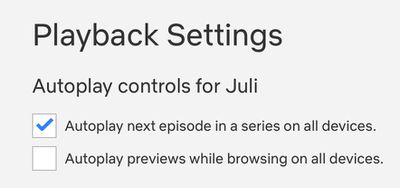
netflixautoplay
As of now, though, you can disable them by opening up Netflix, selecting your profile, selecting Playback Settings and toggling off "Autoplay previews while browsing on all devices."


Changing the setting will prevent content from playing while you swap through different shows and movies. The setting will need to be enabled on a per-profile basis as it is not account wide.


Tag: Netflix

Top Rated Comments

twistedpixel8 Avatar
82 months ago

Now where is my god damn „already watched“ button
I’d also like a button for “I started watching but it was ****. Stop bugging me to finish watching it.”
Score: 12 Votes (Like | Disagree)
MisterSavage Avatar
82 months ago
I couldn't turn this feature off fast enough when I heard about this.
Score: 7 Votes (Like | Disagree)
itsmilo Avatar
82 months ago
Now where is my god damn „already watched“ button
Score: 6 Votes (Like | Disagree)
iBreatheApple Avatar
82 months ago
I actually prefer this and for years I wished content had trailers. Conversely, I hate it when clicking on a show for the first time auto starts the first episode.
Score: 5 Votes (Like | Disagree)
randolorian Avatar
82 months ago
This was so annoying that I found myself avoiding Netflix. Maybe I won't cancel now. ;-)
Score: 5 Votes (Like | Disagree)
MisterSavage Avatar
82 months ago

I’d also like a button for “I started watching but it was ****. Stop bugging me to finish watching it.”
I literally just finished looking up how to do this. You have to do it from a web browser. Go into the menu, select "viewing activity", and then hit the circle with a line through it next to the item you don't care about. They say within 24 hours they'll stop suggesting you finish watching it.
Score: 4 Votes (Like | Disagree)

Popular Stories

Apple Card iPhone 16 Pro Feature

Apple Card Promo to Offer Free AirPods Pro 3

Friday May 15, 2026 8:59 am PDT by
Starting as early as next week, customers who sign up for an Apple Card at Apple's retail stores in the U.S. will receive $249 cash back when they purchase AirPods Pro 3, according to Bloomberg's Mark Gurman. The promotion has yet to be officially announced by Apple, so exact terms and conditions are not available at this time. AirPods Pro 3 are priced at $249 in the U.S., so customers who...
Apple WWDC25 iOS 26 CarPlay Light mode 250609

Six Popular iPhone Apps Now Available on CarPlay

Thursday May 14, 2026 9:10 am PDT by
Apple's CarPlay system for accessing iPhone apps on a vehicle's dashboard screen has received six popular apps in recent weeks: ChatGPT, Perplexity, Grok, Google Meet, WhatsApp, and the indie artist streaming platform Audiomack. Make sure you have the latest version of each app and they will automatically appear on CarPlay. ChatGPT Starting with iOS 26.4, CarPlay supports voice-based...
ipad mini 7 blue

OLED iPad Mini: Release Date, Pricing, and What to Expect

Thursday May 14, 2026 5:08 am PDT by
According to the latest rumors, Apple is close to launching its next-generation iPad mini. So what should we expect from the successor to the iPad mini 7 that Apple released over a year ago? Read on to find out. Processor and Performance Apple is working on a next-generation version of the iPad mini (codename J510/J511) that features the A19 Pro chip, according to information found in code...