How to Add Rooms and Set Up Zones in HomeKit - MacRumorsOpen MenuShow RoundupsShow Forums menuVisit ForumsOpen Sidebar
Skip to Content

How to Add Rooms and Set Up Zones in HomeKit

by

In Apple's Home app, you can add your HomeKit accessories to different rooms for organizational purposes. Once you've done that, you can group together similar rooms into zones which allows you to control them all at once, either by room or by zone. Keep reading to learn how it works.
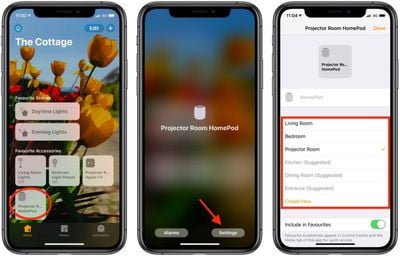
how to add rooms to the home app

How to Add Rooms to the Home App

Before you can add rooms to the Home app you need to add some HomeKit accessories to it. Once you've done that, you can follow the steps below to add rooms.

  1. Launch the Home app on your iPhone or iPad.
  2. Press and hold on an accessory.
  3. Tap Settings.
    how to add rooms to home app

  4. Tap Room.
  5. Tap Create New and enter the name of your room, or choose from the suggested room names.
  6. Tap Done.

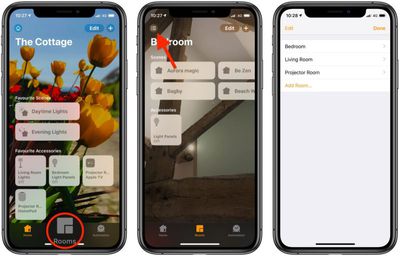
Once you've assigned a room to an accessory, that room will appear in the above list of available rooms to make it easy to add further devices. You can access rooms you've set up by tapping the Room tab and then tapping the menu button in the top-left of the screen.

How to Group Rooms into Zones

Grouping rooms together into a zone, like upstairs or downstairs, allows you to control several rooms using a single Siri command. For example, you could simply say "Hey ‌Siri‌, turn off the lights downstairs" when you're making your way up to bed for the night.

  1. Launch the Home app on your iPhone or ‌iPad‌.
  2. Tap the Rooms tab at the bottom of the screen.
  3. Tap the menu button in the top-left corner of the screen.
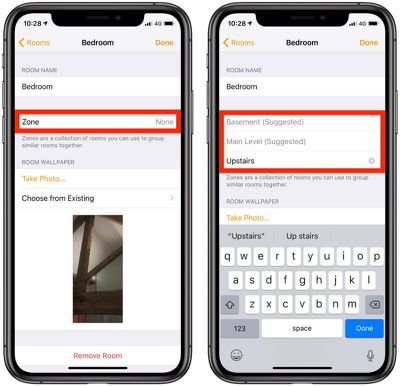
    how to add zones to home app 1

  4. Tap Room Settings and then select a room.
  5. Tap Zone.
  6. Enter the desired name of your zone or choose a suggested name.
    how to add zones to home app 2

  7. Tap Done.
  8. Repeat steps 3 to 7 to add more rooms to the zone.
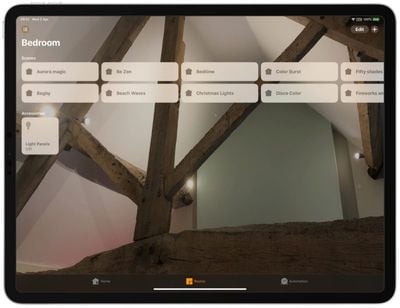
Organizing your ‌HomeKit‌ products into rooms and zones is essential for setups that include a large number of ‌HomeKit‌ devices, and it's really useful for ‌HomeKit‌ products like lights, where you might want to turn out all of the lights in a room or in the entire upstairs at one time.


Popular Stories

nanoleaf ceiling light

Nanoleaf's New $80 Smart Ceiling Light Works With Matter and HomeKit

Tuesday June 30, 2026 4:16 pm PDT by
Nanoleaf today launched the Smart Multicolor Ceiling Light, an affordable Matter-compatible lighting product. With a dual-sided design, there's a main downlight and an upward backlight for a layered lighting glow. Each side can be controlled individually for bright light or an ambient lighting option. The light has 196 LEDs inside, with up to 2600 lumens. White light ranges from 2200K to...
iCloud iPhone 17 Pro

iPhone Users Who Pay for iCloud Storage Get Two New Perks on iOS 27

Thursday July 2, 2026 6:10 am PDT by
If you pay for certain iCloud+ storage plans beyond the 5GB that Apple offers for free, you will receive two more perks on iOS 27 at no additional cost. A summary of the two new iCloud+ perks on iOS 27:Increased daily usage limits for some new Apple Intelligence features, including image generation in the revamped Image Playground app. HomeKit Secure Video cameras receive generated video...
American Express Gold Apple Pay Feature

American Express Announces New Apple Pay Feature

Tuesday June 30, 2026 10:27 am PDT by
American Express today announced that you can now redeem Membership Rewards points when checking out with Apple Pay on the web and in apps on the iPhone and iPad. When checking out with Apple Pay on iOS 18 or iPadOS 18 or later, tap on your eligible American Express card (Platinum, Gold, Green, and others) and select the Membership Rewards points option. You can use points to cover all or...