

Adding an accessory to your smart home setup is fairly straightforward, though there are a few areas where it's not entirely intuitive. Before you get started, it's helpful to locate the HomeKit Setup Code for the accessory you're adding.
This is usually in 2 places: printed on an included user guide or the package, and on a sticker somewhere on the device itself. It will have a HomeKit icon next to a series of numbers framed in a box or a QR code. Also, you'll need to plug in the device and power it on. Then you can move on to adding it. Here are the steps on an iPhone:
- Open the Home app and tap on the '+' in the top right corner.
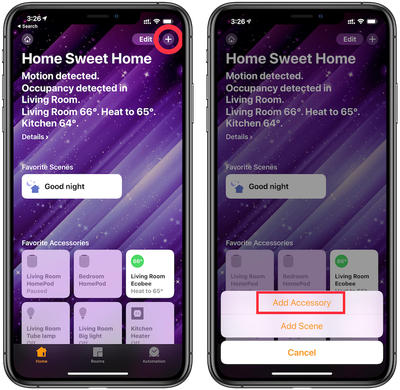
- Choose "Add Accessory" in the resulting pop-up menu
- Scan the HomeKit Setup Code with the camera as prompted on the next screen.

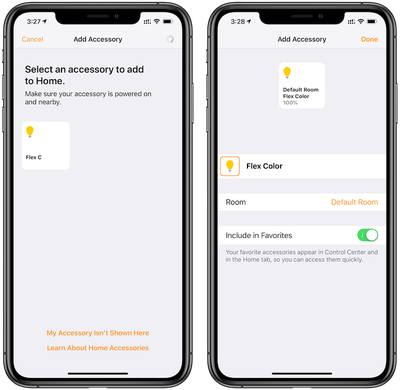
- Tap on the square with the accessory's name to confirm that you want to add it to HomeKit.
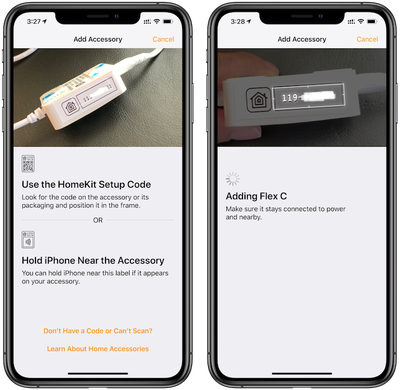
For accessories where the code won't scan with the camera due to poor lighting or another reason, the HomeKit code can also be entered manually. When using the iPhone 7 or later to add a device, some HomeKit accessories will allow you to add them without needing to scan the code using the camera. In this situation, you can just hold your iPhone near the accessory and then follow the steps Apple provides.
Once an accessory has been added to HomeKit, you'll see the details about it in the Home app and will have the option to choose what room it's in. Assigning a HomeKit accessory a room allows you to more easily control it along with other devices in the same room.
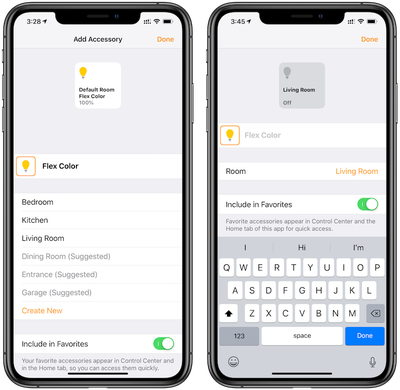
The device we set up for this guide shown in the screenshots is in the Living Room and we changed it accordingly. This allows us to ask Siri to turn off all the lights in the living room, for example, and this device will be switched off along with all the other lights in the room.
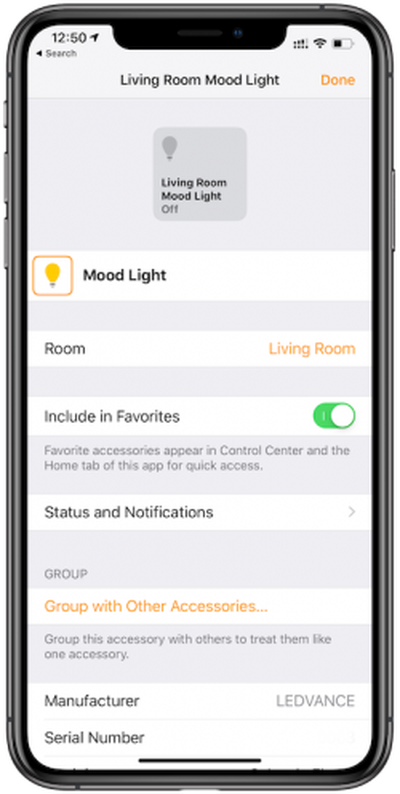
Devices are set up with a default name determined by the manufacturer, and you'll probably want to change it to make it more memorable so it's easier for you to ask Siri to control it. In this example, we added a Sylvania light strip and its default name is Flex Color. Tapping on the name in this screen allows for the name to be changed, and we renamed it Mood Light.
Some devices may come with instructions prompting you to set them up in the manufacturer's own app. Though this isn't necessary to complete the above steps and control the device through the Home app and Siri, the manufacturer's app may offer you other features and status details that aren't available through the Home app.















