Whenever you browse the web in Google Chrome, the browser stores website data including cookies so that it doesn't have to do so again each time you revisit a site. In theory this should speed up your browsing experience, but there are some scenarios where you might want to clear the cache and start anew. Keep reading to learn how it's done on Mac, iPhone, and iPad.
There are a couple of situations where you might benefit from clearing Chrome's cache.
If a site you regularly frequent has elements that have stopped working, or if a site has stopped loading completely, there may be a conflict between an older version of it that Chrome has cached and a newer one.
Or perhaps you simply want to protect your privacy by wiping the slate clean and removing all the data associated with websites you've visited, including any user-identifying cookies. Either way, here's how it's done on macOS and iOS.
How to Clear Chrome's Cache on Mac
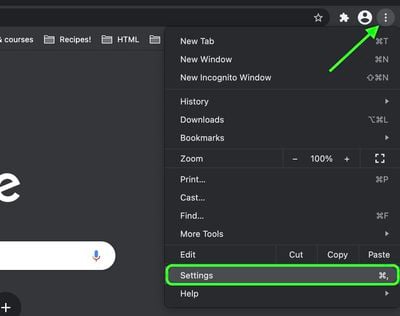
- Launch Chrome on your Mac, then click the Customize button (three dots in a vertical row) in the top-right corner of the window and select Settings from the dropdown menu.

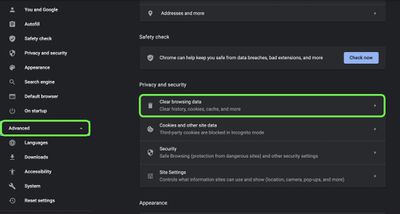
- Click Advanced in the column of options, then click Clear browsing data under "Privacy and security."
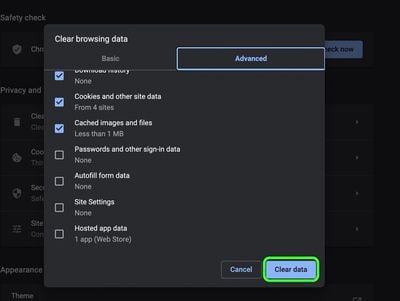
- This section is divided into Basic and Advanced tabs. The Basic tab has checkboxes for browsing history, cookies and other site data, and cached images and files, while the Advanced tab additionally includes checkboxes for passwords, autofill data, site settings, and hosted app data. Using the Time range dropdown, select a period of time for which to clear the selected data, then click Clear data.
How to Clear Chrome's Cache on iOS
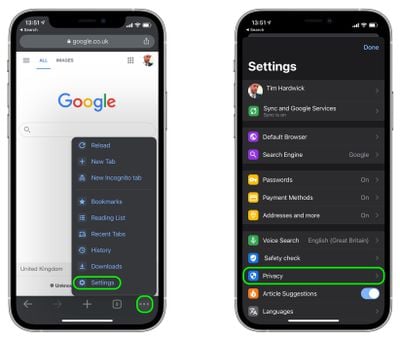
- Launch Chrome, then tap the Customize button (three dots in a vertical row) in the bottom-right corner of the screen and tap Settings in the pop-up menu.
- Tap Privacy.
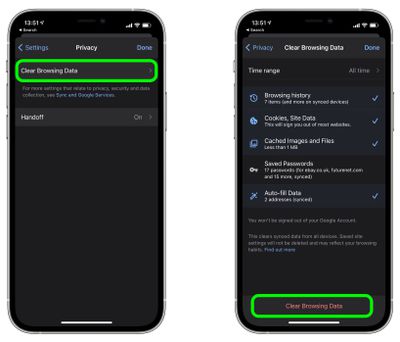
- Tap Clear Browsing Data.
- Select a Time range, then check the types of data that you want to clear.
- Tap Clear Browsing Data at the bottom of the screen.
If your privacy concerns extend to a desire for enhanced security and anonymity online, consider subscribing to a Virtual Private Network (VPN) service that offers an iOS client or supports OpenVPN (Private Internet Access and ProtonVPN are two popular options).