In watchOS 9, Apple includes a feature that allows you to control your iPhone with your Apple Watch. Keep reading to learn how it works.
With the release of iOS 16 and watchOS 9, Apple introduced new accessibility features including the ability to control your Apple Watch with your iPhone, and vice versa.
Both features are designed to make the Apple Watch and iPhone experience more accessible for people with physical and motor disabilities, but they can also be useful if, for example, your iPhone's screen is cracked or unresponsive, or the device is simply out of reach.
The following steps show you how to control your iPhone with your Apple Watch. Bear in mind that the watch needs to be paired to the iPhone you want to control, and the watch and phone need to be running watchOS 9 and iOS 16, respectively.
- On your Apple Watch, open the Settings app.
- Scroll down and tap Accessibility.
- Select Control Nearby Devices.
- Select your iPhone (or iPad) from the list.
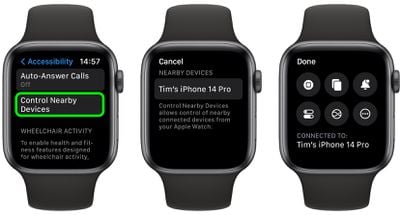
Once connected, you'll see a series of control buttons enabling you to perform a variety of actions on your iPhone, including Go to Home Screen, Open App Switcher, Open Notification Center, Open Control Center, and Activate Siri. Tapping the More button will also give you media playback controls.
Note that if VoiceOver is enabled on your Apple Watch and you control a nearby device, VoiceOver will also be enabled on that device, and the VoiceOver gestures that you use on your Apple Watch are performed on the device.