How to Customize File and Folder Icons on Your Mac - MacRumorsOpen MenuShow RoundupsShow Forums menuVisit ForumsOpen Sidebar
Skip to Content

How to Customize File and Folder Icons on Your Mac

by

This article shows you how to change the icon of any file or folder on your Mac. Apart from adding a bit of personal style to your desktop, there are good practical reasons why you might want to do so.

before changing icons
For example, perhaps you've dragged some folders to your Dock so that you can easily drop items into them, but you don't want to have to keep hovering your mouse over their generic blue icons to identify which is which.

after changing icons

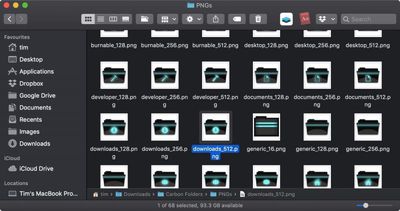
Carbon Folders by necramar

To customize a file or folder icon, simply follow the steps below. You can use your own pictures as icons. Alternatively, there are a wealth of icon libraries hosted online, so you could try a web search for free icon pack downloads for Mac.

Note: If you find icons online in the .icns format, you can drag these icon types directly onto the icon in a file or folder's Info panel, thereby skipping the Preview steps described below.

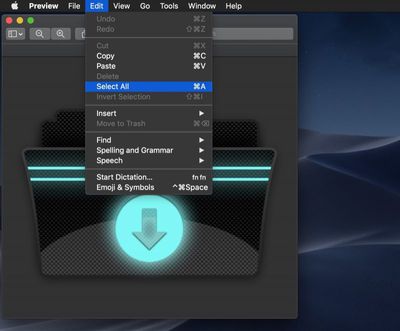
  1. Double-click the picture or icon you want to use to open it in your Mac's built-in Preview app.
    how to change icons 1

  2. Choose Edit -> Select All in Preview's menu bar, or use the keyboard shortcut Command-A.
    how to change icons 2

  3. Choose Edit -> Copy in Preview's menu bar, or use the keyboard shortcut Command-C.
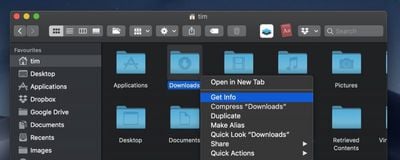
  4. Next, right-click (or Ctrl-click) the file or folder whose icon you want to change and select Get Info from the contextual menu.
    how to change icons 3

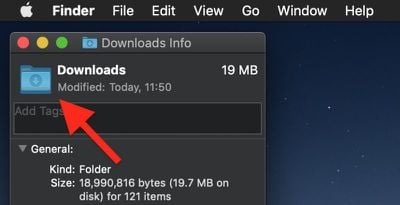
  5. Click the icon in the top left of the Info panel to select it.
    how to change icons 3b

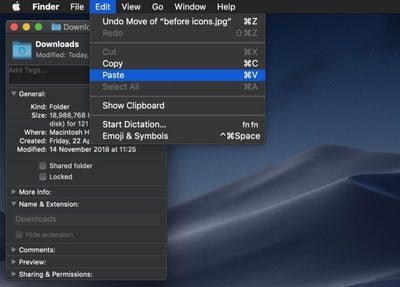
  6. Choose Edit -> Paste from the menu bar, or use the keyboard shortcut Command-V.
    how to change icons 4

  7. Click the red traffic light to close the Info panel, and you're done.
If you want to revert a file or folder to its default icon, open its Get Info panel again, click the icon in the panel to select it, and choose Edit -> Cut or use the keyboard shortcut Command-X. You can also select and copy (Edit -> Copy) a file or folder's icon in its Info panel for use elsewhere.


Top Rated Comments

Starflyer Avatar
96 months ago
Everyone remember this app back in the day and when Post Your Desktop was the most popular forum on Macrumors?
MacRumors content image
Score: 9 Votes (Like | Disagree)
simonmet Avatar
96 months ago
Everyone remember this app back in the day and when Post Your Desktop was the most popular forum on Macrumors?
MacRumors content image
And those of us even older will remember ResEdit and resexcellence.com!

Desktop hackery used to be such a big thing!
Score: 7 Votes (Like | Disagree)
orbital~debris Avatar
96 months ago
Everyone remember this app back in the day and when Post Your Desktop was the most popular forum on Macrumors?
MacRumors content image
CandyBar, Kaleidoscope… apps such as these gave a little more life to the Mac. I miss them.
Score: 4 Votes (Like | Disagree)
MrGimper Avatar
96 months ago
If you want to change the icons for all types of file/folder, then this handy free tool does just that.

https://freemacsoft.net/liteicon/

Not affiliated in any way, just a happy user of this software over the years
Score: 4 Votes (Like | Disagree)
96 months ago
And those of us even older will remember ResEdit and resexcellence.com!

Desktop hackery used to be such a big thing!
I wasted so much time editing icons in ResEdit. I made a radioactive Trash can once.
Score: 3 Votes (Like | Disagree)
Niko Todd Avatar
96 months ago
Yeah, I use BetterTouchTool ('https://folivora.ai') to do that. You'll have to add the shortcut yourself, but it isn't difficult.
I made a post about this amazing app almost 4 years ago, still using it and it's still very handy. I've added more gestures in the meantime, but the post is still handy to get you started:

https://forums.macrumors.com/threads/bettertouchtool-gestures.1693622/
Thank you both!
Score: 2 Votes (Like | Disagree)