StandBy is a new customizable Lock Screen mode in iOS 17 and later that activates when an iPhone is charging and positioned on its side. If you charge your iPhone at night, StandBy automatically adapts to low light and takes on a red tone, but there's a way to stop this from happening. Keep reading to learn how.
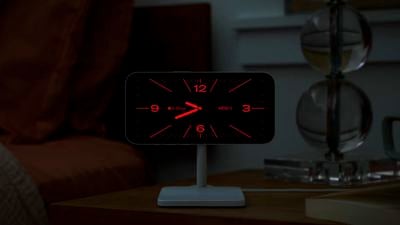
At night, StandBy mode will get darker if the room you're in is dark, and the display will adopt a red tint, so that it is not distracting at night while you're sleeping. It's called Night mode, and it's similar to Nightstand Mode on the Apple Watch, since it functions in much the same way.
But what if you're not sleeping and you'd rather see StandBy mode at its standard brightness level without the red tint? Fortunately, there's a setting that will prevent Night mode from activating. The following steps show you how it's done.
- When your iPhone is not in StandBy mode, open the Settings app.
- Tap StandBy Mode.
- Tap Display.
- Toggle off the switch next to Night Mode so that it is in the gray OFF position.
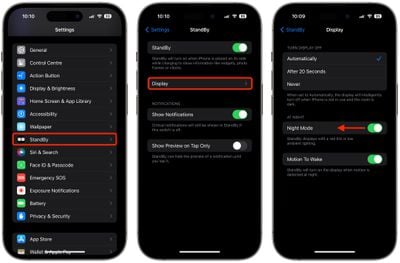
Note that the Night Mode option will be greyed out if you have StandBy mode's "Turn Display Off" option set to Never. This setting must be set to Automatically or After 20 Seconds. Otherwise, that's all there is to it. Next time you're in a dark environment and your iPhone enters StandBy mode, it will not change its brightness or colors.