If you find your iPhone regularly running out of battery before you know it, there's a way you can get Siri to notify you of the fact with a spoken alert – even if your iPhone is on silent. Keep reading to learn how it's done.
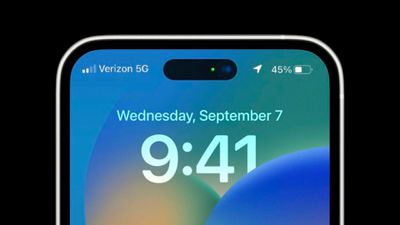
On iPhones, whenever the device reaches a battery level of 20%, iOS throws up a prompt on the screen suggesting that you turn on Low Power Mode. But if the display is turned off, or you happen to be away from your iPhone for a time, it's easy to miss this visual notification. One solution is to get Siri to verbally alert you that your battery is low.
The steps below describe how to set up a simple automation using the Shortcuts app that will do just that. When the battery level depletes to a percentage of your choosing, Siri will say whatever it is you want to hear to be alerted to this fact.
The great thing about this method is that you can to be alerted when a specific battery percentage is reached, and it works even if your iPhone is set to silent, so going forward you'll never not know that your battery level is low.
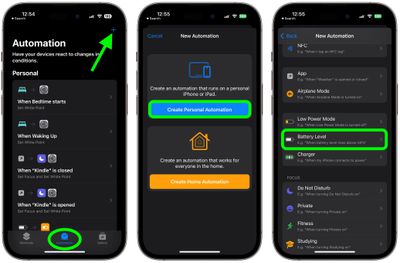
- Launch the Shortcuts app on your iPhone.
- Tap the Automation tab at the bottom of the screen, then tap the + button in the top-right corner.
- Tap Create Personal Automation.
- Scroll down and choose Battery Level.

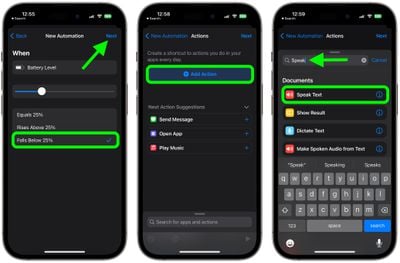
- Tap Falls Below 50% and use the slider to change the battery level at which you'd like to get notified, then tap Next.
- Tap Add Action, then type "Speak" into the search bar at the top of the pop-up card.
- Tap Speak Text.
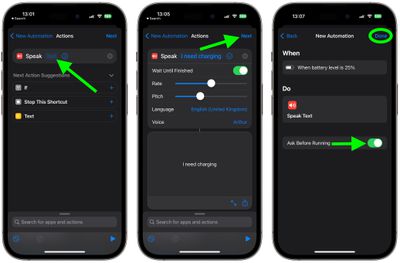
- Tap the space in the Speak input field where it says "Text," then enter what you want Siri to say, then tap Next. (If you tap the blue chevron that appears, you can also adjust some Siri voice variables like pitch and rate.)
- Tap the Play symbol in the bottom-right corner to hear Siri speak your phrase, then tap Next if you're happy with it.
- In the final screen, toggle OFF Ask Before Running, tap Don't Ask to confirm your choice in the pop-up, then tap Done.
That's all there is to it. Another neat thing about this kind of automation is that by choosing Rises Above 50% (step 5) you can also get verbal alerts for when your battery level is sufficiently charged, which is great if you don't always want to wait around for your iPhone's battery to reach 100%.