Apple in macOS Sonoma added inline predictive text. Here's how it works on the Mac, and how you can turn it off.
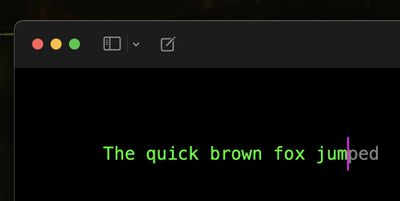
Apple has improved its machine learning technology for Macs in an effort to make macOS a lot more helpful, and one of the features in which this tech has been deployed is inline predictive text.
Predictive text does just what it says - it predicts what you're going to type next. As you type, the predicted text appears ahead of the cursor. If it has accurately predicted what you want to type, all you need to do is press the spacebar and macOS will fill it in for you.
Apple says it has adopted a "transformer language model" that can personalize prediction for individual users, learning your personal preferences and word choices to be more useful when typing. After using macOS Sonoma for a few weeks, you should notice that the suggestions are much better at predicting what you want to say and presenting words for you to autofill.
If you don't find the inline predictive text feature useful, or if it's a distraction, don't worry. Simply follow the steps below to turn it off.
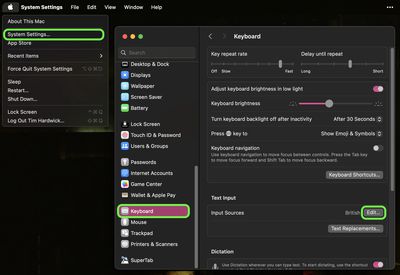
- Click the Apple symbol () in your Mac's menu bar and select System Settings... from the menu.
- Click Keyboard in the side column.
- Next to "Input Sources," click Edit....

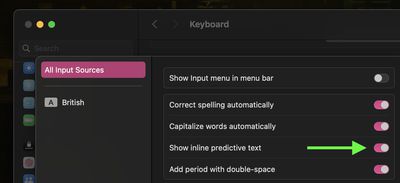
- In the next window, toggle off the switch next to Show inline predictive text.
That's all you need to do. Now when you type, you'll no longer be plagued by a ghostly presence trying to finish your sentences.