

In iOS 18, Apple added several new accessibility features, and one feature in particular that is likely to have widespread appeal among car passengers is Vehicle Motion Cues, which aims to prevent motion sickness when looking at an iPhone or iPad.
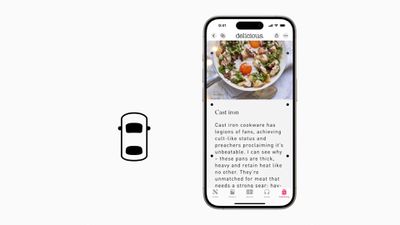
According to Apple, research shows that motion sickness is commonly caused by a sensory conflict between what a person sees and what they feel, which can prevent some users from comfortably using iPhone or iPad while riding in a moving vehicle.
Vehicle Motion Cues are designed to avoid this sensory conflict with the use of visual elements on the display that indicate real-time changes in motion. Apple explains:
With Vehicle Motion Cues, animated dots on the edges of the screen represent changes in vehicle motion to help reduce sensory conflict without interfering with the main content. Using sensors built into iPhone and iPad, Vehicle Motion Cues recognizes when a user is in a moving vehicle and responds accordingly. The feature can be set to show automatically on iPhone, or can be turned on and off in Control Center.
As things stand in the latest iOS 18 beta, the Vehicle Motion Cues switch does not work in Settings ➝ Accessibility ➝ Motion, likely because of a bug that hasn't been fixed yet, but that doesn't mean you can't try it out and see if it works for you. Fortunately, the same option works in Control Center. If you're running the iOS 18 beta, here's how to enable it.
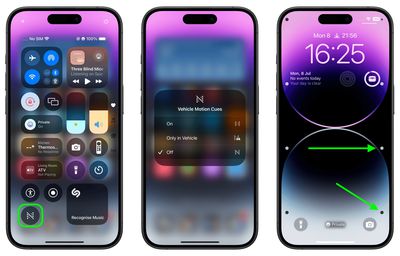
- Invoke Control Center with a diagonal swipe from the top-right corner of the screen (or with a swipe up from the bottom if your iPhone has a Home button).
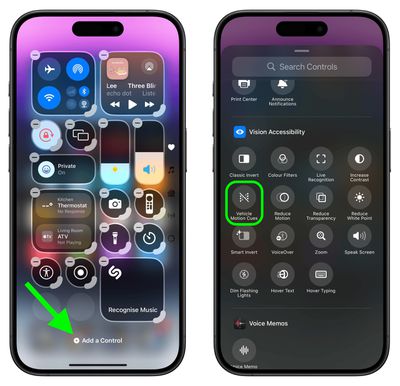
- Press and hold on any space in the Control Center to enter the customize mode, then tap Add a Control at the bottom.
- Swipe up to the "Vision Accessibility" controls, then choose Vehicle Motion Cues.

- Press and hold a space in the Control Center to exit the customize mode.
- Tap the Vehicle Motion Cues button, then choose On or Only in Vehicle.
If you turned on the feature, you should now see the motion cues – roving little dots – around the edges of your iPhone or iPad screen. If you opted for the automatic activation, wait until you're in a moving vehicle for the cues to appear.
There's no guarantee that it will work, but with a bit of luck, the feature will allow you to look at what's on your device for the duration of your journey without you starting to feel nauseous.



















Top Rated Comments
The older I get, the more I experience motion sickness and have to put my phone down while the passenger in a car.