

In iOS 17, Safari has gained a new feature called Profiles, which is designed to help separate your browsing sessions into things like Work, School, or Personal. Here's how to use it in the beta and when iOS 17 is released to the general public later this month.

In iOS 17, Apple expands on Tab Groups with a Profile feature that is designed to let you separate your browsing for different use cases. You can create a "Work" profile and a "Personal" profile, for example, so all of your work-related browsing is kept separate from your personal browsing.
Each profile gets its own icon and silos your history, Tab Groups, Favorites, Private Browsing tabs, and cookies. You can even assign specific extensions to different profiles to optimize your browsing experience based on the task at hand.
How to Create a Safari Profile
To set up profiles on iPhones running iOS 17, simply follow these steps:
- Open the Settings app on you iPhone or iPad.
- Scroll down to Safari.
- Under the "Profiles" section, tap New Profile.
- Select an icon, name, and background color for the profile.
- Choose your settings for Favorites and New Tabs.
- Tap Done.
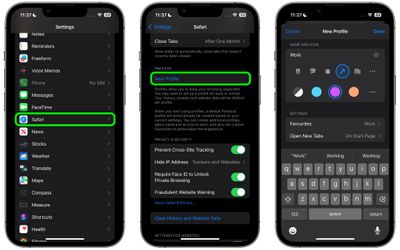
When you create a new profile, your device will automatically generate a "Personal" profile to differentiate other browsing sessions conducted outside of the profile you created.
Both profiles and additional ones you create can be edited in the same section of the Settings app. When editing an existing profile, you can also opt to enable any Safari extensions you have installed on your device, as well as delete the profile if desired.
How to Switch Between Profiles in Safari
- In Safari, tap the Tabs icon with two overlapping squares.
- Tap the middle icon to bring up the active profile's menu.
- Tap the Profile option to change which profile is active.
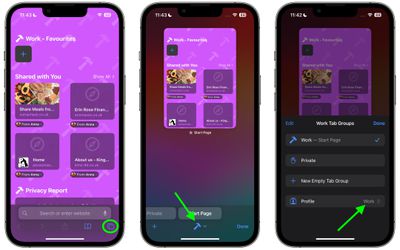
The Safari Profiles feature is available in iOS 17, iPadOS 17 and macOS Sonoma, as well as being part of Safari 17 for macOS Monterey and macOS Ventura. Any profiles you create will be synced across devices logged into the same Apple ID.




















Top Rated Comments