How to Customize Your HomeKit Setup With Favorites - MacRumorsOpen MenuShow RoundupsShow Forums menuVisit ForumsOpen Sidebar
Skip to Content

How to Customize Your HomeKit Setup With Favorites

by

In Apple's Home app, you can set particular HomeKit scenes and accessories as "Favorites" so that you can access them quickly and easily from the app's Home tab and in Control Center on your iPhone or iPad.
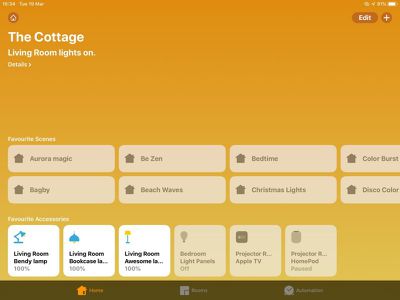
how to set homekit favorites
Once you've added some ‌HomeKit‌ accessories and/or created some scenes, follow the steps below to start adding them to your Favorites. The second set of steps shows you how to access them in Control Center.

How to Set HomeKit Favorites

  1. Launch the Home app on your iPhone or ‌iPad‌.
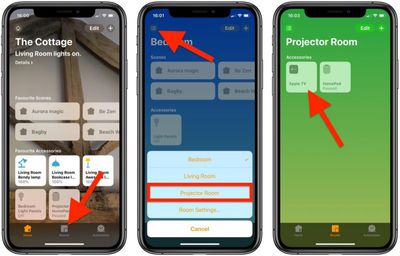
  2. Tap the Rooms tab at the bottom of the screen.
    how to set homekit favorites 1

  3. Tap the Room selector icon at the top left of the screen.
  4. Using the pop-up menu, select the room where the device you want to "Favorite" is located.
  5. Press and hold on the device in question.
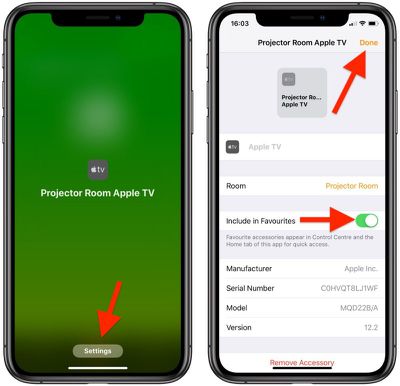
  6. Tap Settings at the bottom of the screen.
    how to set homekit favorites 2

  7. Next to Include in Favorites, toggle the switch to the green ON position.
  8. Tap Done.

How to Access Favorites in Control Center

Note: You may need to add the Home icon to Control Center if it isn't already there. To learn how, see our separate guide on customizing the Control Center.

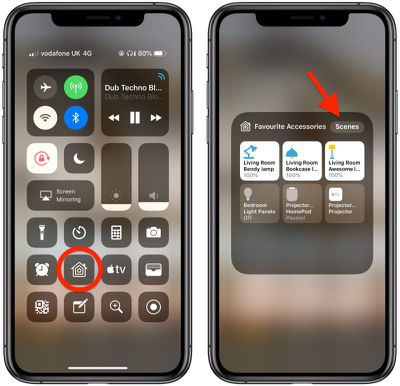
  1. To open Control Center on an ‌iPad‌ with a Home button, double-tap the Home button; on iPhone 8 or earlier, swipe up from the bottom of the screen; and on a 2018 iPad Pro or iPhone X/XR/XS/XS Max, swipe down from the upper right of the screen.
    how to set homekit favorites 3

  2. Press and hold the Home icon.
  3. You can switch between Favorite Accessories and Favorite Scenes using the relevant button at the top of this panel.
When you have a lot of ‌HomeKit‌ products, the built-in Favorites option is a great way to put the devices that you need to access most right on the main page of the Home app, such as lights and smart plugs. Devices like motion sensors that don't need frequent access can be removed from favorites to prevent clutter, but all of your devices can be seen when browsing via the "Rooms" tab at the bottom of the Home app.


Popular Stories

macOS 27 on MacBook Pro

Apple Says macOS 27 Won't Be Compatible With These Macs

Wednesday June 3, 2026 8:29 am PDT by
During WWDC 2025, Apple revealed that macOS 26 Tahoe would be the final major macOS version for Intel-based Macs. macOS 27 will be compatible with Apple silicon Macs only, meaning that you will need a Mac with an M-series chip or a MacBook Neo with an A18 Pro chip in order to install the software update. Apple will unveil macOS 27 during its WWDC 2026 keynote this Monday, June 8, and the...
MacBook Neo on Yellow Feature

MacBook Neo is So Popular That Apple Reportedly Doubled Production

Wednesday June 3, 2026 9:24 am PDT by
On an earnings call in late April, Apple's CEO Tim Cook said that customer response to the MacBook Neo was "off the charts," and the popularity of the laptop has reportedly led the company to significantly boost production. Apple supply chain analyst Ming-Chi Kuo this week said he believes that MacBook Neo shipments to Apple were doubled from an initial target of 5 million units to 10...
iphone 18 pro blue%402x

iPhone 18 Pro: Dark Cherry, Light Blue, and Dark Gray Chassis Leaked [Update]

Thursday June 4, 2026 5:18 am PDT by
Update: Since publication, new information has come to light suggesting the images have been AI-manipulated and are not in fact iPhone 18 Pro chassis parts. The original article follows. The color options Apple is reportedly planning for the upcoming iPhone 18 Pro and ‌iPhone 18 Pro‌ Max have appeared online today in the form of images of chassis parts of unknown authenticity....