How to Use and Customize Control Center in iOS - MacRumorsOpen MenuShow RoundupsShow Forums menuVisit ForumsOpen Sidebar
Skip to Content

How to Use and Customize Control Center in iOS

by

On iPhone and iPad, the Control Center provides quick access to a host of useful features in iOS, regardless of whether you have an app open or not, or even whether your device is locked or not. The Control Center is also highly customizable, so you can choose what gets to live there and what doesn't.


How to Access Control Center on iPhone and iPad

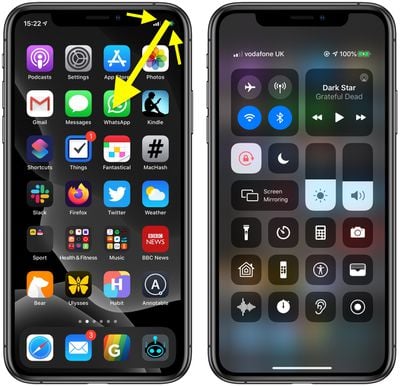
Accessing Control Center in iOS is designed to be easy. On an ‌iPad‌ with a Home button, simply double-tap the Home button; on iPhone 8 or earlier, swipe up from the bottom of the screen; and on a 2018 iPad Pro or ‌iPhone‌ X and later, swipe down from the upper right corner of the screen.
control center

Connectivity Controls

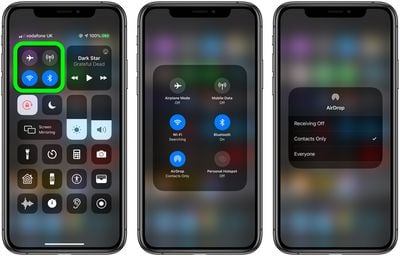
The Control Center is made up of several panels containing associated functions. The first pane on the left allows you to quickly enable or disable the wireless connectivity functions of your device, including Airplane mode, cellular data, Wi-Fi, and Bluetooth. Simply tap any of the buttons to enable or disable the related feature.
control center
If instead you press and hold on this panel, it will take over the screen and expand to reveal two more buttons: AirDrop and Personal Hotspot. From here, if you press and hold the AirDrop button you can opt to turn off AirDrop or set it to receive files either from Everyone or Contacts Only. Likewise, if you press and hold the Wi-Fi or Bluetooth buttons, you can access a list of available wireless networks and Bluetooth devices, respectively, any of which you can connect to with a tap.

Audio Playback

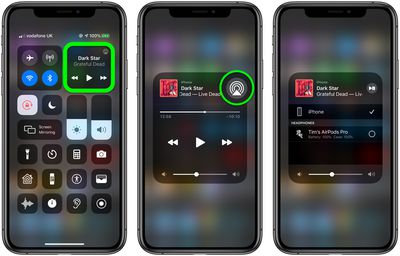
The second large panel at the top-right corner of the Control Center contains your media playback options, including the name of the currently selected track, album name, and buttons to play/pause and skip forward/go backward a track. There's also an AirPlay button in the top-right corner of the panel which can you can press and hold to expand.
control center
In this expanded view you'll see a track scrubber that you can drag with your finger to advance the current track or return to an earlier point in it. If you press the larger AirPlay button, you can access a list of available AirPlay-compatible devices and top on one to connect to it.

Orientation Lock, Do Not Disturb, and Screen Mirroring

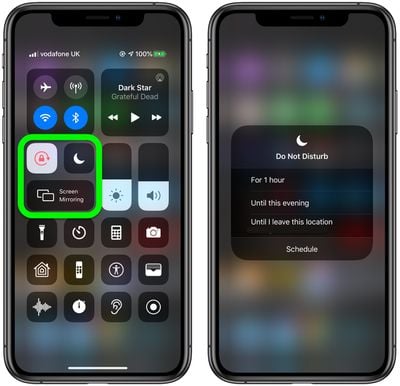
Below the two big panels in the Control Center are three options that always appear in the Control Center. The padlock button lets you enable/disable the Screen Orientation Lock, while the crescent moon turns Do Not Disturb on and off. You can also press and hold the Do Not Disturb button to schedule the mode for 1 hour, Until this evening, or Until I leave this location.
control center
The oblong Screen Mirroring button provides quick access to a list of devices on the same Wi-Fi network that support AirPlay video. Using this button, you can mirror the entire screen of your iOS device on an Apple TV or AirPlay 2-compatible smart TV, just by tapping it in the list.

Brightness and Volume Sliders

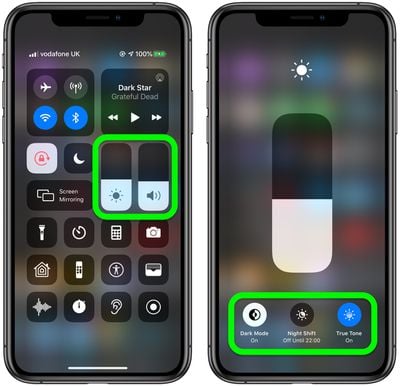
The Brightness and Volume sliders are more useful than they first appear. Aside from letting you set the screen brightness by dragging the level up and down, you can press and hold the Brightness slider to reveal more buttons that let you enable or disable Dark Mode, Night Shift, and True Tone.
control center
If you're listening to audio on your iOS device using Apple AirPods Pro, you can also press and hold the Volume slider to control Transparency and Noise Cancelation functions independently.

Customizing the Control Center

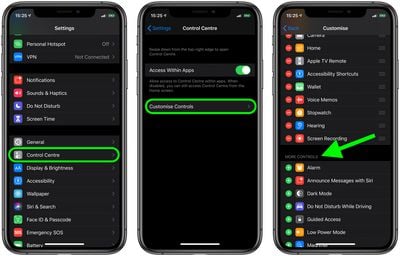
The buttons that appear in Control Center (below the ones we've already described) can vary, because you can add, remove, and organize them in the way you want through the Settings app. Simply follow these steps.

How to Add Controls to Control Center on iPhone and iPad

  1. Launch the Settings app.
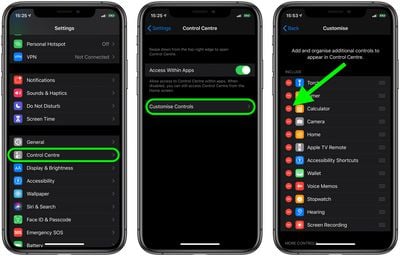
  2. Tap Control Center.
  3. Tap Customize Controls.
  4. Scroll down to More Controls.
  5. Tap on the "+" sign to the left of a control to add it to Control Center.control center

How to Remove Controls From Control Center on iPhone and iPad

  1. Launch the Settings app.
  2. Tap Control Center.

  3. Tap Customize Controls.
  4. Scroll down to the Include section.
  5. Tap the minus ("-") sign to the left of a control to remove it from Control Center.
    control center

How to Organize Controls in Control Center on iPhone and iPad

  1. Launch the Settings app.
  2. Tap Control Center.
  3. Tap Customize Controls.
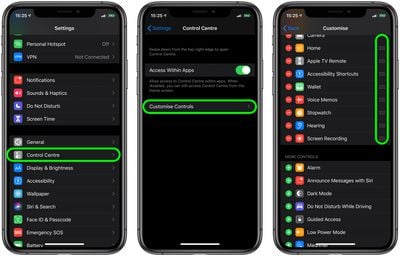
  4. Tap the three lines to the right of a control and drag its position up or down.
    control center

Note that the default controls in the upper portion of Control Center, such as the brightness and volume sliders, cannot be removed or reorganized.

List of Default Controls

  • AirDrop
  • Airplane Mode
  • Bluetooth
  • Cellular Data
  • Personal Hotspot
  • Wi-Fi
  • Music
  • Orientation Lock
  • Do Not Disturb
  • Brightness
  • Night Shift
  • Volume
  • AirPlay Mirroring

List of Customizable Controls

  • Accessibility Shortcuts
  • Alarm
  • Apple TV Remote
  • Calculator
  • Camera
  • Do Not Disturb While Driving
  • Flashlight
  • Guided Access
  • Home
  • Low Power Mode
  • Magnifier
  • Notes
  • Screen Recording
  • Stopwatch
  • Text Size
  • Timer
  • Voice Memos
  • Wallet

Once you've organized the buttons in the lower portion of the Control Center, try the same press-and-hold gesture on them and you'll typically be able to access more granular controls.

Press and hold the Camera button, for example, and you'll see options to Take Selfie, Record Video, Take Portrait, and Take Portrait Selfie. Similarly, press and hold the Wallet button to view a list of transactions for a particular Apple Pay card, or view your Last Transaction. And if you add the Notes button, you can even scan documents with your iPhone in three quick steps.


Top Rated Comments

119 months ago
Having the VPN button would be nice.
Score: 6 Votes (Like | Disagree)
soupcan Avatar
119 months ago
Logic would dictate that I'd now be able to move icons around the control centre like I move apps around my home pages putting things exactly where I want them. But apparently that thought didn't cross Apple's mind and now I have to guesstimate where my icons will end up because the thought of a live preview also didn't cross Apple's mind.

It's a step in the right direction with 3D touch and some form of customisability but it still needs some work.
Score: 5 Votes (Like | Disagree)
119 months ago
Found an explanation of the WiFi/Bluetooth control center changes:

https://support.apple.com/en-us/HT208086

Hmmm .... I kinda see where they were going with this, but this is a massive behavior change that hasn’t been publicized enough.

I like it more for WiFi than Bluetooth. I have to admit that most of the time when I disable WiFi it’s because a sticky “one bar” junk connection is giving me no service and I just want to get back to LTE. But then I forget to reenable it later and use up data in the meantime. The new logic solves that problem.

But that’s never the case for Bluetooth. If I’m turning off Bluetooth it’s explicitly because I want to save battery.

The solution seems simple enough: add force touch / long tap on the CC icons to fully turn off. Or revert behavior and use force touch for the new behavior.

MacRumors should make an article about this. If anyone is listening ...


Score: 4 Votes (Like | Disagree)
Weaselboy Avatar
119 months ago
What happened to night shift? Am I missing it or did it disappear from the new one?
Do 3D touch on the brightness and it will come up.
Score: 3 Votes (Like | Disagree)
jthesssin Avatar
119 months ago
I'm stoked that low power mode is quickly accessible now!
Score: 3 Votes (Like | Disagree)
Weaselboy Avatar
119 months ago
MacRumors should make an article about this. If anyone is listening ...
tips@macrumors.com

Send your suggestion to the editors at this email. They will even give you credit if they publish an article off your suggestion.
Score: 2 Votes (Like | Disagree)

Popular Stories

duo aquarium

More Fun iPhone Duo Apps: 30 New Picks to Try

Friday November 6, 2026 3:27 pm PST by
When the iPhone Duo launched, we shared a list of some of the fun apps developers created for the new form factor. Two weeks out, developers are continuing to come up with fresh ideas, so we thought we'd share some of our favorites. Games Marbles Unhinged ($2.99) - Marbles Unhinged is a marble maze designed for the Duo. When you fold it, the floor turns into a ramp. If you stand the top...
apple pro tell logo

Apple Launching Five New Products Today

Thursday November 5, 2026 12:59 am PST by
Apple is launching five new products on Friday, November 6, following pre-orders that opened last week, including its first touchscreen MacBook Pro models. The following new products will be available from today: iPad mini with OLED display and A20 Pro chip iMac with M6 chip 14-inch MacBook Pro with M6 chip 14-inch MacBook Pro with OLED touchscreen 16-inch MacBook Pro with OLED...
iOS 28 AI

Apple Taking New Approach to Developing iOS 28 and macOS 28

Sunday November 8, 2026 7:42 am PST by
Apple has made a change to its development process for iOS 28, macOS 28, and corresponding software updates, according to Bloomberg's Mark Gurman. In his Power On newsletter today, he said Apple separates development of each year's new operating systems into three major stages. Typically, he said each stage consists of four weeks of coding followed by a four-week "convergence" period where...
Latest Stories
Apple Store Subscription Sign-Up Controversy Exposed
6 hours ago
Siri AI Rumored to Become 'More Like an Agent' as Early as Next Year
16 hours ago
Apple Taking New Approach to Developing iOS 28 and macOS 28
17 hours ago
Early Apple Black Friday Deals on Apple Watch, MacBook Air, and More
2 days ago
'Backglow' Lets You Customize New MacBook Pro's Glowing Apple Logo
2 days ago
Top Stories: Apple Product Launches, iOS 27.3 Beta, and More
2 days ago
More Fun iPhone Duo Apps: 30 New Picks to Try
2 days ago
Hands-On With Apple's New OLED Touchscreen MacBook Pro
2 days ago
Apple Store With All-New Design Opening Soon in Southern California
2 days ago
Control the Glowing Apple Logo on Your New MacBook Pro
3 days ago
Apple Shares New 'Apple Card: Apply and Use in Minutes' Ad
3 days ago
Apple Says More Than 100,000 Apps Optimized for iPhone Duo, Here's What's Still Missing
3 days ago
Early Black Friday Deals Kickoff With Steep Discounts on Apple Watch Ultras and More
3 days ago
The MacRumors Show: iOS 27.3 Looks Like a Huge Update
3 days ago
Best Buy's Black Friday Event Begins With Sitewide Savings on Apple, TVs, More
3 days ago
Apple Releasing Yet Another Two New Products Next Week
3 days ago
MacBook Air Drops to Lowest Price in Months With Amazon's $250 Discount
3 days ago
Apple Rumored to Drop the iPhone's Action Button Next Year
3 days ago
Apple's Extended Return Policy Now in Effect for 2026 Holiday Season
3 days ago
Apple Music Classical Updated With New Icon and Refreshed Design
3 days ago
OLED iPad Mini, M6 iMac, and New MacBook Pros Available From Today
3 days ago
Apple Surveys iPhone Duo Buyers About Crease and Camera
3 days ago
Apple's First Touchscreen Mac is Now Arriving to Customers
3 days ago
Claude Gets Personal Finance Feature With Bank Account Linking
3 days ago
Apple Arcade Adds Crossy Road Rush and NBA 2K27
3 days ago
Apple's New HomeView Smart Home Hub: Here's How Much RAM It Has
3 days ago
iPad Mini vs. iPad Air Buyer's Guide: Now Just $50 Apart
4 days ago
First iOS 27.3 and macOS Golden Gate 27.3 Public Betas Now Available
4 days ago
Apple Announces a New Mac Sales Record
4 days ago
Paid $200 for Logic Pro? Apple Says You Won't Get This New Feature
4 days ago