How to Take Burst Photos on iPhone and iPad - MacRumorsOpen MenuShow RoundupsShow Forums menuVisit ForumsOpen Sidebar
Skip to Content

How to Take Burst Photos on iPhone and iPad

by

photos iconBurst Mode refers to when the camera on your iOS device captures a series of photos in rapid succession, at a rate of ten frames per second. It's a great way to shoot an action scene or an unexpected event, since you're always more likely to end up with the picture you were aiming for.

For instance, the picture below was taken when the sun came out momentarily from behind the clouds to throw light on the beautiful yellow ocher leaves of a tree. Burst Mode made it possible to shoot the whole event and then save out the one shot that captured the tree at its most vivid during its brief illumination.

To take a photo in Burst Mode, launch the Camera app from the Lock Screen – if your device is unlocked, select the Camera app from the Home screen or slide the Control Center into view and launch it from there. Once you have a shot in frame, tap and hold the shutter button at the bottom of the Camera interface for the duration of the scene that you're trying to capture.
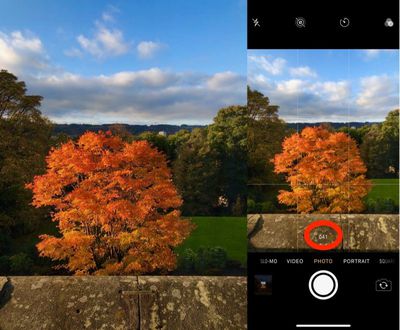
IMG 2349
Notice the counter increase at the bottom of the frame for as long as you hold down the shutter. This indicates how many shots are being captured in the current burst. Simply take your finger off the shutter when you want to end the burst of shots.

When you take a series of burst photos, they automatically appear in the Photo app under the Album name Bursts. You'll also find them in your main Photo Library as well as the Moments section found in the Photos tab. Here's how to view your burst photos and pick out the best images from them for safe keeping.

How to View Burst Photos

  1. Launch the Photos app.
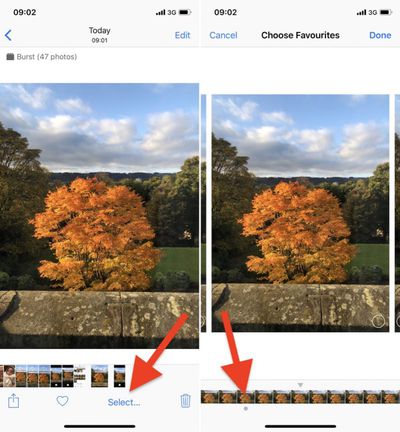
  2. Tap a collection of burst photos – they appear in the Photos Library as a single picture, but if you look closely, you'll see more images stacked underneath the top thumbnail image.
    taking burst photos 1

  3. Tap Select at the bottom of the screen.
  4. Swipe the film strip-like ribbon of images below the photo to view the other shots in the burst.

taking burst photos 2
Any dots you see below images in a burst indicate that Apple's algorithms think they have the best focus and detail in the set, but of course you may think differently.

How to Save Individual Images in Burst Photos

  1. Tap a stack of burst photos in your Photo Library.
  2. Tap Select in the top-right corner of the screen.
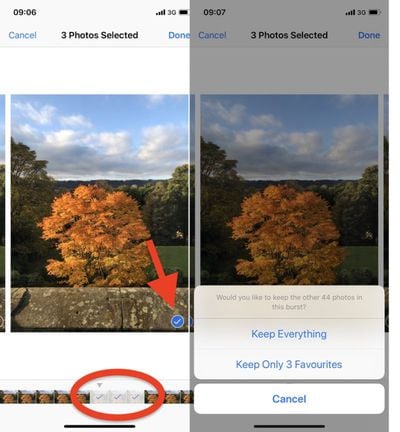
  3. Tap each image in the series that you want to keep.
  4. Tap Done in the top-right corner of the screen.
  5. To keep only the images that you ticked in the burst series, tap Keep Only Favorites. Otherwise, tap Keep everything.
taking burst photos 3

Related Forum: iOS 12

Top Rated Comments

ColdShadow Avatar
99 months ago
How to turn off this annoying feature permanently??
alot of my photos are saved as burst all the time.I hate it!
Score: 3 Votes (Like | Disagree)
Mac Fly (film) Avatar
99 months ago
Anyone know how to combine several burst photos into one on iOS? The easiest way; preferably an automatic method.

Example photo:

MacRumors content image
Score: 3 Votes (Like | Disagree)
iapplelove Avatar
99 months ago
Burst photo and Live Photo...two things I shut off immediately.
Score: 2 Votes (Like | Disagree)
RightMACatU Avatar
99 months ago
How to turn off this annoying feature permanently??
alot of my photos are saved as burst all the time.I hate it!
Ahhh this!!! I would double thumb-you-up if I could.
Score: 2 Votes (Like | Disagree)
Mac Fly (film) Avatar
99 months ago
How to turn off this annoying feature permanently??
alot of my photos are saved as burst all the time.I hate it!
Use volume button as shutter and press with a click.
Score: 2 Votes (Like | Disagree)
yaxomoxay Avatar
99 months ago
Burst photo and Live Photo...two things I shut off immediately.
Live Photos is actually pretty cool. It’s one of the things I radically changed my mind upon. I captured quite a few nice moments with it, and thanks to the possibility to change the main picture I was gladly happy to find out multiple times that a picture taken on a very slightly different moment was much better than the one I actually took.
Score: 1 Votes (Like | Disagree)

Popular Stories

Apple Card iPhone 16 Pro Feature

Apple Card Promo to Offer Free AirPods Pro 3

Friday May 15, 2026 8:59 am PDT by
Starting as early as next week, customers who sign up for an Apple Card at Apple's retail stores in the U.S. will receive $249 cash back when they purchase AirPods Pro 3, according to Bloomberg's Mark Gurman. The promotion has yet to be officially announced by Apple, so exact terms and conditions are not available at this time. AirPods Pro 3 are priced at $249 in the U.S., so customers who...
Apple WWDC25 iOS 26 CarPlay Light mode 250609

Six Popular iPhone Apps Now Available on CarPlay

Thursday May 14, 2026 9:10 am PDT by
Apple's CarPlay system for accessing iPhone apps on a vehicle's dashboard screen has received six popular apps in recent weeks: ChatGPT, Perplexity, Grok, Google Meet, WhatsApp, and the indie artist streaming platform Audiomack. Make sure you have the latest version of each app and they will automatically appear on CarPlay. ChatGPT Starting with iOS 26.4, CarPlay supports voice-based...
ipad mini 7 blue

OLED iPad Mini: Release Date, Pricing, and What to Expect

Thursday May 14, 2026 5:08 am PDT by
According to the latest rumors, Apple is close to launching its next-generation iPad mini. So what should we expect from the successor to the iPad mini 7 that Apple released over a year ago? Read on to find out. Processor and Performance Apple is working on a next-generation version of the iPad mini (codename J510/J511) that features the A19 Pro chip, according to information found in code...