

Apple's autocorrect on iPhone and iPad always aims to help when you're typing a message, but it's by no means perfect, and some of the replacements it continually spews out can be frustrating. Fortunately, Apple's software includes a feature called Text Replacement that allows you to specify what word or phrase replaces the specific text you type in.
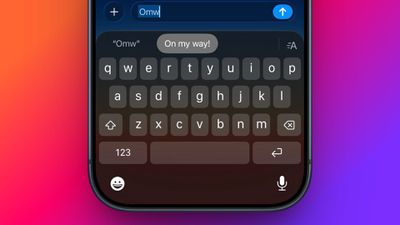
Even if you haven't set up Text Replacement, you can try it out with Apple's pre-set example: In any app that accepts text input, type "Omw" followed by a space, and it will change to "On my way!" automatically.
The following steps guide you through the process of setting up your own handy shortcut phrases with text replacements on both iOS devices and Mac.
How to Set Up Text Replacement on iPhone
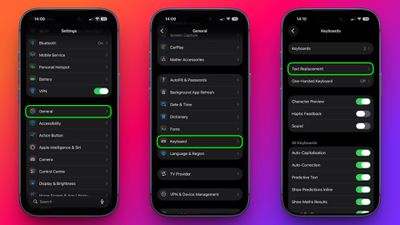
- Launch the Settings app on your iPhone or iPad.
- Tap General ➝ Keyboard.
- Tap Text Replacement.

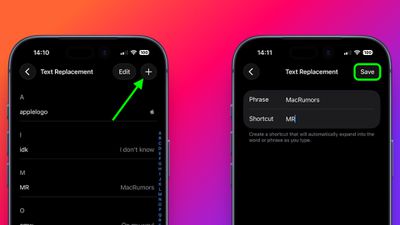
- Tap the plus (+) button in the top-right corner of the screen.
- On the next screen, fill in the "Phrase" field with the text you want to appear every time you type your shortcut.
- In the "Shortcut" field, input the text of your choice that you want to be replaced by the phrase above.
- Tap Save in the top-right corner to finish.
How to Set Up Text Replacement on Mac
The following steps work on Macs running macOS Ventura and later.
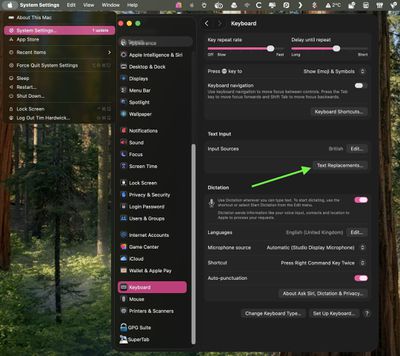
- On your Mac, click the logo in the top-left corner of the menu bar at the top of the screen and select System Settings....
- Scroll down and select Keyboard in the sidebar.
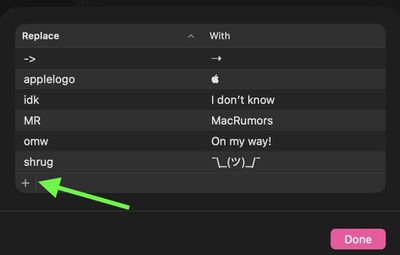
- Under "Text Input," click Text Replacements....
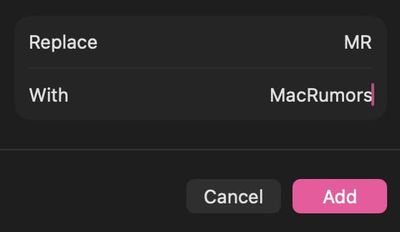
- Click the + button to add a text replacement.
- In the "Replace" column, enter the text that you want replaced with something else.
- In the "With" column, type the replacement text that you want it to change to.
If you're using the same Apple account across all of your Apple devices, any Text Replacements that you add on your Mac will be automatically synced to your iPhone and/or iPad, and vice versa.




















Top Rated Comments
1. Don’t use real words for shortcuts or you won’t be able to type that word easily anymore (you have to tap the x on the replacement suggestion, and it’s a pain to do regularly). Instead of “shrug,” I simply use “shr,” because I’ll rarely type that without the “ug” afterward.
2. Make them as short as possible. Most of mine are 3 letters. I use “apl” for the Apple logo. It’s a lot faster to type than “applelogo.”
3. Save things like your address, email address, and the name of your city. It saves so much time.
4. I also have lots of special characters saved. For example: ←, →, ↑, ↓, ≠.
5. I also have some links I send fairly frequently.
(Same with every text shortcut of course, but usually it's useful 😁)