StandBy is a Lock Screen mode that activates when an iPhone is plugged into a charger and positioned in a horizontal (or landscape) orientation. It consists of three different screens, the last of which is the fullscreen clock display. Keep reading to learn how to change the style of the clock.
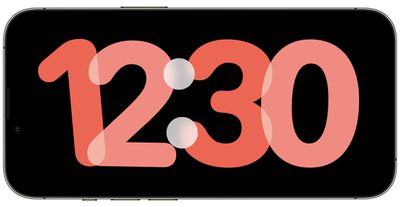
StandBy's third screen shows the time and date in various themes that you can access by swiping up and down on the display. They include Digital, Analogue, World, Solar, and Float. Some themes also show additional information like the temperature or your next alarm.
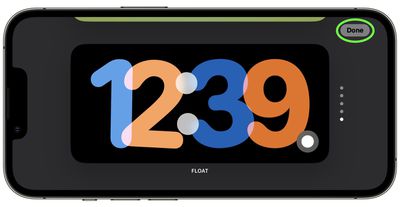
Float shows the time in big bubble numbers in customizable colors, while Solar has more of a standard font with a solar flare design in different colors. Similarly, the Analog theme has customizable accent colors, and Digital has bold numbers with different color options. The World theme shows the time with a map of the world and your current location highlighted, and is the only theme that can't be color-customized.
Here are the steps to take to change the color of the Analog, Solar, Float, and Digital clocks.
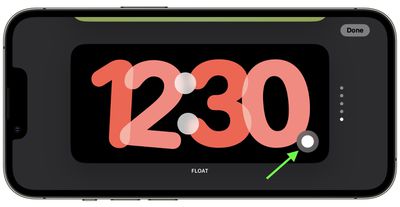
- Press and hold on the clock face.
- Tap the white button in the bottom-right corner of the clock.

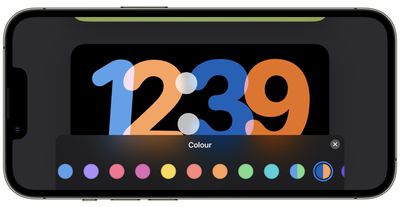
- Choose a different color swatch from the row of options that appears.
- When you're happy with your selection, tap the X button in the top-right corner of the color swatch menu pane, then tap Done.
That's all there is to it. You can also customize the widgets screen in StandBy mode. Check out our dedicated guide for more help.