

How to Disable Autoplaying Videos in the YouTube App's Home Tab - MacRumorsOpen MenuShow RoundupsShow Forums menuVisit ForumsOpen Sidebar
Skip to Content

How to Disable Autoplaying Videos in the YouTube App's Home Tab

by

Over the next few weeks, YouTube is rolling out a new feature for its mobile app called "Autoplay on Home," which automatically plays videos that appear on your Home tab. As you scroll through your Home feed, videos will begin to play on mute with captions auto-enabled.
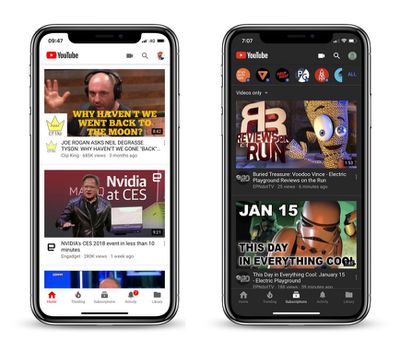
youtube mobileGoogle claims the previously Premium-only feature is a better way to experience new content on the go, and will help you "make more informed decisions about whether you want to watch a video," but not everyone is likely to agree, especially users who have a cellular data cap.

Fortunately, YouTube has provided some options to customize the app's new default behavior, which we'll mention shortly. But first, here's how you can turn off Autoplay on Home completely.

How to Disable Autoplay on Home in the YouTube App

  1. Launch the YouTube app on your iPhone.
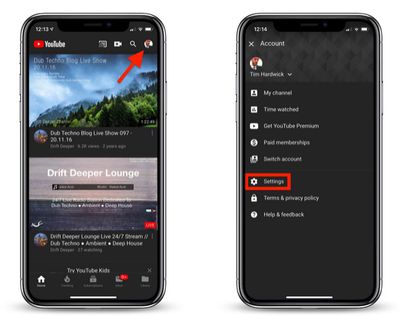
  2. Tap your profile icon in the upper right of the screen.
  3. Tap Settings.
    turn off autoplay on home youtube

  4. Tap Autoplay.
  5. Tap the Autoplay on Home toggle to turn it off.
In some circumstances, Autoplay on Home may be enabled only when you're using either Wi-Fi or cellular data. If you want to adjust this behavior, follow the steps above to bring you to YouTube's Autoplay settings, and you'll find options to Use on Wi-Fi and cellular data and Use only when connected to Wi-Fi.

Tag: YouTube

Top Rated Comments

Mac Fly (film) Avatar
99 months ago
I followed these instructions but don’t see the auto-play option in settings.
Score: 4 Votes (Like | Disagree)
Pepe4life Avatar
99 months ago
Why is every company doing this? Stop wasting my bandwidth on crap I don’t want to see
Score: 4 Votes (Like | Disagree)
CarlJ Avatar
99 months ago
I followed these instructions but don’t see the auto-play option in settings.
Same here - these types of articles are usually filled with screenshots detailing the whole procedure, while this article stops the screenshots after "tap Settings". I'm on Version 13.47.7, and don't see any "Autoplay" text anywhere on the Settings page. It's something bordering on suspicious that they don't have an screenshot of the offending setting.
Score: 2 Votes (Like | Disagree)
99 months ago
I'm not a frequent YT app user, but when I do, I find it very un-intuitive and difficult to maneuver.

When I go to a particular subscribed YT'er and see the list of videos, I play the first one, and if I press the "skip to next" button, it plays some completely unrelated video instead of the next one in the list of videos. Just navigating the screens is misery.

Certainly they could do better.
Score: 2 Votes (Like | Disagree)
99 months ago
Awful “feature”. Off you go. Thanks.
Score: 2 Votes (Like | Disagree)
84 months ago

Over the next few weeks, YouTube is rolling out a new feature for its mobile app called "Autoplay on Home," which automatically plays videos that appear on your Home tab. As you scroll through your Home feed, videos will begin to play on mute with captions auto-enabled.

MacRumors content image
Google claims ('https://productforums.google.com/forum/#!topic/youtube/5D-5iO1hyNI') the previously Premium-only feature is a better way to experience new content on the go, and will help you "make more informed decisions about whether you want to watch a video," but not everyone is likely to agree, especially users who have a cellular data cap.

Fortunately, YouTube has provided some options to customize the app's new default behavior, which we'll mention shortly. But first, here's how you can turn off Autoplay on Home completely.

How to Disable Autoplay on Home in the YouTube App
[LIST=1]
* Launch the YouTube app on your iPhone.
* Tap your profile icon in the upper right of the screen.
* Tap Settings.
MacRumors content image

Tap Autoplay.
* Tap the Autoplay on Home toggle to turn it off.

In some circumstances, Autoplay on Home may be enabled only when you're using either Wi-Fi or cellular data. If you want to adjust this behavior, follow the steps above to bring you to YouTube's Autoplay settings, and you'll find options to Use on Wi-Fi and cellular data and Use only when connected to Wi-Fi.

Article Link: How to Disable Autoplaying Videos in the YouTube App's Home Tab ('https://www.macrumors.com/how-to/disable-youtube-app-autoplay-on-home-feature/')
In order to disable this setting. Open YouTube, Click on your Profile pic in the top right as it says. After this select "Settings" then select "General" then Click/Select "Muted playback in feeds" then Select "Off".
This fuction will be disabled and you can now use YouTube again without announcing yourself with the annoying setting. Enjoy:)
p.s. i legit just made an account to comment this to help anyone with this issue..i know how awful it is to try to find help with something and no one seems to be of help with incorrect information most of the time so i decided to help and use correct information i know is authentic bc i used it.
Score: 1 Votes (Like | Disagree)

Popular Stories

General YouTube Feature Redux

Apple Responds to Lawsuit Filed by Three YouTube Channels

Thursday July 2, 2026 7:47 pm PDT by
Earlier this year, three YouTube channels sued Apple, alleging that the company violated the U.S. Digital Millennium Copyright Act (DMCA) by unlawfully accessing and scraping millions of copyrighted YouTube videos to train its AI models. In a class action lawsuit filed with the U.S. District Court for the Northern District of California in April, the owners of the YouTube channels...
iCloud iPhone 17 Pro

iPhone Users Who Pay for iCloud Storage Get Two New Perks on iOS 27

Thursday July 2, 2026 6:10 am PDT by
If you pay for certain iCloud+ storage plans beyond the 5GB that Apple offers for free, you will receive two more perks on iOS 27 at no additional cost. A summary of the two new iCloud+ perks on iOS 27:Increased daily usage limits for some new Apple Intelligence features, including image generation in the revamped Image Playground app. HomeKit Secure Video cameras receive generated video...
American Express Gold Apple Pay Feature

American Express Announces New Apple Pay Feature

Tuesday June 30, 2026 10:27 am PDT by
American Express today announced that you can now redeem Membership Rewards points when checking out with Apple Pay on the web and in apps on the iPhone and iPad. When checking out with Apple Pay on iOS 18 or iPadOS 18 or later, tap on your eligible American Express card (Platinum, Gold, Green, and others) and select the Membership Rewards points option. You can use points to cover all or...












