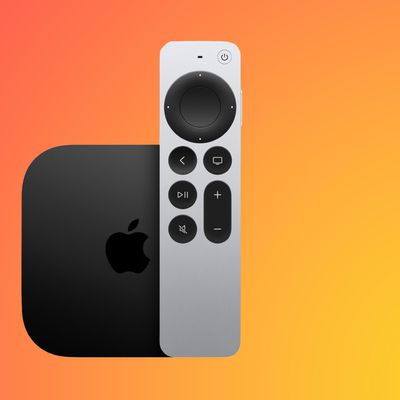
In tvOS 17, Apple introduced a New Enhance Dialogue feature for second-generation HomePods that lets users more clearly hear what is being said over effects, action, and music in a movie or a TV show. In iOS 17.1 and HomePod software 17.1, Apple has extended the feature to any HomePod (or set of HomePods) paired to an Apple TV 4K.
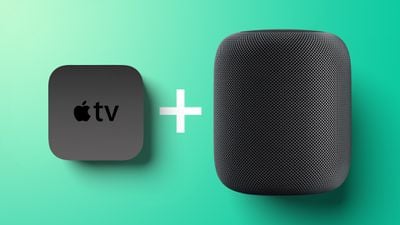
When you connect one or two HomePod speakers to Apple TV 4K for a home cinema sound experience, you can turn on Enhance Dialogue to make speech more prominent in audio mixes so that dialogue is easier to hear and understand.
Note that the Enhance Dialogue setting only appears for all HomePod models if you have an Apple TV 4K and HomePods running the latest 17.1 software. (Make sure the HomePods are selected as Audio ➝ Default Audio Output in Apple TV's Settings app.)
To enhance dialogue in the currently playing video, show the playback controls by pressing up on the Siri Remote's clickpad ring, or rest your finger on the clickpad, then select the Audio Options button (the waveform in a circle) and choose Enhance Dialogue from the pop-up menu.
Alternatively, if you want to enhance dialogue for all videos that you play on Apple TV, open Settings ➝ Video and Audio, and turn on Enhance Dialogue.