

How to Use the Redesigned Messages App Drawer in iOS 11 - MacRumorsOpen MenuShow RoundupsShow Forums menuVisit ForumsOpen Sidebar
Skip to Content

How to Use the Redesigned Messages App Drawer in iOS 11

by

In iOS 10, Apple introduced the Messages App Store, allowing users to jump into miniature versions of their favorite apps so they could do things like choose a movie time, send their location, pay a friend, give a recommendation from Apple Music, and attach stickers. With the launch of iOS 11, the app drawer and selection experience of Messages apps have been streamlined, and this guide will walk you through the fastest way to access your favorite apps, organize them, and add more from the Messages App Store.

Navigating the New App Drawer in Messages
how to messenger app drawer 1

  1. Open Messages.
  2. Choose a contact to text.
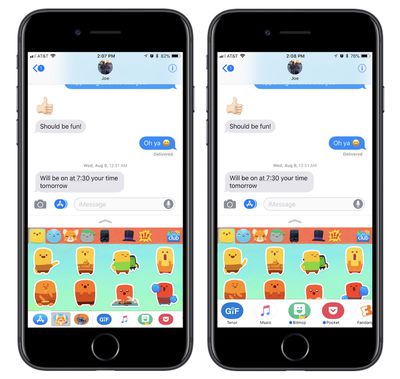
  3. At the bottom of the screen sits the new app drawer, and you can tap one to bring it up or scroll to dive deeper into your collection.

From here, apps within Messages function essentially the same as they did in iOS 10: the bottom half of the screen represents the app, which you can interact with and send content into the upper half section of the screen in the form of an iMessage. A small chevron sitting just below the text entry field can be tapped to expand the Messages app to full screen, and tapped again to reduce it.

If you ever accidentally leave the app by tapping the text field, simply tap the App Store icon to the left of the text field. Conversely, if you're inside of a Messages app and want to make it and the app drawer disappear, tap the same App Store icon to the left of the text field (it'll be blue when the app drawer is open) to make the app disappear (returning the icon to gray).

Editing the New App Drawer in Messages
how to messenger app drawer 2

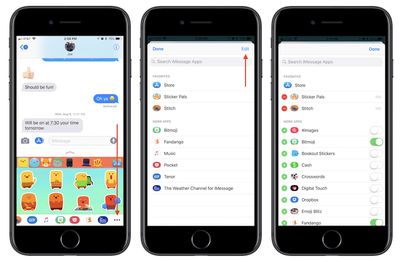
  1. Navigate to the app drawer in Messages.
  2. Scroll the drawer all the way to the right and tap the ellipses, or "More," icon.
  3. Tap "Edit."
  4. On the right side, choose any installed app you want or don't want in your Messages app drawer by tapping the green toggles.
  5. On the left side, tap the green "+" icon next to any app you want as a favorite.
  6. Tap "Done."

Now that your app drawer is fully customized, your favorites will appear on the far left side of the drawer, and any other apps you have toggled on will appear after your favorites. Any time you want to search for more, you can tap the blue App Store icon sitting to the left of your favorites to visit the Messages App Store. There are numerous standalone Messages apps, but many popular apps have also been updated over the past year to include Messages support.

For this reason, it's easy for your app drawer to become crowded, making the deeper editing and favoriting options in iOS 11 a welcome addition. If you'd rather not see the app drawer, tap on the gray App Store icon at the left of the Messages text box to hide it from view.


Related Forum: iOS 11

Top Rated Comments

ck2875 Avatar
113 months ago
With the launch of iOS 11, the app drawer and selection experience of Messages apps have been streamlined, and this guide will walk you through the fastest way to access your favorite apps, organize them, and add more from the Messages App Store.

You left off the most important part: Tap the gray App Store icon to hide the app drawer.
Score: 12 Votes (Like | Disagree)
113 months ago
How do you disable this stupid thing?

I’m a grown up. I text people. I don’t need everything to be shared or “connected”.
Score: 6 Votes (Like | Disagree)
113 months ago
You left off the most important part: Tap the gray App Store icon to hide the app drawer.
I can’t believe I didn’t figure that out and I’ve been using the beta.

THANK YOU !!! honestly, I search the setting and I figures you couldn’t turn it off cuz they wanted to you to buy those stupid stickers. Thank you again. MR needs a post with just this info for us who aren’t in middle school.
Score: 2 Votes (Like | Disagree)
113 months ago
This thing is still really buggy. I edited the apps available and when I was done I couldn't press "Done." I had to force quit the app. I've noticed some other weirdness that makes iOS 11 still feel very much beta to me.
Score: 2 Votes (Like | Disagree)
113 months ago
How about an article to discuss that turning off WiFi in control center in iOS 11 doesn’t turn it off and it reconnects automatically even after you’ve turned it off?
https://www.macrumors.com/2017/09/20/bluetooth-wifi-not-disabled-ios-11-control-center/
Score: 1 Votes (Like | Disagree)
Prof. Avatar
113 months ago
You left off the most important part: Tap the gray App Store icon to hide the app drawer.
I was so happy when I found this out.
Score: 1 Votes (Like | Disagree)

Popular Stories

Apple Card iPhone 16 Pro Feature

Apple Card Promo to Offer Free AirPods Pro 3

Friday May 15, 2026 8:59 am PDT by
Starting as early as next week, customers who sign up for an Apple Card at Apple's retail stores in the U.S. will receive $249 cash back when they purchase AirPods Pro 3, according to Bloomberg's Mark Gurman. The promotion has yet to be officially announced by Apple, so exact terms and conditions are not available at this time. AirPods Pro 3 are priced at $249 in the U.S., so customers who...
Apple WWDC25 iOS 26 CarPlay Light mode 250609

Six Popular iPhone Apps Now Available on CarPlay

Thursday May 14, 2026 9:10 am PDT by
Apple's CarPlay system for accessing iPhone apps on a vehicle's dashboard screen has received six popular apps in recent weeks: ChatGPT, Perplexity, Grok, Google Meet, WhatsApp, and the indie artist streaming platform Audiomack. Make sure you have the latest version of each app and they will automatically appear on CarPlay. ChatGPT Starting with iOS 26.4, CarPlay supports voice-based...
ipad mini 7 blue

OLED iPad Mini: Release Date, Pricing, and What to Expect

Thursday May 14, 2026 5:08 am PDT by
According to the latest rumors, Apple is close to launching its next-generation iPad mini. So what should we expect from the successor to the iPad mini 7 that Apple released over a year ago? Read on to find out. Processor and Performance Apple is working on a next-generation version of the iPad mini (codename J510/J511) that features the A19 Pro chip, according to information found in code...













