With the release of iOS 16, iPadOS 16, and tvOS 16, iPhones, iPads, and Apple TVs now include support for pairing Nintendo Switch Joy-Con and Pro controllers. Keep reading to learn how it's done.
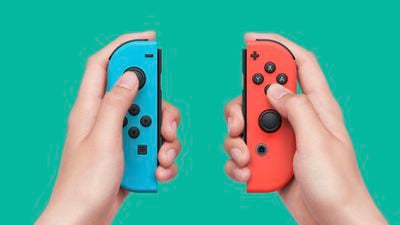
As many Apple Arcade games enthusiasts will know, Apple's mobile devices and Apple TV set-top box support some popular game controllers right out of the box. For example, these devices have supported PlayStation 5 DualSense and Xbox Series X controllers since April 2021.
While not well advertised by Apple, the release of iOS 16, iPadOS 16, and tvOS 16 also added support for the Nintendo Switch Joy-Con and Pro controllers, so now users can play better than they might otherwise be able to using on-screen touch controls or their Apple TV Remote.
What's more, the great thing about using Joy-Con controllers is that you can connect either a single Joy-Con or both Joy-Cons, and when you connect two Joy-Cons they will appear as a single unified MFi controller to your games.
It's even possible to dynamically switch between using the Joy-Cons individually or as one combined controller by holding the screenshot capture and home buttons for a few seconds.
How to Connect a Joy-Con to iPhone or iPad
The following the steps show you how to pair your Nintendo controller to your iPhone or iPad, and we'll be using a single Joy-Con in our example.
- Remove a Joy-Con from your Nintendo Switch.
- Press and hold the Sync button on the black edge of the controller.

- Wait for the lights alongside the Sync button to rove back and forth, indicating that the Joy-Con is in pairing mode.
- Launch the Settings app on your iPhone or iPad.
- Tap Bluetooth.
- Wait for your Joy-Con to appear in the "Other Devices" section, then tap it to connect.
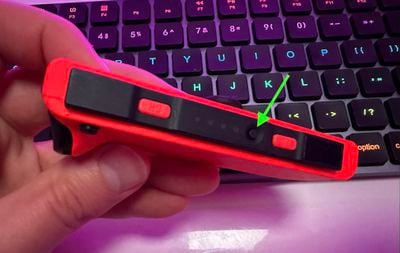
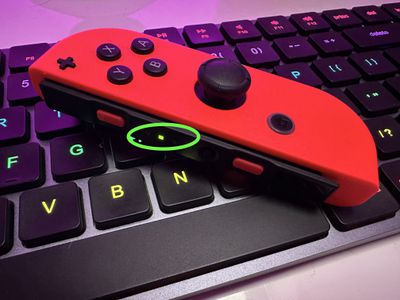
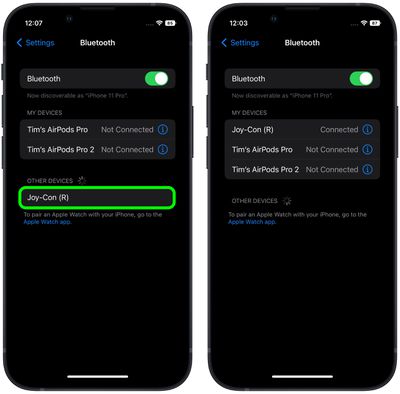
Your Joy-Con will appear in the "My Devices" list and the pairing lights on the controller will go out except for one, indicating that it has successfully connected and is ready to use.
How to Connect a Joy-Con to Apple TV
- Remove a Joy-Con from your Nintendo Switch.
- Press and hold the Sync button on the black edge of the controller.
- Wait for the lights alongside the Sync button to rove back and forth, indicating that the Joy-Con is in pairing mode.
- On your Apple TV, select the Settings app.
- Select Remotes and Devices -> Bluetooth.
- Wait for your Joy-Con to appear in the "Other Devices" section, then tap it to connect.
You'll receive an onscreen notification on your Apple TV confirming that the Joy-Con has successfully paired and is ready to use.