In iOS 17, Apple has added several new Messages features and tweaked the interface design of the Messages app to give it a cleaner look. This means that the way you navigate and perform certain actions in the messaging app has changed quite a bit.
For example, previously in iOS 16, sending a voice message involved tapping the waveform icon in the row of apps below the text input field to bring up a record button. But in iOS 17 the row of buttons atop the keyboard has gone, and all you have to tap now is a + button to the left of the text field.
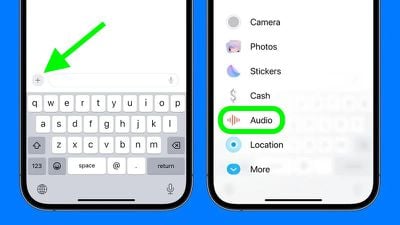
This + button brings up a vertical list of options, where you'll find an Audio button. Compared to the row of app icons that consolidated all options in iOS 16, this makes for a much more simplified design, since it's easier to tell what's what with the larger icons and text descriptions.
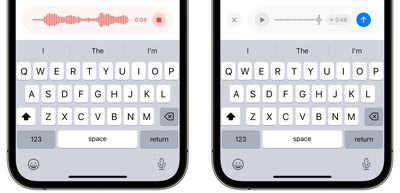
To record an audio message in iOS 17, simply tap the Audio button and your recording will immediately begin. When you're finished recording, tap the red stop button. You can then listen to the recording by pressing the play button, tap the blue arrow to send the audio message, or tap the X on the left to cancel.
In iOS 17, Messages may have changed its look and feel, but the interface is actually now more customizable. You can, for instance, organize your iMessage apps and manage iMessage sticker packs right within the app. Click the links to learn how.