In iOS 14, Apple introduced some big changes to the Home Screen, including new widgets and an App Library. The latter feature is designed to organize large collections of apps and make them easier to access. Keep reading to learn how it works.
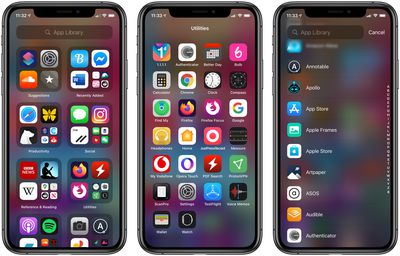
The App Library offers a new way to manage your apps by using automatically generated app categories and a new searchable alphabetical list view. It may not be immediately obvious how to find the App Library, but that's because it lives beyond the last screen of apps.
How to Access the iOS App Library
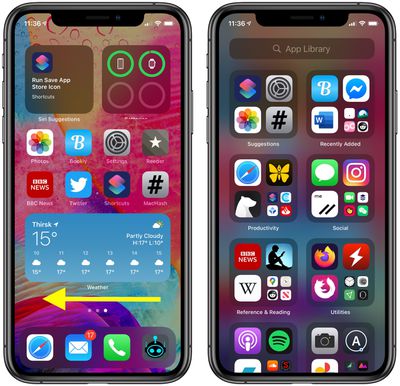
- On the Home Screen of your iPhone, swipe left to your last screen of apps.
- Swipe left once more to bring up the App Library.
How to Use the App Library
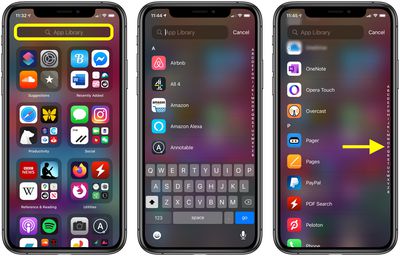
With the App Library open, you'll see two columns containing auto-generated categories of apps. You can tap an individual app to open it, or tap the group of four smaller app icons to reveal all the apps in that category.
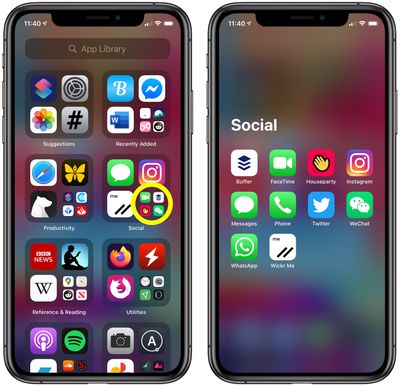
To delete individual apps, you can long press on a category name or a blank space to enable jiggle mode, then tap the small x in the corner of the app you want to remove. To add an app to your Home Screen, long press on it and select Add to Home Screen.
How to Use the App Library List View
The App Library also incorporates a list view that you can use to find apps installed on your device.
- Tap the App Library search bar at the top of the screen. Alternately, swipe down on the screen.
- Type in the name of an app to filter the alphabetical list, or scroll down through the list with your finger to find what you're looking for. You can also swipe up and down the letters of the alphabet on the right of the screen for faster navigation through the list.
- Tap an app to launch it.
If you like using the App Library, you can hide pages of apps on your Home Screen to get to it in fewer swipes. Click here to learn how.