

 Apple's FaceTime app lets you make video or audio calls from your iPhone to any of your friends and family, as long as they have an iPhone, iPad, iPod touch or Mac.
Using your iPhone's front-facing camera and FaceTime, you can talk face to face, or switch to the rear camera so that both you and the person you're on a call to can see what's in front of you.
Setting up FaceTime on iPhone is easy – just make sure you have a cellular connection or you're on Wi-Fi, then follow the steps below. Note that you can also choose which phone number that you want people to use to reach you over FaceTime.
- Launch the Settings app on your iPhone.
- Scroll down and tap FaceTime.
- Tap the switch next to FaceTime so it's in the green ON position.
- Tap Use your Apple ID for FaceTime, then tap Sign In, or tap Use Other Apple ID and enter the credentials that you want to use.
- Select the phone number and/or email address(es) that you want people to be able to use to reach you via FaceTime.

- Select the phone number or email address that you want to use as your Caller ID.
- If you want to let people be able to take Live Photos during FaceTime calls, turn on the switch next to FaceTime Live Photos.
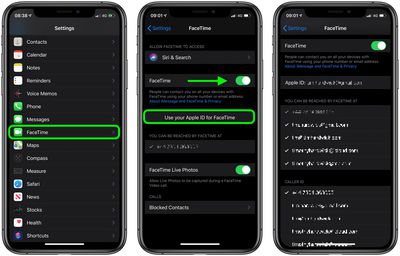
Note that you can also block people from contacting you over FaceTime (or phone calls, messages, and email) by tapping the Blocked Contacts option at the bottom of the screen and then adding the contacts that you want to block.
Now that you're set up, friends and family will be able to get in touch with you to via FaceTime, and of course you can fire up the FaceTime app at any time to call them yourself.















