

Apple in macOS Tahoe 26.2 introduced Edge Light, a clever new feature that turns your Mac's display into a virtual ring light during video calls. Instead of fumbling with external lighting equipment, your Mac can now illuminate your face automatically when you're sitting in a dark room.
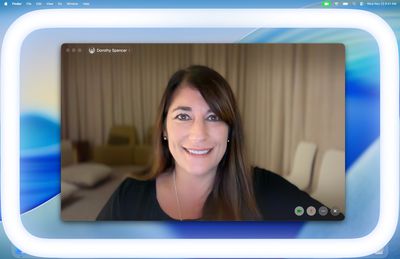
Basically, Edge Light adds a soft glow around the edges of your display to brighten your face during video conferences. But it's far from just a simple screen border effect. Edge Light uses your Mac's Neural Engine to analyze your face, size, and position in the frame to deliver accurate lighting, while the Image Signal Processor fine-tunes brightness to match your environment.
The feature is even aware enough to know when your cursor approaches the display edge. When it does, Edge Light automatically recedes, allowing you to still access on-screen content without it interfering.
What You'll Need
Edge Light works on any Mac with Apple silicon (M1 or later). It's compatible with all video conferencing apps and even extends to external cameras and the Apple Studio Display when connected to an Apple silicon Mac.
How to Turn On Edge Light
Once you've updated to macOS Tahoe 26.2 or later, enabling Edge Light takes just a couple of clicks:
- Open a supporting video call app (FaceTime, Zoom, or WebEx, for example).
- Click the green video conferencing menu bar item at the top of your screen.
- Select Edge Light from the drop-down menu.
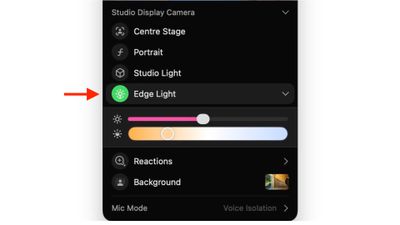
To adjust the lighting intensity and color temperature, click the down chevron next to Edge Light. You'll see two sliders that let you customize the brightness and warmth of the effect to suit your preferences.
If you own a Mac released in 2024 or later, you can turn on automatic Edge Light activation. Once enabled, your Mac will detect when you're in a dimly lit environment and turn the feature on without any manual input. Simply look for the automatic toggle in the video call dropdown menu, immediately below the expanded Edge Light options.






















Top Rated Comments
FYI - I'm using a Mac mini and studio display.