

Apple's "Focus" feature is a powerful tool for cutting down on distractions and interruptions on a per-task basis, but setting up different Focus options takes some time investment and tinkering because there are a lot of features available. We've rounded up a handful of suggestions that may help you get more out of Focus.
Managing Focus Modes
You'll find the Focus section in the Settings app. Apple has some pre-made Focus options, but you can create custom modes by tapping on the "+" button in the upper right corner. Custom Focus modes are a blank slate, so you can choose your own name, icon, and capabilities.
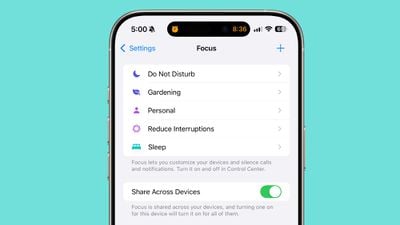
We'll go through some of the useful options below, but it is worth tapping through each section to see which functions will work best for your needs.
Silence or Unsilence Specific People
If you're at work and want to silence personal text messages and calls to cut down on distractions, or if you're at home and want to shut out work messages, the best way to do so is to use the people muting feature.
There are two options. You can silence notifications from a list of people that you select, allowing all others, or you can allow notifications from everyone except for the people that you pick.
With either option, you have to add people one by one, and there's no intelligent grouping option that will do it for you. It can take some time, depending on what you want to set up. It's best to choose the option that has the least amount of tapping, so if you're at work, you may want to select colleagues, important family members, and your boss, while turning off notifications from everyone else.
At home, it might make sense to allow all of your notifications to come through except for people from work.
When you "silence" a person with Focus, you still receive the text message, it's just tucked away in a specific section on your Lock Screen and you don't get an audible or haptic ping when the notification comes in.
Select Apps
Similar to silencing people, you can silence or allow notifications from apps for specific Focus modes. You have the same options as you do with people, and Apple will suggest some of your most used apps.
Given that most of us have a whole ton of apps installed, it's almost always best to use the "Allow Notifications From" feature to choose apps that you want to hear from, but there are exceptions. For a home-based Focus mode, if you have a few apps like Mail and Slack that are noisy, you can mute just those while allowing all other apps.
Carefully choosing the apps that can ping you in each Focus mode is one of the best ways to manage distractions.
Apple's pre-configured Do Not Disturb mode silences all apps and people by default if you just want to turn off everything with no hassle.
Using Reduce Interruptions
If you have a device that supports Apple Intelligence, you can turn on a pre-configured "Reduce Interruptions" Focus. It blocks all notifications except for those that Apple Intelligence determines are "priority notifications."
Reduce Interruptions can be customized to expressly allow or silence specific apps and people, and using this feature will override AI-based sorting for those selections. Reduce Interruptions can be a good compromise between all notifications on and Do Not Disturb.
Intelligent Breakthrough and Silencing
The main feature in Reduce Interruptions, Intelligent Breakthrough and Silencing, can actually be applied to any of your custom Focus modes.
Limit App Access with Custom Home Screens
It takes a few extra steps, but Focus modes can be set up to only show you specific apps. Under the Customize Screens option, you can choose a Home Screen page to show when a Focus mode is active.
If you want to only see work apps while at work, you can set up a page with your work apps and then choose that as your main screen for the Focus mode. You can select all of the apps that you want to see, and others will be hidden from view while the Focus is active. Note that the dock stays available regardless with your selected apps, and you can also edit your custom Home Screen later while the Focus is on if you need to make tweaks.
While in a Focus mode, you can still open other apps by swiping over to the App Library, but by default, distractions are hidden from view.
This can be a good way to shut out distracting games and social media apps at certain times of the day as an alternative to Screen Time.
Add Focus Filters
With Focus Filters, you can really drill down into what's available in each of your Focus modes. If you have a work email inbox and a personal email inbox in Mail, you can use filters to block out your personal inbox when you're at work, or your work inbox when you're at home.
There are filters for apps where you might want to split out different accounts, like Safari, Calendar, and Messages. You can filter for specific conversations in Messages, a specific Calendar, or a Tab Group. There are filters for third-party apps, too.
Focus Modes can be linked to system settings that include Always On Display, Dark Mode, Low Power Mode, and Silent Mode, so you can do things like set up a work focus that always activates Silent Mode, or set up a Focus that blocks out all notifications and turns on Low Power Mode.
Scheduling
All Focus modes can be set to activate automatically, so that once you configure them, you don't need to manually turn them on and off. You can activate Focus modes by time of day, your location, or when an app is opened up.
If you want your Work focus on from 9:00 a.m. to 5:00 p.m., that's an option, but you could also set it up to turn on when you arrive at a specific location or when you open up an app like Slack.
When manually activating a Focus from Control Center, you can select options that will turn it on for an hour, until the evening (or morning), or until you leave a specific location.
Special Focus Modes
Apple has several pre-configured Focus modes that you can't replicate with custom modes because there are unique activation features included.
Sleep
The Sleep Focus is a unique one, because it is tied to Apple Watch sleep tracking. The schedule that you set up for the Sleep Focus determines when your watch tracks your sleep, when your alarm goes off in the morning, and when you get a "Wind Down" notification to prepare for bed.
This is a Focus that's set up when you enable sleep tracking features and set a schedule, but you can edit it like any other Focus to select people and apps that can deliver breakthrough notifications.
Driving
The Driving Focus blocks out all communications by default, and it activates automatically when driving is detected, when your iPhone connects to your car's Bluetooth, or when CarPlay is activated. It can also be set up to turn on manually, and it can be configured to allow notifications from specific people, but not from apps.
Fitness
The Fitness Focus can be set up to activate automatically when a Workout is started on the Apple Watch.
Mindfulness
The Mindfulness Focus turns on when you start a Mindfulness session on the Apple Watch.
Gaming
The Gaming Focus activates when you connect a Bluetooth-based gaming controller to your iPhone or another device.
Reading and Work
The pre-configured Reading and Work Focus modes have a feature called "Smart Activation" that allows them to turn on at specific times of the day based on your location and app usage.
Both of these modes have no apps or people set up to allow by default, so they still need to be further configured or they will work like Do Not Disturb, shutting out everything. These Focus modes can activate based on your location, so if you're at work, you can get the Work Focus to come on automatically when you arrive and turn off when you leave.
Alternatively, you can have these modes activate when you open a specific app, like Books.
Unlink Devices
By default, Focuses are shared across all devices where you are signed in to your Apple Account. If you turn on Do Not Disturb on your iPhone, for example, you are also turning it on for your Mac and your Apple Watch.
If you simply want to silence Focus modes on a single device like your iPhone and not your Mac, you need to turn off the Share Across Devices toggle when setting up the Focus.
Unlink iPhone and Apple Watch
On Apple Watch, if you don't want it to mirror your iPhone Focus mode, you can go to General > Focus > and toggle off "Mirror my iPhone."
Conclusion
Focus can save you a lot of hassle in the long run, but only if you take the time to set it up properly. It's definitely worth doing if you want to be able to better compartmentalize your digital experiences, shutting out work at home and removing distractions while working.
If you have tips on getting the most out of the Focus feature, make sure to share them in the comments below.
















































