The Photos app redesign has been one of the most controversial changes that Apple made in iOS 18, and Apple has made several updates during the beta testing process. There is an entirely new unified look for the Photos app compared to iOS 17, along with some neat new features.
This guide aggregates everything different with the iOS 18 Photos app, and it is up to date with Apple's latest changes.
Unified Design
iOS 18 does away with separate tabs in the Photos app, introducing an all-in-one view. The Photo Library is still the main focus of the app and what you'll see when you open up Photos, but you'll now scroll down to get to additional content rather than tapping on the separate For You and Albums tabs.
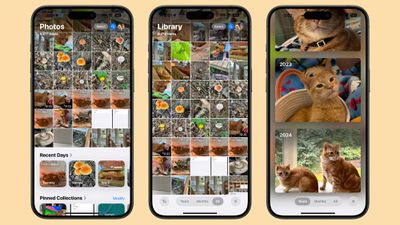
The Photo Library grid displays approximately 30 images at one time, and to use the swipe gestures to display fewer or more images on the screen, you need to swipe down to get to the full Photo Library view. From here, you can pinch in or out to adjust the view.
This is also where the Years and Months organizational options are for navigating through your past images. The Days option has been removed, and is instead accessible in a Recent Days Collection if you scroll down.
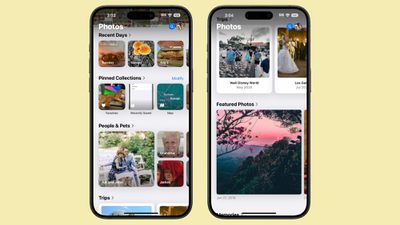
There is a quick access search icon in blue on every view in the Photos app, along with a Select button that lets you select multiple images for sharing, deleting, adding to an album, and more. Tap on Search to get into the Search interface, and Done when you're finished, or tap on Select and tap images to choose them.
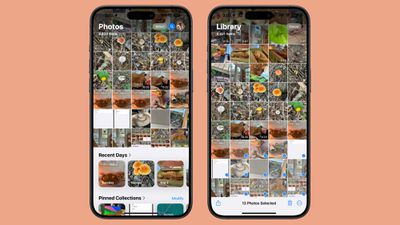
You'll need to get used to swiping down to get to the full Photo Library view, and swiping back up to get to the other views in the app.
Below the main Photos grid, you can swipe to see different collections of images that previously would have been listed under the For You tab, along with your Albums, which were also previously located in a separate app section.
Much of what was in the prior version of the Photos app is still in the new one, but with a different all-in-one screen organizational structure.
Filters and Sorting
In the full Library View, which is accessible by swiping down, you can get to the filter and sort options. You can sort the Photo Library by either recently added or date captured.
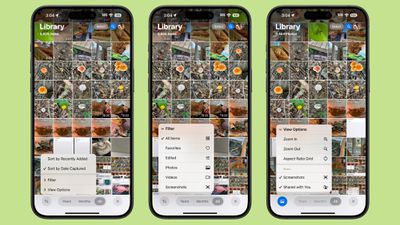
The icon with two arrows houses filters, which include Favorites, Edited, Photos, Videos, and Screenshots. If you tap on one of these, you can filter out everything else to see just that category.
With the separate View Options tab, you can remove Screenshots and Shared With You images from your Photo Library. View Options also has Zoom In, Zoom Out, and Aspect Ratio Grid tools, all of which were in the prior version of the Photos app.
Collections and Customization
The iOS 18 Photos app is focused on Collections, which are basically different albums that aggregate photos based on subject, location, type, and other parameters. Everything outside of the photo grid is considered a "Collection."
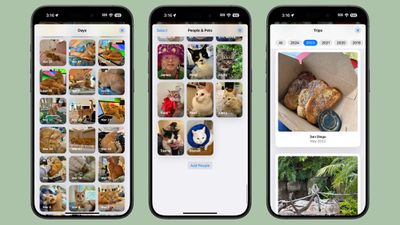
- Recent Days - Displays your recent images by date. You can scroll through or tap on the Collection name to see your entire Photo library organized by day. It's essentially equivalent to the Days view from the iOS 17 Photo Library design.
- Albums - A collection of all of the albums you've created, including Shared albums you're in.
- People and Pets - Albums organized by person or pet, with Apple using machine learning to detect the people in the images. The People and Pets album now supports Groups, so if you have many images featuring the same people, you'll see them grouped together. Groups are auto-generated if there are enough images, but you can also create them.
- Memories - Houses the auto-generated slideshows that Apple creates, along with the new Apple Intelligence Memory Maker slideshows.
- Trips - Shows your photos from different locations. Tapping into this Collection and then tapping the dates lets you see your trips by year.
- Shared Albums - Albums that you share with others.
- Pinned Collections - A selection of your favorite collections or albums.
- Featured Photos - A rotating collection of your best images surfaced by the Photos app.
- Media Types - Lets you see images recorded with different camera settings. Options include Videos, Selfies, Live Photos, Portrait, Panoramas, Slo-mo, Screenshots, Screen Recordings, Spatial, and RAW. This section used to be under the Albums tab.
- Utilities - Essentially offers filters for different types of images, letting you quickly get to images with handwriting, receipts, and more.
- Wallpaper Suggestions - Images that the Photos app thinks would make ideal wallpapers, complete with different tints, colors for the time, and fonts.
Customization
You can change the order that Collections are displayed under the Photos grid, so you can get to your most used features first. To do this, scroll down to the bottom of the Photos app and then tap on the Customize and Reorder option.
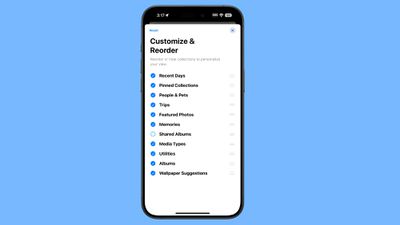
You can deselect a checkmark to remove a Collection, or tap and drag the three bars next to each Collection to rearrange the order. Tapping on X exits out of the menu and goes back to the main Photos view.
Pinned Collections
Pinned Collections is a collection of your other Collections and albums. You can add anything you want to the Pinned Collections section, including albums, media types, other collections, and Utilities. It's basically a way to get one-tap access to any Photos app category.

This is a good section for adding content you like to access that isn't already included in one of the default Collections, such as the Map that lets you see where all of your photos were taken.
If you often need to access your screenshots or your videos, those make good pinned collection options. You can also choose any person or pet from the People and Pets Collection, specific trips, and specific memories.
Customizing this section can be done by tapping on one of Apple's suggestions, which are in green, or tapping on the Any Collection or Album option to select something custom. To remove a Pinned Collection, tap on the red "-" button, and to rearrange, tap and drag on the three bar icon.
Pinned Collections stay in the Pinned Collections section, so you can't do something like turn a specific pet album into a separate Collection of its own.
Photo Editing
The interface for editing one of your images hasn't changed too much, but there are some updates. Rather than tapping on the "Edit" button at the top right of the app, you'll now need to tap on the icon that looks like three slider bars to get into the editing interface.
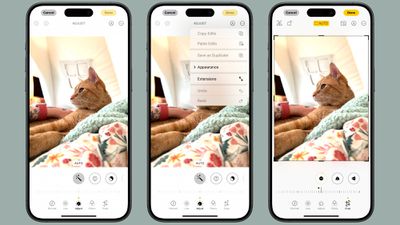
The Share Sheet icon and Delete icon are in the same spots, and there's still a heart for favoriting images and an info button that also transforms with a sparkle icon when there's something in the image that can be identified, like a plant or animal.
All of the same photo management features like Copy, Duplicate, Hide, Slideshow, and Add to Album can be accessed by tapping the three dots in the upper right corner. Tapping the X there now exits the editing view, which is a departure from the prior back arrow on the left side of the app.
Apple hasn't changed the actual editing tools, and they're all still in the same spots.
Utilities
In iOS 17, the Utilities album was limited to Imports, Duplicates, Hidden, and Recently Deleted, but in iOS 18, the new Utilities Collection houses a lot more image types.
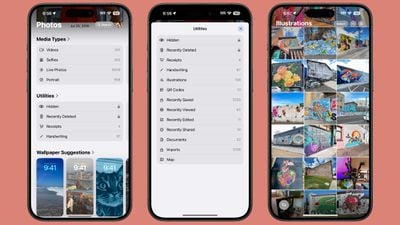
- Hidden - Images you've hidden from view in the photo grid. Requires a Face ID scan to access.
- Recently Deleted - Images you've deleted in the last 30 days. Requires a Face ID scan to access.
- Duplicates - If you have duplicate images, you can use this to merge them. This section doesn't show up if you don't have duplicate images.
- Receipts - Shows pictures of receipts, or images your device thinks are receipts.
- Handwriting - Displays all images that have handwriting in them.
- Illustrations - Shows paintings and drawings.
- QR Codes - Surfaces images that have QR codes in them.
- Recently Saved - All images recently saved to your library.
- Recently Viewed - All images you've looked at recently.
- Recently Edited - All images you've edited recently.
- Documents - Features images that have documents in them.
- Imports - Shows imported images.
- Map - Opens up the map where you can see all of your images based on location.
- Recovered - This album only shows up if you have a missing image after an update, such as an image taken with a third-party app that didn't make it into your library.
Search Improvements
Apple made several improvements to the Search function in the Photos app. You can search using natural language, and get a lot more specific than before.
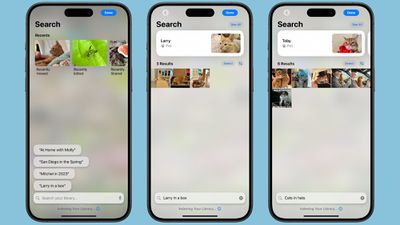
Not only can you search for a specific person, for example, you can find photos where they're only wearing blue, or were holding an ice cream. Some example search terms:
- Me with food
- Cats outside
- Bugs on plants
- Pancakes with banana
- Flowers from last year
- Cat in a box
You can essentially describe any photo that you remember and the Photos app might be able to find it based on your description. You can also now search for specific parts of videos that you've captured and the Photos app will go right to the scene in the video if it recognizes what you've typed.
For all of the search features, the Photos app needs to index your library because this is done on-device, and indexing can take quite a long time.
Memory Maker (Apple Intelligence)
Memory Maker is a feature that lets you create a custom Memory Movie from your photos and videos using a text prompt. You can get to the Memory Maker in the Memories Collection in the Photos app.
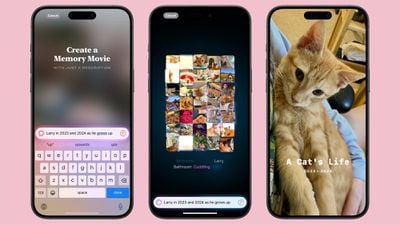
Tap on the "Create" option to start a new memory based on a phrase. You can type in something like "My cat over the years" "exploring Ireland," "yummy food," or "happy photos with Eric." The Photos app will search through your library for the best images, creating a mini narrative with a beginning, middle, and end.
Your memory will be set to music, with Apple selecting songs that go along with the topic. You can select a new song to go along with the memory, and if you have an Apple Music subscription, it will use Apple Music songs. You can also edit the timeline and the title for further customization.
Memory Movies can be shared on social networks or in messages, added to your Favorites, or AirPlayed to an Apple device.
Clean Up (Apple Intelligence)
Part of Apple Intelligence, Clean Up can be used to intelligently identify background objects in your photos so you can remove them with a tap. It's designed to help you quickly and easily eliminate distractions from your photos, but it's not coming until later this year.
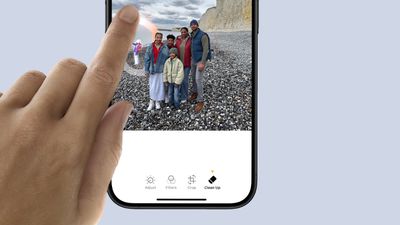
Image Playground Integration (Apple Intelligence)
Image Playground, the app that will let you generate images based on text prompts, will integrate with the Photos app to create images that feature your friends and family members.
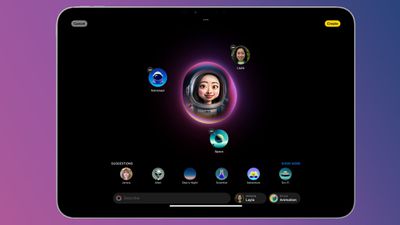
Image Playground is also an Apple Intelligence feature that will be coming in the future.
Read More
Additional information on new features that Apple has added in iOS 18 can be found in our iOS 18 roundup.