10 Essential Tips for Using the macOS Finder More Efficiently - MacRumorsOpen MenuShow RoundupsShow Forums menuVisit ForumsOpen Sidebar
Skip to Content

10 Essential Tips for Using the macOS Finder More Efficiently

by

macos finder iconThe Finder is a classic Mac system component that's ever-present on your desktop, ready to help you find and organize your documents, media, folders, and other files. It's the smiling icon known as the Happy Mac logo on your Dock, and includes the Finder menu bar at the top of the screen.


A lot of hidden power resides in every Finder window. In this article, we've highlighted some of our favorite Finder tips and tricks to help you work more efficiently with files and folders on your Mac.

1. Quickly Adjust Column Widths

The Column view is one of our favorite ways of working with files, and we've got two quick column adjustment tips to make it work better for you.

If you open a new Finder window and the column width is too small to view the names of your files, double-click the bottom of the column divider and the width will automatically expand to fit the longest filename.
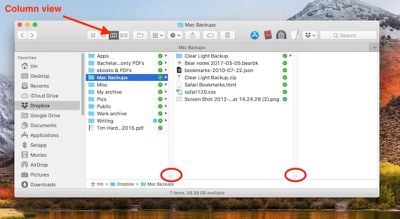
column view widths
Another useful trick is to hold down the Option (⌥) key when adjusting the column width manually (by click-dragging the divider). This adjusts all of the columns in the same window at the same time, and also sets the chosen size as the default column width for all Finder windows going forward.

2. Set a Default Folder for a New Finder Window

If you often work with files in a specific folder, then it's worth setting it as the default folder that every new Finder window opens with automatically.
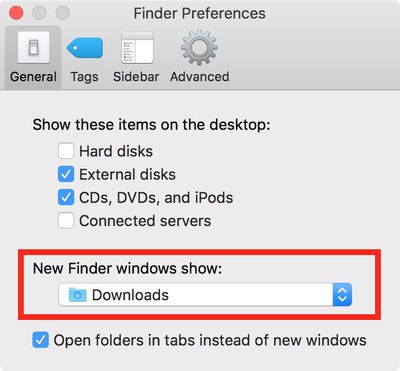
Default Folder
Click Preferences in the Finder menu bar, and under the General tab you'll see a dropdown menu under "New Finder windows show:". Select one of the options in the list, or click Other... to choose a custom location.

3. Customize the Toolbar

You can put more options at your fingertips when working with files and folders by adding more action buttons to every Finder window's toolbar.
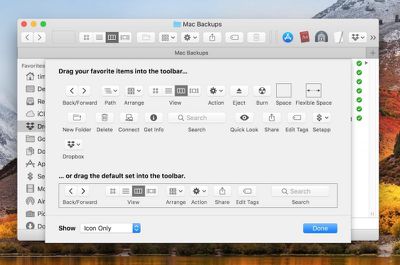
Customize toolbar
To do so, right-click (or Control-click) the Finder window's toolbar and select Customize Toolbar.... You'll see a dropdown menu of buttons any of which you can drag up to the toolbar with your mouse cursor, as well a default set that you can drag up to replace any you've previously added.

4. Add Shortcuts to the Toolbar

You can add convenient shortcuts along the top of the Finder window to any app, file, or folder you like, simply by holding down the Command (⌘) key and dragging the item onto an available space in the toolbar.
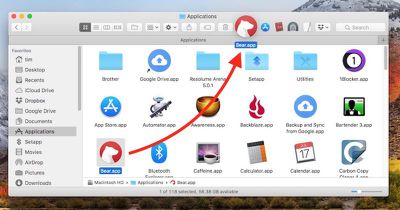
finder apps toolbar

5. Merge All Open Finder Windows

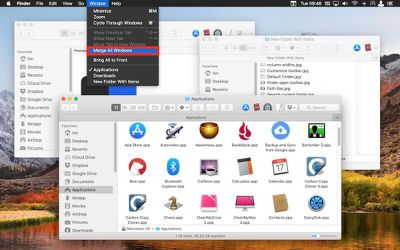
Merge all windows
If your desktop is being taken over by multiple Finder windows, you can quickly unify them as tabs in a single window: With a Finder window active, simply click Window in the menu bar and select Merge All Windows.

6. Reveal the File or Folder Path

The location of a folder or file may not be immediately obvious when viewed in a Finder window, so here are a few ways to find out.
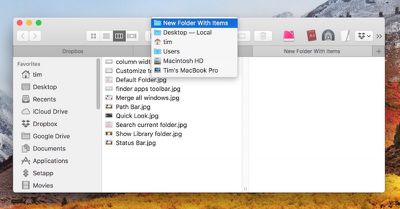
folder path from toolbar
The easiest method is to right-click (or Control-click) the folder name and icon in the title bar. This will show you the full path in a dropdown menu, allowing you to quickly jump to any folder in the list.
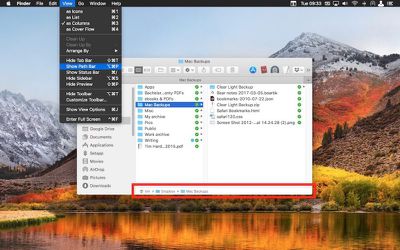
path bar reveal
Alternatively, you can make the path constantly visible at the bottom of every Finder window, by selecting View -> Show Path Bar in the Finder menu bar. Note that you can double-click on any folder in the Path bar to jump straight to it in the current open window/tab.

If you don't want the Path bar taking up space in each Finder window, you can make the path appear by default in the title bar. Simply open Terminal (in Applications/Utilities) and type the following command into the Terminal window:

defaults write com.apple.finder _FXShowPosixPathInTitle -bool true; killall Finder

If you no longer want the path to appear in each Finder's title bar, just run the above command again but replace the word true with false.

7. Show the Status Bar

Surprisingly turned off by default, Finder's Status bar displays two pieces of information that will come in handy when organizing your files.
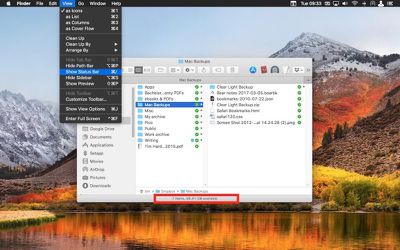
Status Bar
In the Finder menu bar, select View -> Show Status Bar, and at a glance you'll be able to tell how many items are contained in the open folder, as well as the current disk's available storage space.

8. Reveal the Library Folder

Apple hides the Library folder by default to prevent less savvy users from fiddling with its contents and causing app/system issues, but if you'd rather have easy access to the Library folder, here are two ways to reveal it.

For quick access to the Library folder from the Finder menu bar, click the Go menu, hold down the Option (⌥) key, and then select Library in the dropdown menu.
Screen Shot 2
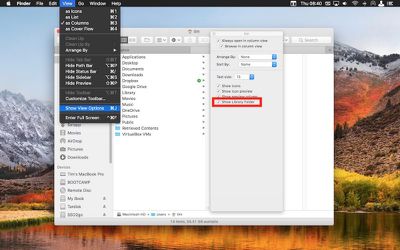
If you want to reveal the Library folder permanently, navigate to your home folder (found in /user/[yourname]/... from the system root directory), select View -> Show View Options from the menu bar, and then check "Show Library Folder" at the bottom of the options pane.

9. Search Only the Current Folder

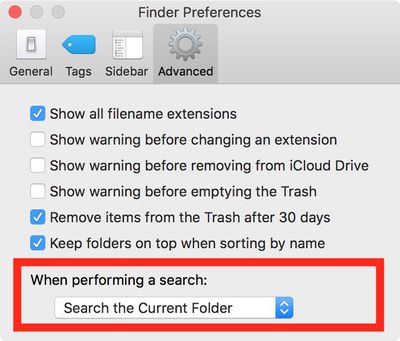
The Search bar in every Finder window searches your entire system by default, but there's an option in Finder's preferences that lets you automatically limit searches to the folder that's currently open.
Search current folder
In the menu bar, click Finder -> Preferences and select the Advanced tab. In the dropdown menu under "When performing a search", select Search the Current Folder.

10. Enter a Fullscreen Slideshow in Quick Look

Most macOS users are familiar with Finder's spacebar-activated Quick Look mode, which offers a preview of the currently highlighted file or files, but fewer users will be aware of Quick Look's fullscreen slideshow feature.

Quick Look
You can enter a fullscreen slideshow preview by holding the Option (⌥) key when you next press the spacebar to activate Quick Look. The desktop will fade out for a close-up of your selected images and/or documents, which can be scrolled through using the arrow keys or using the onscreen navigation overlay. You can also select the index card icon on the overlay to glance at all your selected files on the one screen.

Got an essential Finder tip we haven't covered? Be sure to share it in the comments below.

Top Rated Comments

114 months ago
Shift + Command + . to show hidden files is also very important
Score: 24 Votes (Like | Disagree)
114 months ago
“The easiest method is to right-click (or Control-click) the folder name and icon in the window header.”
“...you can make the path appear by default in the window header.”
“If you no longer want the path to appear in each window header...”

Since 1984 this has been called the Title Bar. Maybe the next MacRumors tutorial should review names for basic screen objects.
Score: 9 Votes (Like | Disagree)
114 months ago
Shift + Command + . to show hidden files is also very important
OMG. The list of 10 things I knew. Like all of them. But this. This is a real gem !!! How can I have NEVER heard of this before?! This is REALLY epic.
Score: 7 Votes (Like | Disagree)
smirking Avatar
114 months ago
Wow, I learned something. Cool!

My favorite tip wasn't included. You can easily rename a whole bunch of files in one go by selecting them all and doing Right Click -> Rename X Items.

This will open up a dialog that allows you to set a common name for all the files followed by how you want the numerical indexing to work. You can group a bunch of images together and rename them something like "My_Vacation_2018-1.jpg, My_Vacation_2018-2.jpg, My_Vacation_2018-3.jpg" and so forth.
Score: 7 Votes (Like | Disagree)
jayducharme Avatar
114 months ago
I never knew you could pin apps to a Finder window. Some nice tips. Thanks!


Score: 7 Votes (Like | Disagree)
114 months ago
Excellent reminders of MacOS’s elegant and productive utility. Still the most polished desktop OS ever conceived.
Score: 3 Votes (Like | Disagree)

Popular Stories

duo aquarium

More Fun iPhone Duo Apps: 30 New Picks to Try

Friday November 6, 2026 3:27 pm PST by
When the iPhone Duo launched, we shared a list of some of the fun apps developers created for the new form factor. Two weeks out, developers are continuing to come up with fresh ideas, so we thought we'd share some of our favorites. Games Marbles Unhinged ($2.99) - Marbles Unhinged is a marble maze designed for the Duo. When you fold it, the floor turns into a ramp. If you stand the top...
apple pro tell logo

Apple Launching Five New Products Today

Thursday November 5, 2026 12:59 am PST by
Apple is launching five new products on Friday, November 6, following pre-orders that opened last week, including its first touchscreen MacBook Pro models. The following new products will be available from today: iPad mini with OLED display and A20 Pro chip iMac with M6 chip 14-inch MacBook Pro with M6 chip 14-inch MacBook Pro with OLED touchscreen 16-inch MacBook Pro with OLED...
iOS 28 AI

Apple Taking New Approach to Developing iOS 28 and macOS 28

Sunday November 8, 2026 7:42 am PST by
Apple has made a change to its development process for iOS 28, macOS 28, and corresponding software updates, according to Bloomberg's Mark Gurman. In his Power On newsletter today, he said Apple separates development of each year's new operating systems into three major stages. Typically, he said each stage consists of four weeks of coding followed by a four-week "convergence" period where...
Latest Stories
Apple Store Subscription Sign-Up Controversy Exposed
4 hours ago
Siri AI Rumored to Become 'More Like an Agent' as Early as Next Year
14 hours ago
Apple Taking New Approach to Developing iOS 28 and macOS 28
16 hours ago
Early Apple Black Friday Deals on Apple Watch, MacBook Air, and More
1 day ago
'Backglow' Lets You Customize New MacBook Pro's Glowing Apple Logo
1 day ago
Top Stories: Apple Product Launches, iOS 27.3 Beta, and More
2 days ago
More Fun iPhone Duo Apps: 30 New Picks to Try
2 days ago
Hands-On With Apple's New OLED Touchscreen MacBook Pro
2 days ago
Apple Store With All-New Design Opening Soon in Southern California
2 days ago
Control the Glowing Apple Logo on Your New MacBook Pro
3 days ago
Apple Shares New 'Apple Card: Apply and Use in Minutes' Ad
3 days ago
Apple Says More Than 100,000 Apps Optimized for iPhone Duo, Here's What's Still Missing
3 days ago
Early Black Friday Deals Kickoff With Steep Discounts on Apple Watch Ultras and More
3 days ago
The MacRumors Show: iOS 27.3 Looks Like a Huge Update
3 days ago
Best Buy's Black Friday Event Begins With Sitewide Savings on Apple, TVs, More
3 days ago
Apple Releasing Yet Another Two New Products Next Week
3 days ago
MacBook Air Drops to Lowest Price in Months With Amazon's $250 Discount
3 days ago
Apple Rumored to Drop the iPhone's Action Button Next Year
3 days ago
Apple's Extended Return Policy Now in Effect for 2026 Holiday Season
3 days ago
Apple Music Classical Updated With New Icon and Refreshed Design
3 days ago
OLED iPad Mini, M6 iMac, and New MacBook Pros Available From Today
3 days ago
Apple Surveys iPhone Duo Buyers About Crease and Camera
3 days ago
Apple's First Touchscreen Mac is Now Arriving to Customers
3 days ago
Claude Gets Personal Finance Feature With Bank Account Linking
3 days ago
Apple Arcade Adds Crossy Road Rush and NBA 2K27
3 days ago
Apple's New HomeView Smart Home Hub: Here's How Much RAM It Has
3 days ago
iPad Mini vs. iPad Air Buyer's Guide: Now Just $50 Apart
3 days ago
First iOS 27.3 and macOS Golden Gate 27.3 Public Betas Now Available
4 days ago
Apple Announces a New Mac Sales Record
4 days ago
Paid $200 for Logic Pro? Apple Says You Won't Get This New Feature
4 days ago