25 Must-Know macOS Tips for Beginner, Intermediate and Advanced Mac Users - MacRumorsOpen MenuShow RoundupsShow Forums menuVisit ForumsOpen Sidebar
Skip to Content

25 Must-Know macOS Tips for Beginner, Intermediate and Advanced Mac Users

There are dozens if not hundreds of macOS shortcuts and tricks to streamline your workflows and make it easier to use your Mac, but many of these shortcuts are easily overlooked or forgotten.

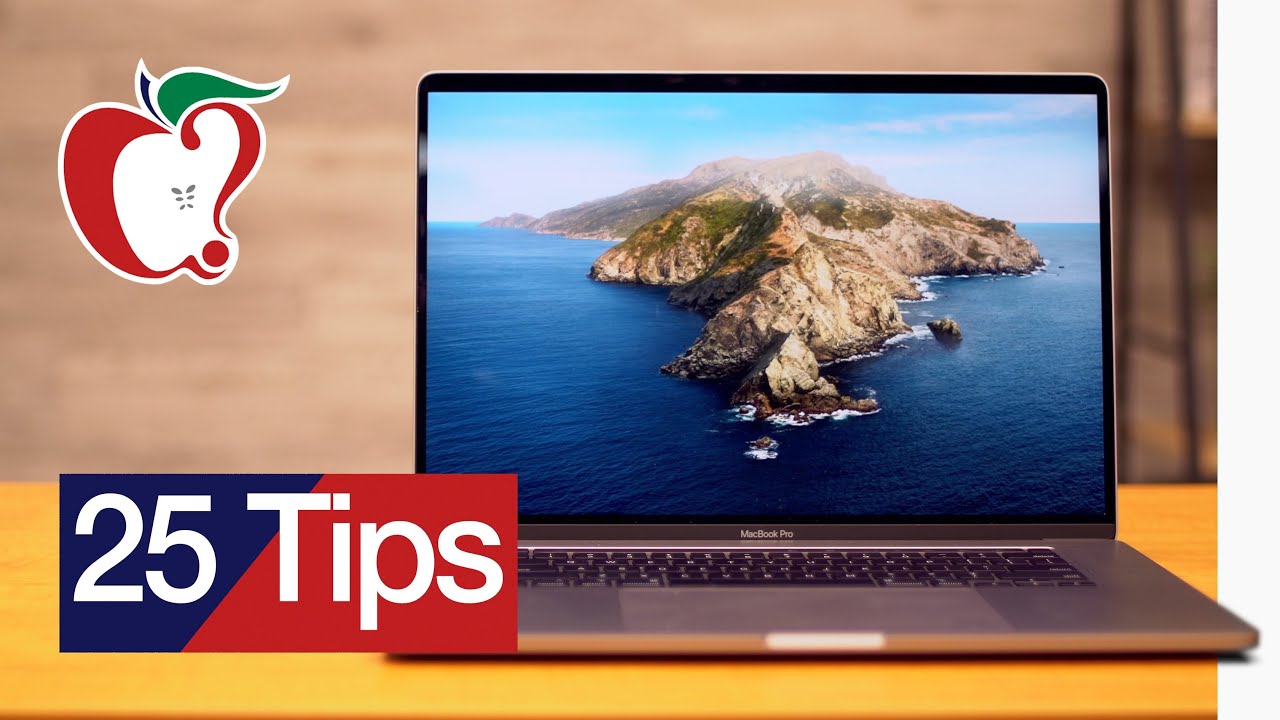
For this guide and accompanying YouTube video, we asked MacRumors readers on Twitter and YouTube for their most useful macOS tips, which we've compiled below. Some of these are more basic and will work for all users, while others are a bit more advanced for those who are looking for a deeper dive into macOS. Check out our video to see them in action, or read through the guide for a quick overview.


Desktop and App Management

  • Activate Spotlight for Searching - To bring up a handy search interface that will let you find files on your Mac, just use Command + Space. Spotlight can do all kinds of things, from locating files to answering basic questions to solving math problems.
  • Swap Between Apps - To switch between your open applications, press Command + Tab. Keep holding down the Command key and then press Tab to cycle through the open apps. Let go when the app you want is highlighted.
  • Close Apps From App Switcher - When you're in the Command + Tab view, press the Q key with command held down to close an open app.
  • Hot Corners - If you don't already use Hot Corners, they're worth checking out. You can set tasks that will happen when your mouse hovers in a specific corner, like launching Mission Control, showing the desktop, and more. Set them up in System Preferences > Mission Control > Hot Corners.
  • Advanced Hot Corners - If you want to use Hot Corners but have found yourself accidentally activating features, hold down the Option key when setting up a Hot Corner. From there, the Hot Corner won't activate unless you're holding down the Option key.
  • Hide a Window - To quickly hide a window on the desktop, just press Command + H. The app will disappear into the background, but you can get it back by clicking on the icon on the dock or using Command + Tab.
  • Hide All Windows - You can hide all of the windows except for the window for the app you're currently using by pressing Option + Command + H.
  • Cycle Between App Windows - If you have multiple windows open for an app like Safari, you can swap between those open windows using Command + the Tilde (~) key.
  • Switch Between Multiple Desktops - If you use multiple desktops, you can swap between them quickly by pressing the Control button and then either the left or the right arrow.

Managing Files

  • Quickly Open Folders - To open up a folder in Finder or on your desktop, hold Command and press the down arrow key. To go back, just hold Command and press the up arrow key.
  • Clean Up Your Desktop - For those with macOS Mojave or later, on a messy desktop, just right click and choose "Stacks" to have your Mac automatically organize everything by file type.
  • Instant File Deletion - If you want to delete a file and want to bypass the Trash Can on the Mac that saves files before deleting them, just select a file and press Option + Command + Delete at the same time.
  • Create an Auto Duplicating File - If you want to create a duplicate file when clicking on a specific file, just right click, select "Get Info." and then check the Stationary Pad box. Every time you open that file, it'll actually open a duplicate, which is great for templates and similar file types.

Screenshots

  • Video Screenshots - Shift + Command + 3 takes a screenshot, Shift + Command + 4 lets you select an area of the screen to screenshot, but Shift + Command + 5, a lesser known option, brings up an interface that lets you record your screen or a portion of your screen.
  • Cleaner Screenshots - When using Shift + Command + 4 to select an area of the screen, if you press spacebar, the icon turns to a camera. From there, you can click on any open window to get a screenshot of just that window or interface element like dock or menu bar.

Safari

  • Safari Picture-in-Picture (YouTube) - You can watch a video in Safari while you do other things. To do so with YouTube, just right click twice on a video that's playing to bring up a menu offering the picture-in-picture feature.
  • Safari Picture-in-Picture Pt. 2 - If the right clicking method doesn't work to pop out a video or you're not watching YouTube, there's another method. With a video playing, look for the audio icon in the Safari toolbar, right click it, and it should bring up a picture-in-picture option.
  • Easier Link Copying - If you want to copy the current URL in Safari, press Command + L to highlight the URL bar and then press Command + C to copy. It's quicker than using a mouse.

Force Touch Trackpad

  • Quick Looks - When using a Mac with a Force Touch Trackpad, if you click and hold on something like a website link or a YouTube video, you can see a little preview of the content to see what it is without having to leave the current page you're on.
  • Dictionary - If you see a word that you're not familiar with, highlight it and press down on it with the Force Touch Trackpad to get a dictionary definition.
  • Rename Folders and Files - If you Force Touch on a folder or file name, you can quickly rename it. Force Touch on a folder or file icon and you can see a preview of the file.

Apple Watch and Mac

  • Unlocking With Apple Watch - If you have an Apple Watch, you can use it to unlock your Mac, which is a super useful feature for those who don't know about it. To set it up, open System Preferences > Security & Privacy and then toggle on Unlock Mac with Apple Watch.
  • Apple Watch Password Authentication - For those with macOS Catalina and an Apple Watch, the Apple Watch can also be used as an alternative to a password so you don't need to type in passwords frequently.

Notification Center

  • Activate DND Quickly - If you hold the Option key and click on the Notification Center icon in the top right corner of your Mac's menu bar, you can activate Do Not Disturb.

Keyboard Tricks

  • Alternate Mouse Control - There's an option to control your mouse cursor with your keyboard, and it can be enabled in Accessibility. Open up the Accessibility settings and under Pointer Control, choose the Alternate Control Methods tab. From there, turn on Enable Mouse Keys and select toggle to turn on Mouse Keys when Option is pressed five times. When you press Option x5, Mouse Keys turn on and you can use the keyboard to move the mouse.
  • Quick Access to Function Key Settings - When pressing one of the function keys to activate Mission Control, Brightness, Media playback, and more, if you hold down Option when you press, you can access the corresponding Settings options inside System Preferences for those keys. Note: This doesn't work on Touch Bar Macs.

Share More Tips

Do you have other useful Mac tips and tricks that we didn't cover here? Let us know in the comments and we might highlight them in a future video.


Popular Stories

apple pro tell logo

Apple Launching Five New Products Today

Thursday November 5, 2026 12:59 am PST by
Apple is launching five new products on Friday, November 6, following pre-orders that opened last week, including its first touchscreen MacBook Pro models. The following new products will be available from today: iPad mini with OLED display and A20 Pro chip iMac with M6 chip 14-inch MacBook Pro with M6 chip 14-inch MacBook Pro with OLED touchscreen 16-inch MacBook Pro with OLED...
duo aquarium

More Fun iPhone Duo Apps: 30 New Picks to Try

Friday November 6, 2026 3:27 pm PST by
When the iPhone Duo launched, we shared a list of some of the fun apps developers created for the new form factor. Two weeks out, developers are continuing to come up with fresh ideas, so we thought we'd share some of our favorites. Games Marbles Unhinged ($2.99) - Marbles Unhinged is a marble maze designed for the Duo. When you fold it, the floor turns into a ramp. If you stand the top...


silver iphone 18 pro

Apple Rumored to Drop the iPhone's Action Button Next Year

Friday November 6, 2026 6:07 am PST by
Apple plans to merge the iPhone's Action button with the Camera Control starting next year, according to the leaker known as "Instant Digital." In a new post on Weibo, the leaker claimed that a single press of the combined button would open the camera, while a long press would trigger the function assigned to the Action button. They explicitly clarified that the dedicated Action button would ...

Top Rated Comments

88 months ago
To add on to the screenshots:

Holding on to the Control key whilst doing any of the screenshot commands copies – (e.g. Control + Shift + Command + 4) copies the screenshot to your clipboard instead of saving as a file to your desktop.

Has helped me save clicks and time when editing documents or emails.
Score: 15 Votes (Like | Disagree)
idark77 Avatar
88 months ago
Cmd+Shift+. to show/hide invisible files in Finder.
Score: 9 Votes (Like | Disagree)
88 months ago
Holding the option key while resizing a window resizes it from the center. That works if you resize it by the edge or by the corner.
Holding the shift key while resizing a window keeps the window proportions constant.
Score: 8 Votes (Like | Disagree)
88 months ago
Option+Shift+Fn keys (eg. Vol Up/Down, Brightness, Keyboard backlight) will allow finer control over each instead of the preset steps. Pretty nifty
Score: 7 Votes (Like | Disagree)
88 months ago

Cleaner Screenshots - When using Shift + Command + 4 to select an area of the screen, if you press spacebar, the icon turns to a camera. From there, you can click on any open window to get a screenshot of just that window or interface element like dock or menu bar.
Cmd + Ctrl + Shift + 4 takes a snapshot and stores it in your clipboard so that you can paste it in Slack or somewhere
Score: 6 Votes (Like | Disagree)
88 months ago
One correction: For Cycle Between App Windows –

its not the ~(tilde) key it’s the `(grave) key. Tilde is with shift. Grave is without shift.
Score: 6 Votes (Like | Disagree)
Latest Stories
Early Apple Black Friday Deals on Apple Watch, MacBook Air, and More
11 hours ago
'Backglow' Lets You Customize New MacBook Pro's Glowing Apple Logo
11 hours ago
Top Stories: Apple Product Launches, iOS 27.3 Beta, and More
18 hours ago
More Fun iPhone Duo Apps: 30 New Picks to Try
1 day ago
Hands-On With Apple's New OLED Touchscreen MacBook Pro
1 day ago
Apple Store With All-New Design Opening Soon in Southern California
1 day ago
Control the Glowing Apple Logo on Your New MacBook Pro
2 days ago
Apple Shares New 'Apple Card: Apply and Use in Minutes' Ad
2 days ago
Apple Says More Than 100,000 Apps Optimized for iPhone Duo, Here's What's Still Missing
2 days ago
Early Black Friday Deals Kickoff With Steep Discounts on Apple Watch Ultras and More
2 days ago
The MacRumors Show: iOS 27.3 Looks Like a Huge Update
2 days ago
Best Buy's Black Friday Event Begins With Sitewide Savings on Apple, TVs, More
2 days ago
Apple Releasing Yet Another Two New Products Next Week
2 days ago
MacBook Air Drops to Lowest Price in Months With Amazon's $250 Discount
2 days ago
Apple Rumored to Drop the iPhone's Action Button Next Year
2 days ago
Apple's Extended Return Policy Now in Effect for 2026 Holiday Season
2 days ago
Apple Music Classical Updated With New Icon and Refreshed Design
2 days ago
OLED iPad Mini, M6 iMac, and New MacBook Pros Available From Today
2 days ago
Apple Surveys iPhone Duo Buyers About Crease and Camera
2 days ago
Apple's First Touchscreen Mac is Now Arriving to Customers
2 days ago
Claude Gets Personal Finance Feature With Bank Account Linking
2 days ago
Apple Arcade Adds Crossy Road Rush and NBA 2K27
2 days ago
Apple's New HomeView Smart Home Hub: Here's How Much RAM It Has
2 days ago
iPad Mini vs. iPad Air Buyer's Guide: Now Just $50 Apart
2 days ago
First iOS 27.3 and macOS Golden Gate 27.3 Public Betas Now Available
3 days ago
Apple Announces a New Mac Sales Record
3 days ago
Paid $200 for Logic Pro? Apple Says You Won't Get This New Feature
3 days ago
Instagram's Edits Video Editor is Now Available on Mac
3 days ago
Prevent Siri and Search From Accessing Specific iPhone Apps
3 days ago
Best Early Black Friday Deals on iPhone 18 Pro and iPhone Duo
3 days ago