In iOS 15, you can put multiple copies of the same app on your iPhone's Home Screen. On the surface, this may seem like a strange thing to allow, and perhaps even a bug, but Apple has intentionally made it possible to have additional copies of an app across several Home Screen pages so that the apps can be used in conjunction with its new Focus features.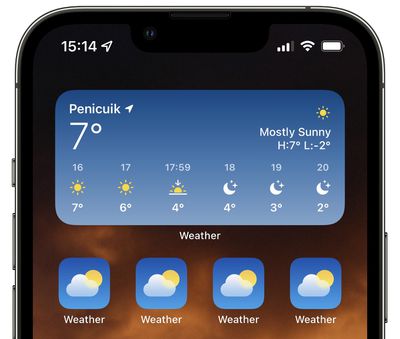
One of the functions of Focus is that you can disable Home Screen pages based on which Focus mode they're assigned to. For instance, you can set up a Focus mode for work and a different one for leisure time, and have any work apps hidden in the latter mode. In this example, you may want certain apps to appear on both Home Screen pages you've set up, which is why it's possible to have multiple copies of the same app.
Don't worry – having several copies of apps on your iPhone doesn't use any additional storage, since every icon refers to the one app. The following steps show you how it's done.
- On your iPhone, keep swiping left on the Home Screen to reveal the App Library.
- Locate the app you want to duplicate and long-press its icon until a little green plus symbol appears and a copy of the app appears on the last Home Screen, which will be in jiggle mode. Alternatively, long press the app icon and then drag it to the nearest Home Screen.
- Move the copy of the app to the desired Home Screen, then tap Done in the top-right corner of the screen.
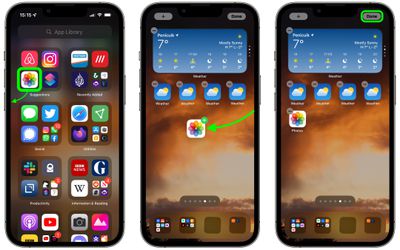
To create multiple copies of the same app, simply repeat these steps as many times as you like.
Tip: If you're having a hard time finding the app you want in the App Library, tap the search bar at the top or swipe down to see all the apps on your iPhone listed alphabetically. When you find the app you want, long-press its name rather than its icon, then drag it left towards the Home Screen.
If you later decide you don't want multiple copies of the same app, simply long press its icon on the Home Screen, then tap Remove App, and confirm by tapping Remove from Home Screen. Bear in mind that if you select the Delete App option on this menu, it will uninstall the app from your iPhone and any other icon copies of it on your Home Screen will vanish.